Remove Subtitles from Anime — Clean Hardsubbed Clips
Why Anime Clips Are Hard to Clean
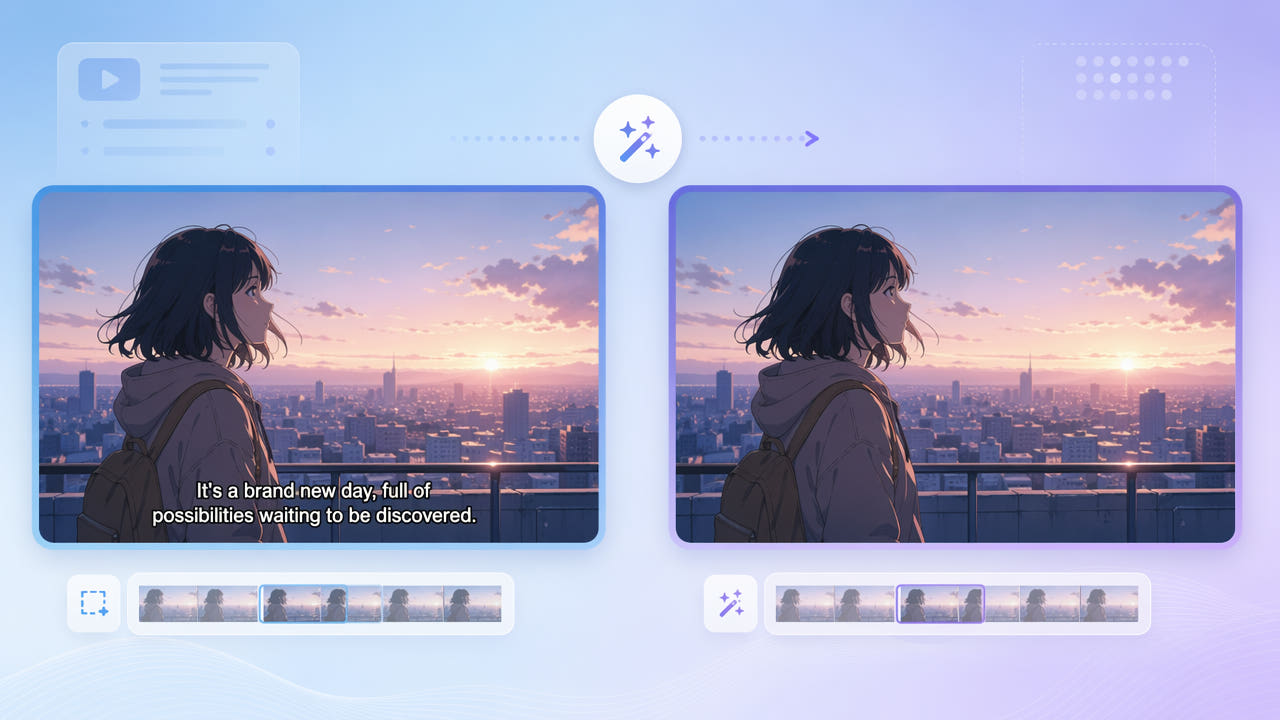
Anime distributed through fansubs and many streaming rips comes with hardcoded subtitles — text burned directly into the video pixels. Unlike soft subtitles in a separate track that you can simply toggle off, hardsubs are part of every frame and cannot be disabled in a player.
Hardsubs vs. Softsubs
AMV creators, edit accounts, and reaction channels usually want clean frames without the original caption text. Re-translators also need a blank canvas before adding subtitles in another language. In both cases the burned-in text has to be reconstructed away, not just hidden.
Why Editors Want Clean Frames
Anime backgrounds make this tricky: subtitles often sit over detailed artwork, gradients, and motion, and fansub styling adds outlines, drop shadows, and colored fills. A naive blur leaves an obvious smudge, so AI inpainting that rebuilds the art behind the text is the right approach.
Hardsubs are baked into the pixels of every frame, so cleaning anime requires AI that rebuilds the artwork behind the text rather than hiding it.
Removing Anime Subtitles with 550W Video Eraser
550W Video Eraser detects text regions automatically and fills the cleared area with context drawn from the surrounding frames. Most anime subtitles sit in a consistent band near the bottom, which makes selection straightforward: mark the band once and the AI tracks it across the clip.
Mark the Subtitle Band
Because anime art is detailed, Protect mode is usually the better choice. It dedicates more processing to reconstruct line work, gradients, and texture so the result blends with the original cel-style backgrounds. Standard mode still works well for simple scenes and faster turnaround.
Choose the Right Mode
The three-step flow — select clip, mark the subtitle area, export clean result — keeps the process simple. Output stays at the source resolution up to 1080p, which matters for sharp anime line art that compression can easily muddy.
Protect mode reconstructs detailed anime artwork behind the subtitle band far more cleanly than blurring.
Preparing Clips for Re-Translation
If your goal is to subtitle anime in another language, removing the original hardsubs first gives you a clean base layer. You can then add soft subtitles in your editor or burn in new translated text. This is the same workflow used by localization teams preparing foreign-language video — see our guide on removing subtitles for translation workflows.
Work from the highest-quality source you can find. Heavily compressed rips have artifacts clustered around the subtitle outlines, which makes a perfectly clean removal harder. A cleaner source means cleaner reconstruction.
Getting the Best Results on Detailed Scenes
Fansub text usually has a thick outline and a soft shadow. When you mark the region, extend the selection to include those edges so no faint halo remains after processing. A slightly generous box is safer than a tight one.
Cover Outlines and Shadows
Process a full scene in one pass rather than splitting it into many tiny clips. Continuous processing helps the AI keep the reconstructed background consistent across motion and transitions, avoiding visible seams where separately processed segments meet.
Process the Full Clip
Include subtitle outlines and shadows in your selection and process whole scenes at once for seamless, halo-free results.
Frequently Asked Questions
Can I remove burned-in subtitles from anime?
Yes. AI inpainting in 550W Video Eraser reconstructs the artwork behind hardcoded subtitles, producing clean frames that a player cannot achieve by toggling captions.
Will removing hardsubs blur the anime art?
No. Protect mode rebuilds detail behind the text instead of blurring, keeping line work and gradients sharp at up to 1080p.
Can I then add my own translated subtitles?
Yes. Once the original hardsubs are gone you have a clean base to add soft subtitles in your editor or burn in new translated text.
Does it work on fast-moving anime scenes?
It does. Processing the full scene in one pass keeps the reconstructed background consistent through motion and transitions.
What if the subtitles move position between scenes?
Use full-screen mode or adjust the selection so the AI tracks text wherever it appears across the clip.