Batch Remove Subtitles from Multiple Videos
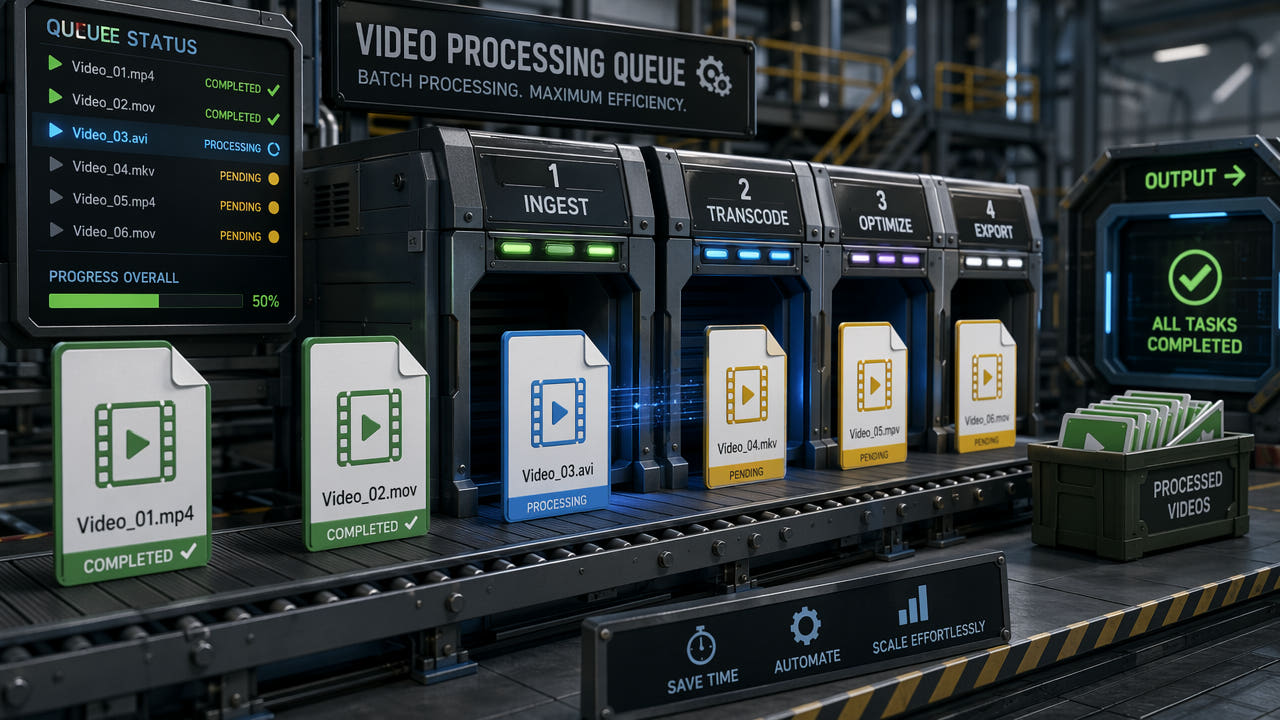
Why Batch Subtitle Removal Matters for Content Creators
Processing videos one at a time is manageable when you have a single clip to clean up. But content creators, agencies, and localization teams regularly work with dozens or even hundreds of videos that all need subtitle removal. Whether you are repurposing a content library for a new platform, preparing videos for translation into multiple languages, or cleaning up archived footage, batch processing transforms a multi-hour manual task into an automated workflow that runs while you focus on other work.
The demand for batch subtitle removal has grown significantly as cross-platform content strategies become standard practice. A creator who posts daily across TikTok, YouTube Shorts, and Instagram Reels may need to remove auto-generated captions from 20 or more videos per week. An agency managing multiple client accounts might process hundreds of clips monthly. Without batch processing capabilities, this volume of work becomes a serious bottleneck in the content production pipeline.
Batch subtitle removal automates repetitive processing, saving hours for creators managing multi-platform content libraries.
When You Need Batch Subtitle Removal
Several common scenarios make batch processing essential rather than optional. Understanding these use cases helps you determine whether investing in batch-capable tools is worthwhile for your workflow.
Cross-Platform Content Repurposing
Creators who produce content for one platform and repurpose it across others frequently encounter subtitle conflicts. TikTok auto-captions need removal before posting to YouTube. Instagram Reel captions look wrong on LinkedIn. Each platform has different caption styles and positions, meaning content downloaded from one platform almost always needs subtitle cleanup before reposting elsewhere. When you are repurposing an entire week or month of content at once, batch processing is the only practical approach.
Video Translation and Localization
Localization workflows require removing original-language subtitles from entire video series before adding translated versions. A 20-episode web series or a library of training videos all need the same treatment. Processing these individually would take days of repetitive work. Batch tools handle the entire library in a single queue, freeing the localization team to focus on translation quality rather than mechanical subtitle removal. For more on translation workflows, see our guide on removing subtitles for video translation.
Content Agency Operations
Digital marketing agencies managing social media for multiple clients often receive raw video assets with burned-in text that needs removal before rebranding or reposting. Processing client deliverables in bulk is a core operational requirement. Batch tools with folder monitoring can even automate the process entirely, watching for new files and processing them without manual triggering.
Archive Cleanup
Organizations with large video archives sometimes need to clean up legacy content. Educational institutions removing outdated caption overlays, media companies preparing catalog content for new distribution channels, and creators refreshing old content for re-release all benefit from batch processing capabilities that can handle hundreds of files systematically.
Step-by-Step: Batch Remove Subtitles with 550W Desktop
The 550W Video Eraser desktop application provides a dedicated batch processing mode designed for high-volume subtitle removal. Here is the complete workflow from setup to output.
Step 1: Import Your Video Files
Launch the 550W desktop application and switch to batch mode using the toggle in the top navigation. Drag and drop your video files directly into the batch queue panel, or use the folder import option to add all videos from a specific directory. The tool accepts MP4, MOV, AVI, and MKV formats. You can mix formats within a single batch since each file is processed independently.
Step 2: Configure the Subtitle Detection Region
For batches where all videos have subtitles in the same position (common when all clips come from the same platform or recording setup), set a fixed detection region on the first video. This region applies to all files in the queue. If your videos have subtitles in varying positions, enable auto-detection mode. This uses AI to identify subtitle locations independently for each video, which is slower but handles mixed-source batches correctly.
Step 3: Set Output Preferences
Configure your output settings before starting the batch. Choose the output format (MP4 is recommended for maximum compatibility), quality level (lossless preserves original bitrate, balanced reduces file size slightly), and destination folder. You can also set filename patterns, such as appending "_clean" to processed files or maintaining original names in a separate output directory.
Step 4: Start Processing and Monitor Progress
Click the start button to begin batch processing. The application processes files sequentially, showing progress for the current file and overall batch completion. You can continue using other applications while processing runs in the background. The tool provides estimated completion time based on current processing speed and remaining queue size. If any file encounters an error, it is skipped and flagged for review without stopping the entire batch.
Batch mode processes videos sequentially with progress tracking, skipping errors without stopping the entire queue.
Optimizing Batch Processing Speed
Batch subtitle removal can be time-intensive depending on your hardware and video specifications. These optimization strategies help you maximize throughput and minimize total processing time.
Hardware Considerations
AI inpainting is computationally intensive. A dedicated GPU significantly accelerates processing compared to CPU-only mode. NVIDIA GPUs with CUDA support provide the best performance for the 550W desktop application. If you process batches regularly, investing in a mid-range or better GPU pays for itself quickly in time savings. For CPU-only systems, expect processing times roughly 3-5 times longer than GPU-accelerated workflows.
Resolution and Quality Trade-offs
Processing time scales with video resolution. A 4K video takes approximately four times longer than the same content at 1080p. If your final output destination only requires 1080p (which covers most social media platforms), consider downscaling before batch processing. This reduces processing time per file and total batch completion time without affecting the quality your audience actually sees.
Fixed Region vs. Auto-Detection
Fixed-region mode is significantly faster than auto-detection because it skips the per-frame subtitle location analysis. When your batch contains videos from the same source with consistent subtitle positioning, always use fixed-region mode. Reserve auto-detection for mixed-source batches where subtitle positions genuinely vary between files.
Queue Organization
Organize your batch queue by resolution and subtitle position. Process all same-resolution, same-position videos together in one batch with fixed-region settings, then create a separate batch for videos requiring different settings. This approach maximizes the efficiency of fixed-region mode while still handling varied content correctly.
Batch Processing Tools Compared
Several tools offer batch subtitle removal capabilities. Here is how the main options compare for high-volume workflows.
550W Video Eraser Desktop
Purpose-built for subtitle and watermark removal with a dedicated batch mode. Supports GPU acceleration, auto-detection, and fixed-region modes. Queue management includes pause, resume, and error handling. Best for creators and agencies who need reliable batch processing with AI-quality results. For individual video processing, the web version is also available.
FFmpeg Scripting
The open-source FFmpeg tool can be scripted for batch processing using shell scripts or Python wrappers. While free and highly customizable, FFmpeg's delogo filter produces inferior results compared to AI inpainting. The filter uses simple interpolation rather than intelligent background reconstruction. However, for workflows where speed matters more than quality, FFmpeg batch scripts can process large volumes quickly on any hardware.
Adobe After Effects with Scripts
After Effects supports batch processing through its render queue and scripting interface. Content-aware fill can remove subtitles with high quality, but the setup time per video is significant and the tool is not optimized for this specific use case. Processing speed is also slower than dedicated subtitle removal tools. Best suited for professional post-production houses already invested in the Adobe ecosystem.
Cloud-Based API Solutions
For very large volumes (thousands of videos), cloud-based APIs offer scalable processing without local hardware limitations. The 550W open API supports programmatic batch submission, allowing integration with existing content management systems and automated workflows. Processing happens on cloud GPUs, so local hardware specifications do not limit throughput. Learn more about API integration in our developer API guide.
Workflow Automation for Recurring Batches
For teams that process subtitle removal batches regularly, automation reduces the workflow to a zero-touch operation after initial setup.
Folder Watching
Configure the 550W desktop application to monitor a specific input folder. When new video files appear in the watched folder, they are automatically added to the processing queue and processed with your predefined settings. Completed files move to the output folder. This creates a simple drop-in workflow where team members simply save videos to the input folder and retrieve clean versions from the output folder.
Integration with Content Management
For agency workflows, integrate batch processing with your content management or project management tools. Use the 550W API to trigger processing when new assets are uploaded to your CMS, or create automated pipelines that process videos as part of a larger content preparation workflow. This eliminates manual steps between content creation and distribution.
Scheduling and Off-Peak Processing
Schedule large batches to run during off-peak hours when your workstation or server is otherwise idle. Overnight processing of accumulated daily content means clean videos are ready each morning without consuming productive work hours. The desktop application supports delayed start times and can be configured to shut down or sleep after batch completion.
Quality Control for Batch Outputs
Batch processing introduces the risk of quality issues going unnoticed across multiple files. Implementing quality control checks ensures consistent results across your entire batch.
Spot-Check Strategy
After a batch completes, review a random sample of outputs rather than checking every file. For batches under 20 files, check 3-5 outputs. For larger batches, check 10-15% of files distributed across the queue. Focus on files with complex backgrounds or unusual subtitle positions, as these are most likely to show artifacts.
Automated Quality Metrics
Some batch tools provide automated quality scores for each processed file. These metrics compare the processed region against expected smoothness and consistency thresholds. Files that score below the threshold are flagged for manual review, allowing you to focus attention only on potentially problematic outputs rather than reviewing the entire batch.
Handling Failed Files
In any large batch, some files may not process correctly due to unusual subtitle styles, extreme background complexity, or file corruption. A good batch workflow isolates failed files for individual attention rather than reprocessing the entire batch. Review failed files to determine whether they need different settings, manual processing, or are simply unsuitable for automated removal.
Frequently Asked Questions
How many videos can I batch process at once?
The 550W desktop app supports unlimited batch queue size. Processing speed depends on hardware and resolution, typically 2-5 minutes per video.
Do all videos need the same subtitle position for batch removal?
No. Auto-detection mode identifies positions individually per video. Fixed-region mode is faster when positions are consistent across files.
Can I batch remove subtitles from videos with different resolutions?
Yes. Auto-detection mode adapts to each video's resolution independently. Fixed-region mode works best with same-resolution batches.
Is batch subtitle removal available in the web version?
The web version processes one video at a time. For batch processing, use the desktop application which supports queue-based multi-file workflows.