Blur or Redact Faces in Video: A Privacy Review Workflow
Updated · Product workflow reviewed by 550W AI Labs
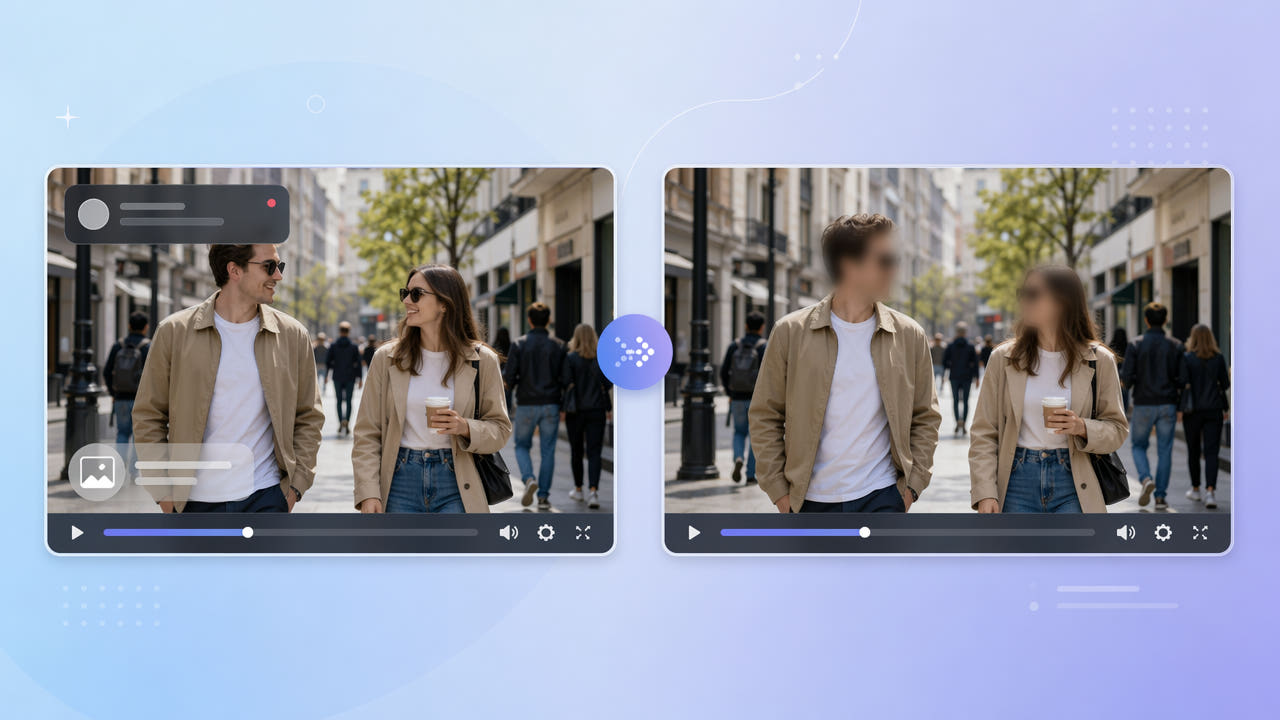
Plan a Privacy Review Before Sharing Video
Before sharing real-world footage, identify people who may be recognizable and confirm you have permission and a valid purpose for using the recording. Requirements depend on context and location.
Check permission, purpose, and context
Faces are only one clue: plates, badges, signs, addresses, voices, and scene context can also identify someone. A visual edit alone does not establish compliance or anonymity.
Review more than faces
List the visible and audible details that matter for your use, and decide who will review them before upload or publication.
Plan around identifying cues, permissions, and intended use—not only faces.
Compare Blur, Masking, and Selected-Area Reconstruction
A video editor may apply a blur or opaque mask. Check how it behaves as subjects move; a mask applied to one frame may not cover later frames.
Blur or an opaque mask
550W Video Eraser processes a region selected by the user; it does not detect faces or apply a blur effect. Standard processes inside the selection. Protect preserves the inside and processes outside it.
What 550W Video Eraser processes
AI estimates replacement imagery from nearby frames and cannot restore hidden original pixels. If you need visible, reviewable redaction, use a suitable blur or mask tool and verify its coverage.
Choose a method for the requirement. 550W processes a manual selection; it is not face detection or blur tracking.
Build a Reviewable Workflow
List faces, plates, badges, signs, names, and relevant audio. Work only with footage you own or are authorized to edit. Do not assume a selection will follow a moving subject automatically.
Inventory and select authorized details
Select the video and mark each area. Standard processes inside the selection; Protect preserves the selection and processes outside. The video workflow supports up to 1080p and 30 minutes. Check file-size eligibility in the current upload interface; processing time depends on the footage, selection, and service status.
Confirm modes and file requirements
Before uploading sensitive footage, review the current privacy and retention terms. Limit access, keep an untouched source securely if needed, and verify file availability and deletion against those terms.
Inspect Coverage and the Complete Export
Update selections for each scene or segment as a subject moves; automatic face detection and tracking are not confirmed. A selection that is too small may miss an edge, while an oversized area may change unrelated content.
Adjust selections for movement
Review the full export, including fast movement, transitions, and occlusion. Listen for names or other identifiers, inspect the picture for artifacts, and compare the output with the source. A completed task is not privacy approval.
Check other identifying cues
Review the whole export and the surrounding context; no edit alone guarantees anonymity.
Frequently asked questions
Can 550W Video Eraser blur faces?
This workflow does not detect faces or apply a blur effect. You can select a region for AI-estimated reconstruction. Use a suitable video editor for blur or masking, then inspect other visual and audio identifiers too.
When should I blur, mask, or reconstruct an area?
Choose according to the footage and review requirement. Blur or an opaque mask leaves a visible redaction; reconstruction estimates replacement imagery. None guarantees that a person cannot be identified from other cues.
Does the tool automatically track a moving face?
No automatic face detection or tracking is confirmed. Use an editor with an appropriate tracking feature or update supported selections manually, then review every relevant part of the export.
What should I check before uploading sensitive footage?
Check your authority to edit, current privacy and retention terms, and the upload requirements shown in the interface. Limit access and keep a secure original if needed; do not assume a particular deletion time.
Does this workflow guarantee anonymity or GDPR compliance?
No. Anonymity and legal obligations depend on the footage, purpose, applicable rules, and other identifying cues. Review the complete output and consult appropriate privacy guidance for your situation.