Review Channel Logos in Authorized TV Recordings
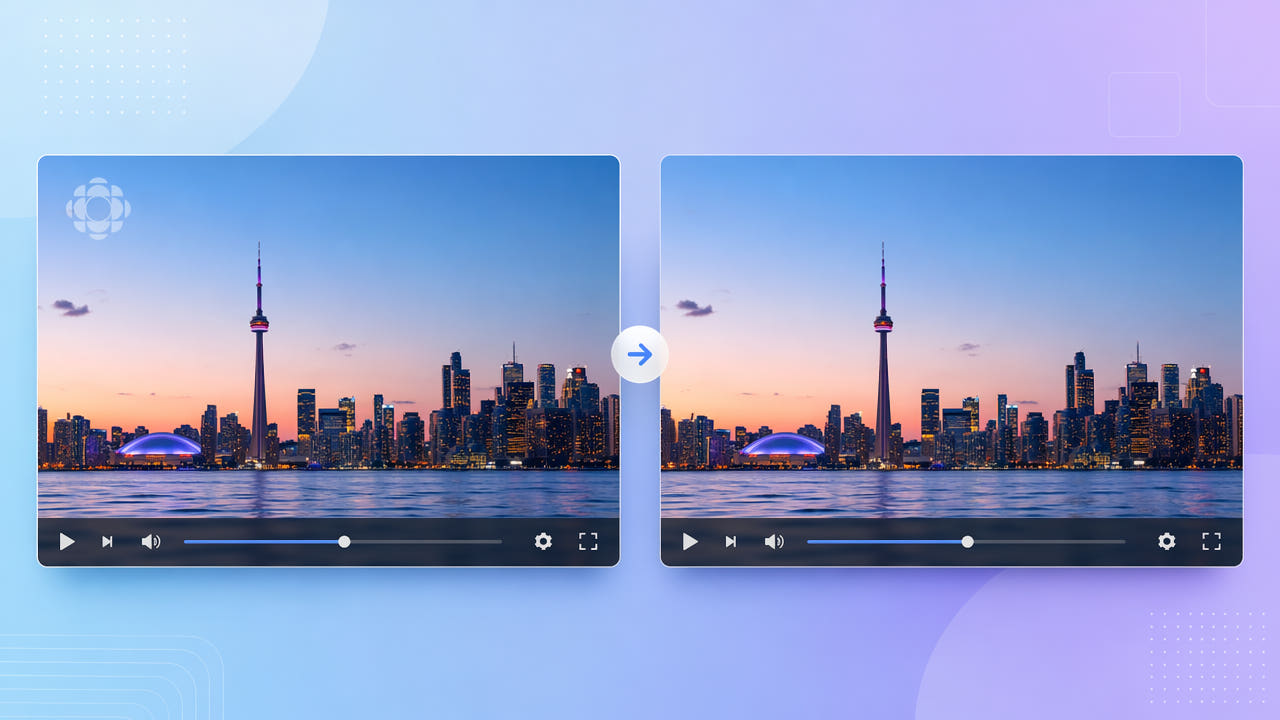
Identify the Logo and Confirm Rights
A TV recording may display a channel logo in one corner throughout a program. Its position, opacity, or surrounding graphic can change between segments, so inspect the full timeline before selecting an area.
Locate the On-Screen Mark
A translucent mark still covers or changes the original picture. Nearby detail can help estimate a replacement, but it does not reveal the exact hidden pixels.
Check the Source and Permission
Only edit recordings you own or have permission to modify and reuse. Removing a broadcaster mark does not grant rights to the program or replace any applicable attribution requirement.
Locate every form of the on-screen mark and verify editing and reuse rights.
Select the Logo Region for a Test
550W estimates replacement content for the selected logo area from surrounding picture information. It cannot restore the original hidden pixels, and movement or compression can make the result visibly uneven.
Include the Full Visible Logo
Include the logo, shadow, soft edges, and any adjacent text that appears. Standard processes inside the selection. Protect keeps the selected area and processes outside it; it is not a higher-quality mode.
Choose Standard or Protect
Test a short authorized section and inspect moving backgrounds and scene changes. The browser workflow supports video up to 1080p and 30 minutes; file-size acceptance follows the current upload interface. Processing time varies with the footage, selection, and service state.
Test Standard on the selected logo area, then inspect the entire output.
Review Other Broadcast Overlays
A broadcast clip may also contain a news ticker or date stamp. Identify each overlay and use the selections supported by the current interface. One submission is not guaranteed to remove all regions cleanly; consult the ticker and timestamp guides for their specific review points.
Keep an unchanged authorized source. Editing a logo does not grant publication permission or justify removing context needed for editorial, archival, or evidentiary use.
Inspect the Edited Corner
Logos may animate, fade, or grow a tagline. Review the whole recording for those changes. A selection that is too small leaves fragments, while one that is too broad can alter useful picture details.
Watch for Animation and Soft Edges
Compare the full export with the authorized source, including resolution, sound, moving edges, and the rest of the frame. Export encoding may change the file beyond the selected corner, and a clear source does not guarantee a natural reconstruction.
Compare the Complete Export
Check every appearance of the logo and compare the complete export with the source.
Frequently asked questions
Can I test a translucent channel logo?
You may test a logo in footage you own or are authorized to edit. The model estimates replacement pixels from nearby content and may leave visible artifacts.
Must I crop the frame to address the logo?
You can try selected-area reconstruction instead of cropping. Check the full export; framing, resolution, and quality are not guaranteed to remain unchanged.
Will the rest of the recording retain its quality?
Quality may change through reconstruction and export encoding. Compare the complete file with the source, including picture and sound.
Can I address a logo and ticker together?
Inspect both regions and use only selections supported by the current interface. One submission may not process both satisfactorily.
Which recording files can I upload?
The browser video workflow supports up to 1080p and 30 minutes. Check the current upload interface for accepted formats and the current file-size limit.