Review Visible Dates and Timestamps in Authorized Video
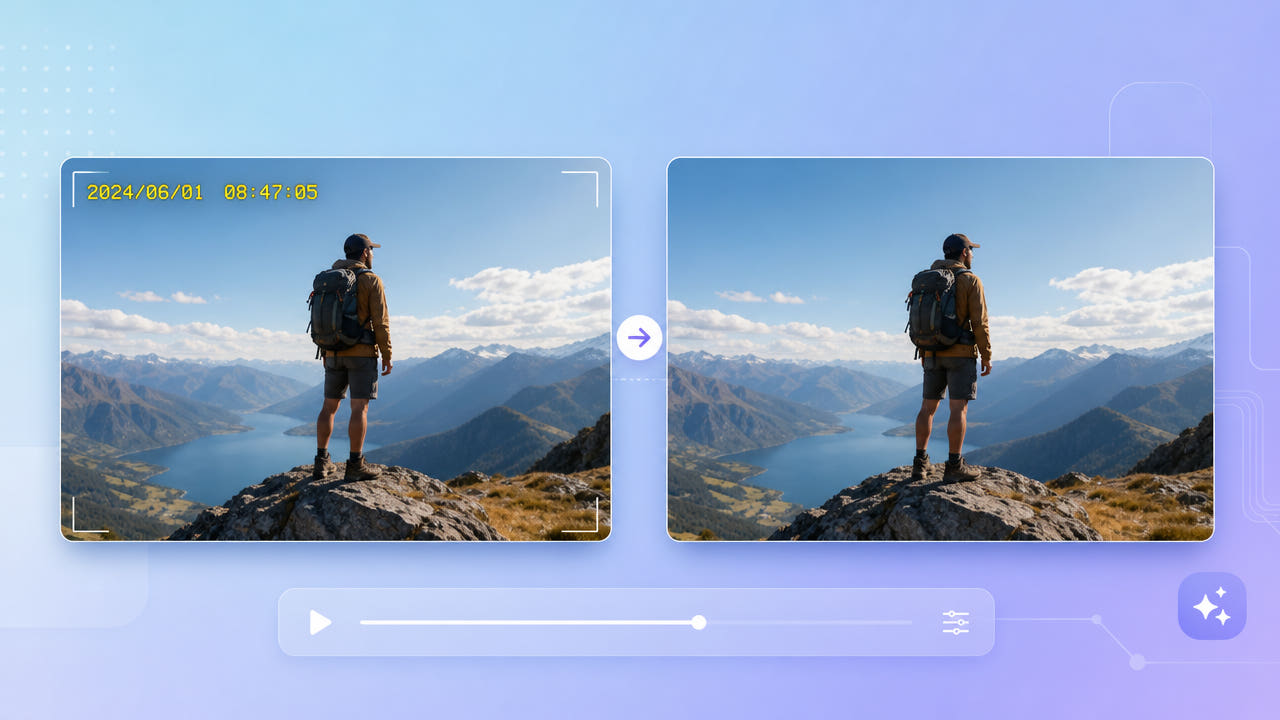
Identify the Timestamp and Preserve the Source
Camera recordings may contain a date or time burned into the picture. Other displays can come from a player or separate data. Inspect the actual file before deciding whether picture reconstruction is needed.
Picture Text or a Separate Display
Edit only material you own or may modify and reuse. Capture time can matter for context, records or evidence; preserve an untouched original and document the changes in any presentation copy.
Editing Rights and Original Records
Digits, labels, position and background may change across the recording. Inspect every relevant frame rather than assuming one fixed selection covers all appearances.
Identify the actual display, confirm rights and preserve the original before editing.
Test the Selected Timestamp Area
550W estimates replacement content from nearby picture information. It does not recover the hidden original pixels and may leave visible errors. Test representative authorized footage.
Select Every Visible Position
Standard processes inside the selection. Protect keeps the selected area and processes outside it; it will not erase a boxed timestamp and is not a higher-quality mode.
Standard and Protect
Review the full export, including sound, detail and dimensions. Reconstruction and encoding may change the file. The browser workflow supports up to 1080p and 30 minutes; formats and file size follow the current upload interface. Time varies with footage, selection and service state.
Test Standard on the timestamp area and inspect the entire export.
Use Edited Copies with Context
Inspect other logos or corner graphics separately and use selections supported by the current interface. One task does not guarantee satisfactory processing of every overlay; see the channel-logo guide.
For records, insurance or evidence, retain the original and label an edited copy. Visible-text editing does not establish whether metadata was retained or changed; inspect the exported metadata separately.
Inspect Changing Digits and Backgrounds
Include all digits, separators, labels and visible shadows without unnecessarily selecting useful picture detail. Check the area when the stamp shifts or changes shape.
Include Digits and Shadows
Compare the complete output with the clearest authorized source available. Extra compression can complicate reconstruction; a clear source does not guarantee a natural result.
Compare with the Original
Check changing digits and backgrounds, and retain the unchanged source.
Frequently asked questions
Can I test a timestamp with changing digits?
Select every relevant visible position and inspect the full output. Adjust the selection or use supported segments when needed; a clean result is not guaranteed.
Must I crop a dashcam recording?
You can test selected-area reconstruction instead of deliberate cropping. Check output framing, dimensions and quality.
Will the rest retain its quality?
Unchanged quality is not guaranteed. Reconstruction and export encoding can affect detail, color, sound or resolution. Compare the complete file.
Does picture editing change file metadata?
Do not assume metadata is preserved or removed. Retain the original and inspect the exported metadata when it matters.
Which video files can I upload?
The browser workflow supports up to 1080p and 30 minutes. Check accepted formats and file-size limits in the current upload interface.