Remove the Snapchat Watermark — Clean Saved Snaps
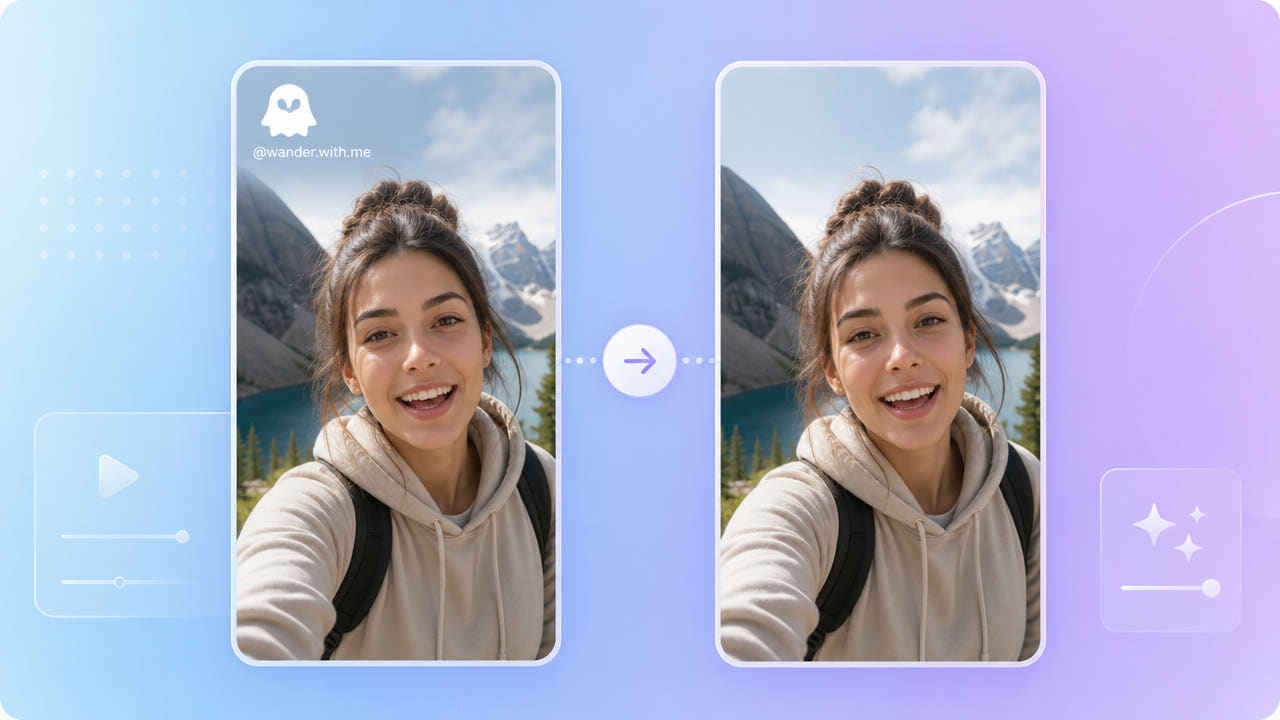
The Snapchat Watermark Explained
Snapchat adds its ghost logo to saved snaps, and shared clips often include the sender's username overlaid on the frame. Both sit on top of your footage and stay there when the video is exported or re-shared.
Ghost Logo and Username
Creators who repost snaps to other platforms usually want a clean frame without the ghost logo or a username that exposes an account handle. Removing the watermark keeps the casual, vertical look while dropping the branding.
Why Repost Workflows Need It Gone
The logo is typically in a corner, while a username can appear over the center or lower area. AI inpainting can reconstruct both without forcing you to crop the tight, selfie-style framing snaps usually have.
Saved snaps carry a corner ghost logo and sometimes a username overlay; AI removes both without cropping the vertical frame.
Removing the Watermark with AI
550W Video Eraser reconstructs the area behind the ghost logo and any username text. Select the saved snap, mark each region, and export the clean result in three simple steps.
Mark Logo and Username
Selfie footage often has a moving face and background, so Protect mode is a good choice when the username sits over a person. For a logo in a static corner over a simple background, Standard mode is fast and clean.
Pick the Right Mode
Both the logo and username can be marked and removed together in one pass. The rest of the frame stays untouched at up to 1080p, preserving the original look of the snap.
Mark the ghost logo and username together; Protect mode handles overlays sitting on a moving face.
Reposting Snaps the Clean Way
A watermark-free snap fits neatly into a cross-platform posting routine, similar to cleaning a TikTok clip before reusing it. Once the branding is gone, the vertical clip drops straight into Reels, Shorts, or a story without revealing its source.
Cloud processing deletes your file automatically when the job finishes, so a personal snap is not left sitting on a server. Only reuse content you have permission to share.
Frequently Asked Questions
Can I remove the Snapchat ghost logo from a saved video?
Yes. Mark the logo in 550W Video Eraser and the AI rebuilds the corner behind it for a clean frame.
Can I also remove a username overlay?
Yes. Mark the username region along with the logo and the eraser reconstructs both in a single pass.
Will removing the watermark blur my snap?
No. AI inpainting rebuilds the area rather than blurring, keeping the rest of the frame sharp up to 1080p.
Is my snap stored after processing?
No. The file is processed in the cloud and deleted automatically once your clean video is ready.
Does it work on vertical selfie videos?
Yes. Erasing in place preserves the tight vertical framing snaps usually have, with no cropping required.