Remove Twitch Stream Overlays with AI
What Lives on a Twitch Overlay
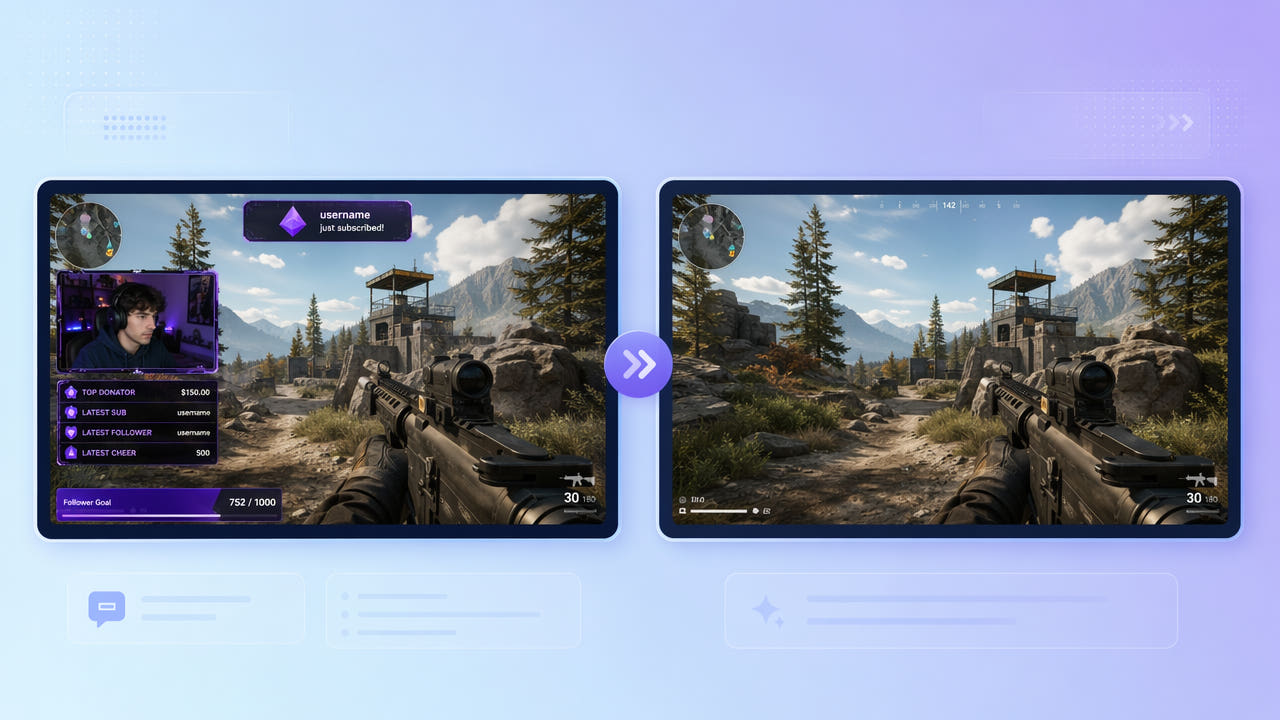
Twitch streams are layered with graphics: a webcam frame in a corner, recent-follower and donation panels, a chat box, and animated alert popups. When you export a VOD or clip, these overlays are part of the recorded video and cannot be toggled off.
Webcam Frames and Panels
Editors making highlight reels or YouTube recaps usually want clean gameplay without the streamer's overlay furniture. The webcam border, sub goals, and alert banners distract from the footage and tie it to one stream layout.
Alerts and Chat Boxes
Some overlays are static, like a fixed panel, while alerts pop in and out. A good removal approach handles both the steady graphics and the occasional animated popup.
Twitch VODs bake in webcam frames, panels, and alerts; clean gameplay requires removing both static furniture and animated popups.
Cleaning Gameplay with 550W Video Eraser
550W Video Eraser reconstructs the gameplay behind overlay elements. Mark the webcam frame, the panels, and any persistent boxes, and the AI rebuilds the area using the surrounding game footage.
Mark Static Panels
For alerts that appear briefly, full-screen mode helps the AI catch popups wherever they land. Protect mode is recommended for gameplay because the moving background is detailed and benefits from careful reconstruction.
Cover Animated Alerts
The three-step flow keeps editing simple: select the VOD or clip, mark the overlay regions, and export clean gameplay. The rest of the frame is preserved at up to 1080p.
Mark static panels and use full-screen plus Protect mode to rebuild detailed gameplay behind both webcam frames and popup alerts.
Repurposing Streams into Highlights
Clean gameplay footage is the foundation of a polished highlight edit or a YouTube recap. Removing the overlay is the same kind of cleanup as stripping a recorder watermark from a capture — see our guide on removing screen-recorder watermarks.
Only edit footage from your own streams or content you have permission to reuse. Removing an overlay does not grant rights to someone else's broadcast or the game content itself.
Tips for Clean Gameplay Reconstruction
Reconstruction is easiest where the gameplay behind an overlay is relatively steady. Busy effects directly under a large panel are harder to rebuild perfectly, so review those sections and consider Protect mode for them.
Pick Calm Background Moments
Webcam frames often have a decorative border and a slight glow. Make your selection cover the entire frame graphic including its border so no edge of the overlay is left behind.
Include the Whole Frame Border
Use Protect mode under busy effects and select the full webcam border so no overlay edge remains.
Frequently Asked Questions
Can I remove a webcam frame from a Twitch VOD?
Yes. Mark the webcam frame in 550W Video Eraser and the AI rebuilds the gameplay behind it for a clean frame.
Can I remove alert popups that come and go?
Yes. Full-screen detection lets the AI catch animated alerts wherever they appear and reconstruct the area.
Will the gameplay look natural after removal?
With Protect mode, the AI carefully rebuilds the detailed moving background behind overlays, keeping the result at up to 1080p.
Can I clean a whole VOD at once?
Yes, within the 30-minute per-clip limit; longer VODs can be split, and batch processing handles up to 10 clips together.
Do I need editing skills to do this?
No. The three-step flow — select, mark, export — requires no editing experience.