Remove Logo and Watermark from Video — Complete Guide
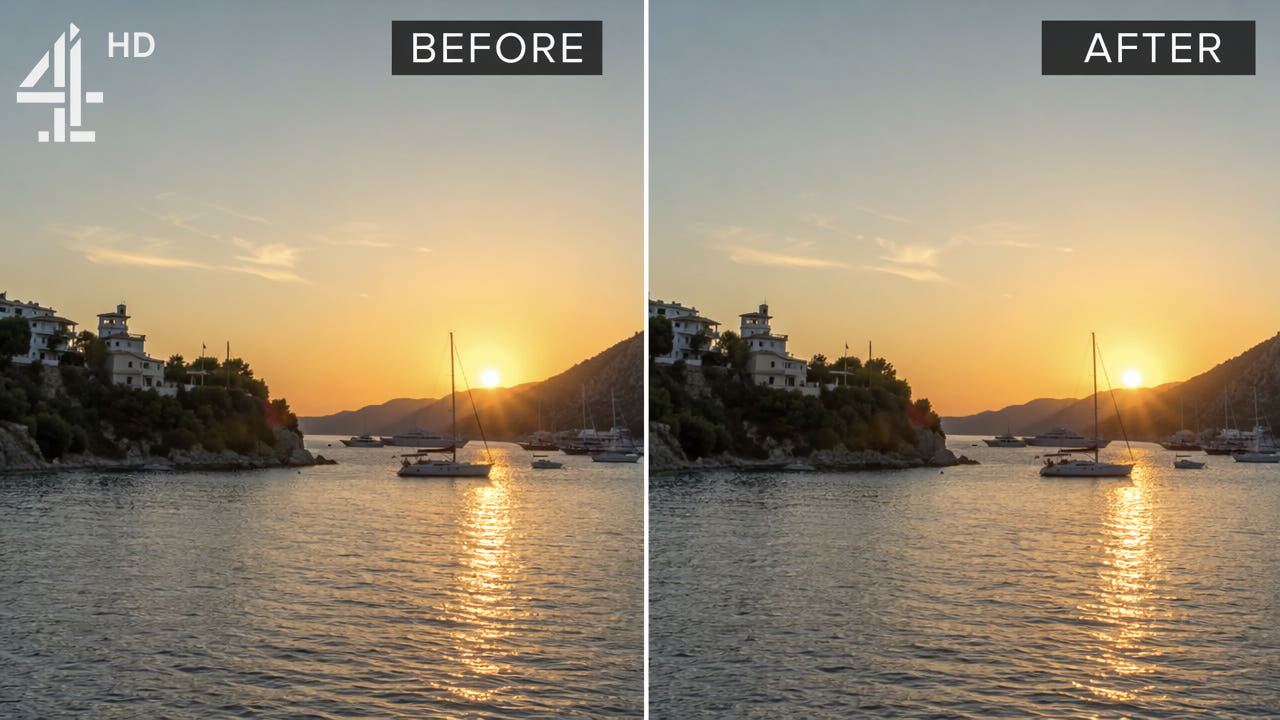
Understanding Video Logos and Watermarks
Logos and watermarks in video come in many forms, each presenting different challenges for removal. A channel bug is the small network or station logo that appears in the corner of broadcast television recordings. Brand watermarks are semi-transparent overlays added by stock footage sites to preview clips. Creator watermarks identify the original author of user-generated content. Understanding what type of logo you are dealing with helps you choose the most effective removal approach.
Unlike subtitles that appear and disappear with dialogue, logos and watermarks are typically persistent throughout the entire video duration. They occupy a fixed position in every frame, which actually makes them easier to remove in some ways since the AI only needs to learn one consistent region rather than tracking moving text. However, logos often overlap with important visual content, especially when placed in corners where action frequently occurs.
Video logos are persistent overlays in fixed positions, making them suitable for region-based AI inpainting removal.
Types of Video Logos and Their Removal Difficulty
Not all logos are equally easy to remove. The difficulty depends on the logo's characteristics and its relationship to the underlying video content.
Opaque Corner Logos
Solid, fully opaque logos placed in frame corners are the simplest to remove. Since they completely cover the background, the AI only needs to reconstruct a small corner area using context from surrounding pixels. TV channel bugs, YouTube channel watermarks, and most platform logos fall into this category. Removal success rate is very high with modern AI tools.
Semi-Transparent Watermarks
Stock footage sites and some content platforms use semi-transparent watermarks that allow the underlying video to show through partially. These are moderately challenging because the AI must separate the watermark layer from the content layer and reconstruct the full-opacity background. AI inpainting handles these well when the watermark has consistent opacity, but variable-opacity watermarks require more sophisticated processing.
Animated or Moving Logos
Some logos animate, rotate, or move across the frame. Sports broadcasts often have animated sponsor logos, and some content platforms use moving watermarks to deter removal. These require frame-by-frame detection and processing, which is slower but still achievable with AI tools that support dynamic region tracking.
Large Central Watermarks
The most difficult logos to remove are large watermarks placed across the center of the frame, common on stock footage preview sites. These overlap with the primary visual content and require the AI to reconstruct significant portions of the frame. Results vary depending on background complexity, and some central watermarks may not be removable without visible artifacts. For stock footage specifically, see our dedicated guide on removing watermarks from stock footage.
Corner logos are easiest to remove; large central watermarks overlapping key content are most challenging for AI tools.
Step-by-Step: Remove Logo from Video Using AI
Follow this guide to remove any static logo or watermark from your video using the 550W Video Eraser AI inpainting tool.
Step 1: Upload Your Video
Navigate to 550W Video Eraser and upload the video containing the logo you want to remove. The online tool accepts MP4 and MOV files up to 300MB. For larger files or batch processing needs, the desktop application removes file size limitations. Ensure your video is in a standard format before uploading for best compatibility.
Step 2: Identify and Select the Logo Region
Once your video loads in the preview player, locate the logo or watermark. Draw a rectangular selection box around it. The selection should be tight around the logo boundaries with just a few pixels of margin. A selection that is too large forces the AI to reconstruct more background than necessary, potentially introducing artifacts. For logos with drop shadows or glow effects, include the shadow area in your selection.
Step 3: Process with AI Inpainting
Click the process button to start AI removal. The inpainting engine processes each frame individually, detecting logo pixels within your selected region and reconstructing the background using surrounding visual context. For a one-minute video at 1080p, processing typically takes 30 to 60 seconds. The AI maintains temporal consistency across frames so the reconstructed area looks natural in motion.
Step 4: Review and Download
After processing completes, use the preview player to compare original and processed versions. Pay special attention to frames where the background behind the logo was complex or contained motion. If the result meets your quality standards, download the clean video. For logos that proved difficult, you may want to try a slightly different selection region and reprocess.
Alternative Logo Removal Methods
While AI inpainting produces the best results for most scenarios, several alternative approaches exist depending on your specific needs and available tools.
Cropping
The simplest approach is cropping the frame to exclude the logo area. This works when the logo is in a corner and the important content is centered. However, cropping permanently reduces your video resolution and changes the aspect ratio. For social media content where slight cropping is acceptable, this can be a quick free solution. Use any video editor or FFmpeg to apply the crop.
Overlay Replacement
Instead of removing the logo, you can cover it with your own branding or a solid color patch. This is common in rebranding workflows where you want to replace one logo with another. While not true removal, it achieves the practical goal of hiding the original logo. This approach works in any video editor and requires no AI processing.
FFmpeg Delogo Filter
FFmpeg includes a built-in delogo filter that interpolates over a specified rectangular region. While free and scriptable, the results are noticeably inferior to AI inpainting. The filter produces visible blurring or smearing, especially on complex backgrounds. It is acceptable for quick-and-dirty removal where quality is not critical, or as a preprocessing step before further editing.
Manual Clone Stamping
Professional video editors can use clone stamp or content-aware fill tools in After Effects or DaVinci Resolve to manually paint over logos frame by frame. This gives maximum control and can produce excellent results, but the time investment is enormous for anything longer than a few seconds. Reserve this approach for high-budget productions or very short clips where frame-perfect results justify the labor.
Common Logo Removal Scenarios
Different real-world situations call for different approaches to logo removal. Here are the most common scenarios creators encounter.
Removing Your Own Channel Watermark
Creators sometimes need to remove their own channel watermark from previously published content. This happens when rebranding, when repurposing content for a different channel, or when providing clean footage to collaborators. Since you own the content, there are no legal concerns. The watermark position is consistent across all your videos, making batch processing straightforward.
Removing TV Network Bugs from Recordings
Personal recordings of broadcast television often contain network logos (channel bugs) in the corner. Removing these for personal archival purposes is a common use case. Network bugs are typically small, static, and semi-transparent, making them ideal candidates for AI inpainting removal. The consistent position across an entire recording means you can process long videos with a single region selection.
Cleaning Up Client Footage
Freelance video editors frequently receive footage from clients that contains unwanted logos, date stamps, or overlay graphics from the original recording device or platform. Removing these before incorporating the footage into a final edit is a standard part of the post-production workflow. AI tools save significant time compared to manual frame-by-frame editing that was previously required.
Stock Footage Preview Cleanup
While we do not encourage removing watermarks from stock footage you have not licensed, there are legitimate scenarios. Some stock sites allow watermarked previews for client approval before purchase. Editors may need to show clients a rough cut with clean footage before committing to license fees. In these cases, temporary watermark removal for preview purposes is followed by purchasing the proper license for final delivery. For detailed stock footage workflows, read our stock footage watermark guide.
Tips for Best Logo Removal Results
Maximize your logo removal quality with these practical tips based on common challenges and their solutions.
Selection Precision Matters
The single most important factor in logo removal quality is the precision of your selection region. A selection that is too large forces the AI to reconstruct unnecessary background area, increasing artifact risk. A selection that is too small leaves partial logo pixels visible in the output. Aim for a selection that covers the logo completely with approximately 2-4 pixels of margin on each side.
Consider Background Complexity
AI inpainting performs best when the background behind the logo is relatively simple. Solid colors, gradual gradients, and sky produce excellent results. Complex textures, faces, or text behind the logo are more challenging. If your video has varying background complexity, the AI handles each frame independently, so results may vary across the video. Preview multiple sections before committing to the final output.
Handle Semi-Transparent Logos Carefully
For semi-transparent logos, ensure your selection covers the full extent of the transparency including any subtle glow or shadow effects. These peripheral effects are easy to miss but will remain visible if not included in the selection region. Zoom in on the preview to verify the complete logo boundary before processing.
Multiple Logos Require Multiple Passes
If your video contains logos in multiple positions (common with broadcast recordings that have both a network bug and a program logo), you may need to process the video multiple times with different selection regions. Some tools support multiple simultaneous selections for single-pass processing, which is faster and avoids quality degradation from repeated encoding.
Legal Considerations for Logo Removal
Logo removal exists in a nuanced legal space. The legality depends entirely on context, ownership, and intended use.
When Logo Removal Is Clearly Acceptable
Removing logos from your own content (rebranding, repurposing) is always acceptable. Removing logos from content you have licensed for editing is typically permitted under most license agreements. Personal archival of broadcast recordings with network bugs removed falls under fair use in most jurisdictions.
When Logo Removal May Be Problematic
Removing logos to misrepresent content origin, to bypass licensing requirements, or to pass off others' work as your own raises legal and ethical concerns. Removing stock footage watermarks without purchasing a license violates the stock site's terms of service. Always ensure your use case respects intellectual property rights and platform terms of service.
Frequently Asked Questions
Can I remove a TV channel logo from recorded video?
Yes. Channel bugs and network logos are static overlays that AI inpainting handles effectively. Select the logo region and process for clean removal.
Does logo removal work on transparent or semi-transparent watermarks?
AI inpainting works well on semi-transparent logos by reconstructing the full background behind the overlay, regardless of the watermark's opacity level.
Can I remove multiple logos from the same video?
Yes. Process the video multiple times with different selection regions, or use tools supporting multiple simultaneous selections for single-pass removal.
Is it legal to remove logos from videos?
Legality depends on context. Removing logos from your own content is fine. Removing branding from others' content may violate copyright laws.