How to Remove AI Video Generator Watermarks
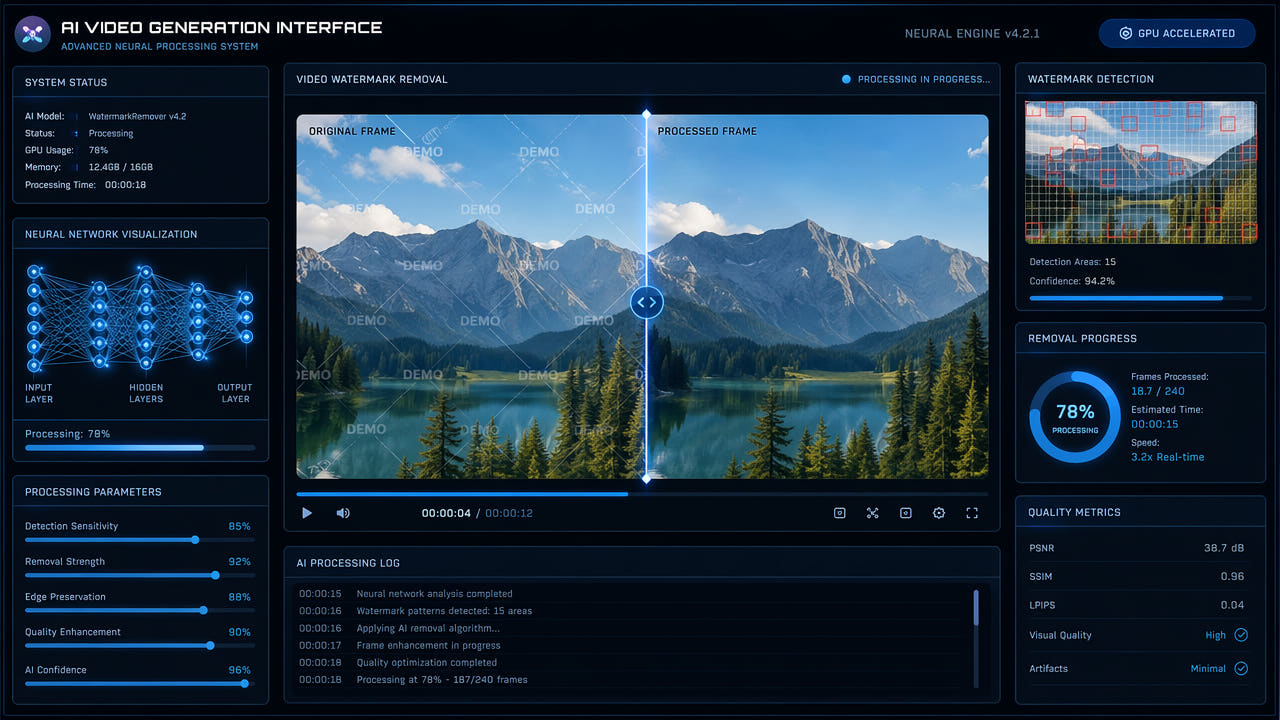
Why AI Video Generators Add Watermarks
The explosion of AI video generation tools in 2024 and 2025 has transformed content creation. Platforms like OpenAI Sora, Runway Gen-3, Pika Labs, Kling AI, and Hailuo MiniMax now produce stunning video clips from text prompts. However, nearly all of these tools add visible watermarks to their outputs, especially on free or trial plans. These watermarks serve multiple purposes for the platforms: brand attribution, usage tracking, and encouraging users to upgrade to paid subscriptions that remove the branding automatically.
For content creators, these watermarks present a practical problem. You may have generated the perfect clip for a social media post, a presentation, or a creative project, but the visible watermark makes the output look unprofessional. While upgrading to a paid plan is the most straightforward solution, there are situations where you need to remove watermarks from clips already generated on free tiers, or from platforms that add watermarks even on paid plans for certain content types.
AI video generators add visible watermarks on free tiers for brand attribution and to encourage paid upgrades.
Types of AI Video Generator Watermarks
Understanding the different types of watermarks helps you choose the right removal approach. AI video generators use several watermarking strategies, each with different characteristics that affect removal difficulty.
Static Corner Watermarks
The most common type is a static logo or text placed in one corner of the frame, typically the bottom-right. Sora, Runway, and Pika all use variations of this approach. These watermarks remain in the same position throughout the entire video, making them the easiest type to remove with region-based AI inpainting tools. You select the corner area once, and the tool processes every frame consistently.
Animated or Pulsing Watermarks
Some generators use watermarks that fade in and out, pulse, or animate slightly to make them harder to remove with simple overlay techniques. Kling AI and certain other Chinese AI video platforms use this approach. While more challenging than static watermarks, modern AI inpainting tools that process frame-by-frame can still handle these effectively since the watermark occupies a consistent region even if its opacity changes.
Full-Frame Overlay Watermarks
A few platforms apply semi-transparent watermarks across the entire frame rather than in a single corner. This is the most difficult type to remove because the watermark overlaps with the actual content everywhere. Removal requires specialized tools that can separate the watermark layer from the content layer, which is significantly more complex than region-based inpainting.
Static corner watermarks are easiest to remove; full-frame overlays require specialized separation techniques.
Step-by-Step: Remove AI Video Watermarks with 550W Video Eraser
The most effective method for removing AI video generator watermarks is AI-powered inpainting. Here is a complete walkthrough using the 550W Video Eraser tool, which handles the most common watermark types from major AI video platforms.
Step 1: Export and Upload Your AI Video
First, export or download the watermarked video from your AI generator. Most platforms provide MP4 downloads. Navigate to 550W Video Eraser and upload the file. The tool accepts videos up to 300MB in MP4 and MOV formats. If your AI-generated clip is short (most are under 30 seconds), it will upload quickly even on slower connections.
Step 2: Identify and Select the Watermark Region
Once the video loads in the preview, identify where the watermark appears. For corner watermarks, draw a tight selection box around the logo or text. The selection should cover the entire watermark with a small margin but avoid selecting too much of the surrounding content. For watermarks that appear in multiple locations, you may need to process the video in multiple passes with different selection regions.
Step 3: Process with AI Inpainting
Click the process button to start AI removal. The inpainting engine analyzes each frame individually, detecting the watermark pixels and reconstructing the background behind them. For a typical 10-second AI-generated clip at 1080p resolution, processing takes approximately 15 to 30 seconds. The AI maintains temporal consistency so the reconstructed area looks natural across frame transitions.
Step 4: Preview and Download
After processing completes, preview the result using the built-in comparison player. Check that the watermark area looks natural and no artifacts are visible. If satisfied, download the clean video. The output maintains the original resolution, frame rate, and codec settings from your AI generator.
Platform-Specific Watermark Removal Tips
Each AI video generator places watermarks differently. Here are specific tips for the most popular platforms in 2025.
OpenAI Sora
Sora adds a small "Made with Sora" text watermark in the bottom-right corner of generated videos on certain plan tiers. The watermark is semi-transparent white text with a subtle shadow. For removal, select a region slightly larger than the text to capture the shadow as well. The simple background behind corner watermarks in most Sora outputs makes this straightforward for AI inpainting.
Runway Gen-3 Alpha
Runway places its logo watermark in the bottom-right corner on free-tier generations. The watermark is relatively small and uses a consistent position across all outputs. This makes it one of the easiest AI video watermarks to remove since the selection region is predictable and compact. Paid Runway subscribers get watermark-free outputs, so removal is primarily needed for free-tier clips.
Pika Labs
Pika uses a corner watermark similar to Runway but occasionally adjusts its position between the bottom-left and bottom-right depending on the generation settings. Check your specific output to confirm the watermark location before selecting the removal region. The watermark is typically a small logo mark that occupies minimal frame area.
Kling AI and Chinese Platforms
Kling AI and similar Chinese AI video generators like Jimeng (by ByteDance) often use slightly larger watermarks that may include both a logo and Chinese text. These watermarks sometimes animate or pulse, but they remain in a fixed position. Select a region that covers the maximum extent of the watermark animation. For more details on Chinese AI platform watermarks, see our guide on Seedance and Jimeng video watermark removal.
Alternative Methods for AI Watermark Removal
While AI inpainting is the recommended approach, several alternative methods exist depending on your specific situation and technical comfort level.
Upgrade to a Paid Plan
The simplest solution is upgrading to a paid subscription on your AI video generator. Most platforms remove watermarks entirely on paid tiers. If you generate videos regularly, the subscription cost is often justified by the time saved on post-processing. This is the only method that also removes invisible metadata watermarks that some platforms embed.
Cropping the Watermark Area
If the watermark is in a corner and your content does not extend to the edges, you can crop the frame to exclude the watermark region. This reduces your output resolution and changes the aspect ratio, which may not be acceptable for all use cases. However, for social media posts where slight cropping is common anyway, this can be a quick free solution.
Using FFmpeg Delogo Filter
The open-source FFmpeg tool includes a delogo filter that can blur or interpolate over a specified region. While free and scriptable for batch processing, the results are noticeably inferior to AI inpainting. The filter applies simple mathematical interpolation rather than intelligent background reconstruction, often leaving visible smearing or blurring artifacts. For a comparison of removal methods, check our article on free watermark removal methods.
Manual Frame Editing
For very short clips of just a few seconds, you could manually edit out the watermark frame by frame using After Effects or similar professional software. This gives maximum control but is impractical for anything longer than 2-3 seconds due to the enormous time investment required. AI-generated clips are typically 4-16 seconds, making this approach tedious even for single clips.
Ethical and Legal Considerations
Before removing AI video generator watermarks, it is important to understand the ethical and legal landscape surrounding this practice.
Terms of Service Compliance
Most AI video generators include terms of service that address watermark removal. Some platforms explicitly prohibit removing watermarks on free-tier content, while others are more permissive. Always review the specific platform's terms before removing watermarks from their outputs. Paid plans typically grant full commercial rights including watermark-free usage.
Content Attribution
Even when watermark removal is technically permitted, consider whether attribution is appropriate. If you are using AI-generated content in a commercial context, transparent disclosure of AI involvement is increasingly expected by audiences and may be required by advertising regulations in some jurisdictions.
Invisible Watermarks and Content ID
Be aware that removing visible watermarks does not remove invisible digital watermarks or metadata that some platforms embed. These hidden markers can still identify content as AI-generated even after visible watermark removal. Platforms like Google and Meta are developing detection systems that can identify AI-generated content regardless of visible watermark presence.
Batch Processing Multiple AI Videos
Content creators who generate multiple AI videos often need to remove watermarks from entire batches. Processing videos one at a time is inefficient when you have dozens of clips from the same platform with watermarks in identical positions.
The 550W Video Eraser desktop application supports batch processing, allowing you to queue multiple videos with the same selection region and process them sequentially without manual intervention for each file. This is particularly useful for creators who generate large volumes of AI video content for social media calendars or marketing campaigns.
For batch workflows, ensure all videos in your queue have watermarks in the same position and at the same resolution. Mixing different AI generators in a single batch may require separate processing passes since watermark positions differ between platforms. For more on batch processing workflows, see our guide on batch subtitle and watermark removal efficiency.
Frequently Asked Questions
Is it legal to remove AI video generator watermarks?
Legality depends on the platform's terms of service. Most AI generators allow watermark removal on paid plans. Always check the specific tool's license agreement.
Which AI video generators add watermarks?
Sora, Runway, Pika, Kling, and most free-tier AI video generators add watermarks. Paid subscriptions often remove them automatically.
Can AI watermarks be removed without quality loss?
Yes. AI inpainting reconstructs the area behind the watermark at full resolution, preserving video quality throughout the rest of the frame.
Do AI-generated videos have invisible watermarks too?
Some platforms embed invisible metadata watermarks for content identification. Visual removal tools only address visible on-screen watermarks.