Batch Remove Watermarks from Images
Updated · Product workflow reviewed by 550W AI Labs
When Batch Image Cleanup Saves Time
A product catalog may contain dozens of approved images with an outdated campaign label, seller badge, or distributor watermark. Opening every file in a desktop editor turns a simple cleanup into repetitive manual work.
Product Catalogs
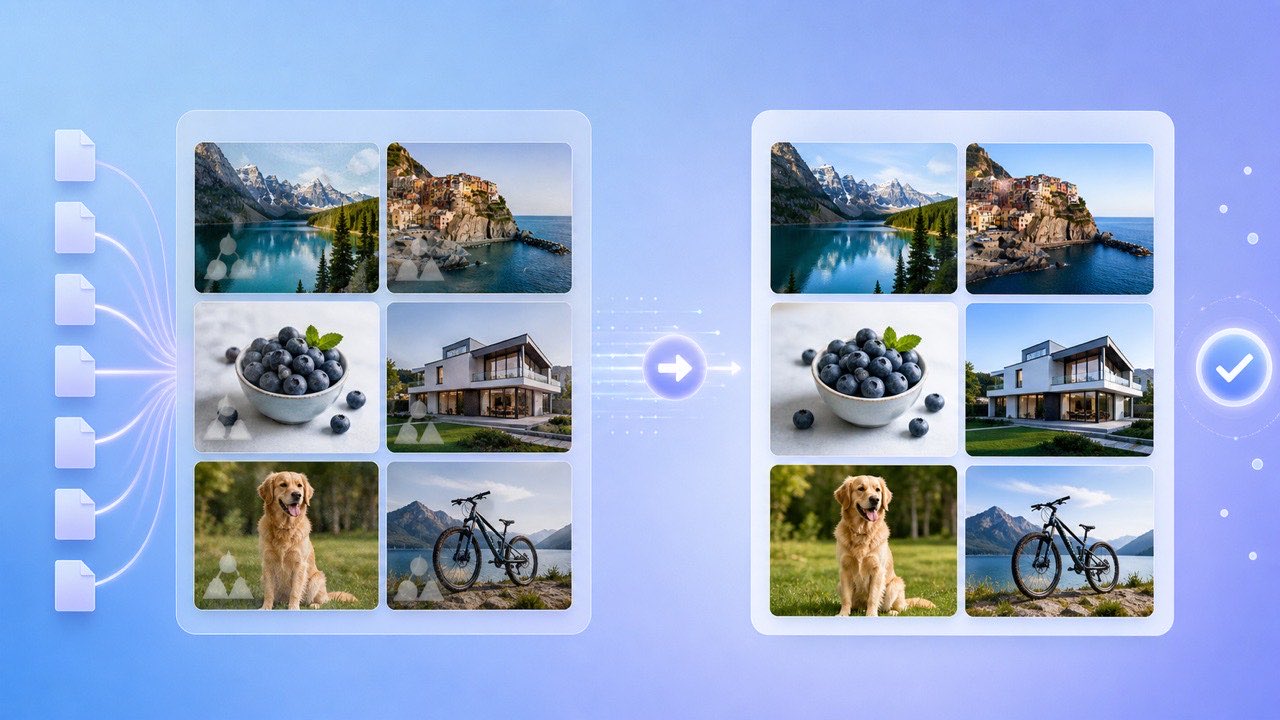
A browser queue lets you review file names and previews together, submit once, and track each result independently. This is also useful for owned event photos, real-estate sets, and social campaign exports that share the same overlay.
Campaign and Archive Images
Batch removal should never be used to strip ownership marks from third-party work. Confirm rights before uploading any collection.
Batch queues reduce repeated setup while independent tasks keep a single bad file from stopping the whole job.
Use the 550W Multi-Image Queue
Switch to Image Eraser, then select up to 20 JPG, PNG, BMP, WebP, AVIF, TIFF, or SVG files. The queue shows a thumbnail, file size, readiness state, and a remove control before anything is uploaded.
Select and Review
After submission, each file moves through its own processing state. Completed files expose a download button; failed files show an error and can be retried without resubmitting successful work.
Submit and Track
Billing follows the same independent model: 10 credits per successful image and zero credits for failed submissions. The task history remains available after a page refresh.
Review up to 20 files, submit the queue, then download or retry each task independently.
Prepare a Reliable Batch
Remove corrupt files and confirm that every image is under 50 MB. Keep originals organized locally so you can compare them with the exported results.
Normalize Before Upload
Similar source quality produces more consistent results. If half the batch contains highly compressed thumbnails and the other half contains full-resolution originals, reconstruction quality will vary accordingly.
Download Promptly
Download successful outputs within 24 hours of processing and review them before the result links expire. Check the current privacy policy for file-handling and retention details.
A clean, consistent source batch and prompt downloading make bulk cleanup easier to verify and archive.
Frequently asked questions
How many images can I select at once?
The current web queue accepts up to 20 images per selection.
Does one failed image stop the batch?
No. Every image is submitted as its own persisted task and can succeed, fail, or be retried independently.
How are batch jobs billed?
Each successful image costs 10 credits. Failed files are not charged.
Can I return later to download results?
Yes. Signed-in users can reopen the task list, and each result link is available for 24 hours after processing is complete.