Review a Visible Mark on an Authorized Douyin Video
Updated · Product workflow reviewed by 550W AI Labs
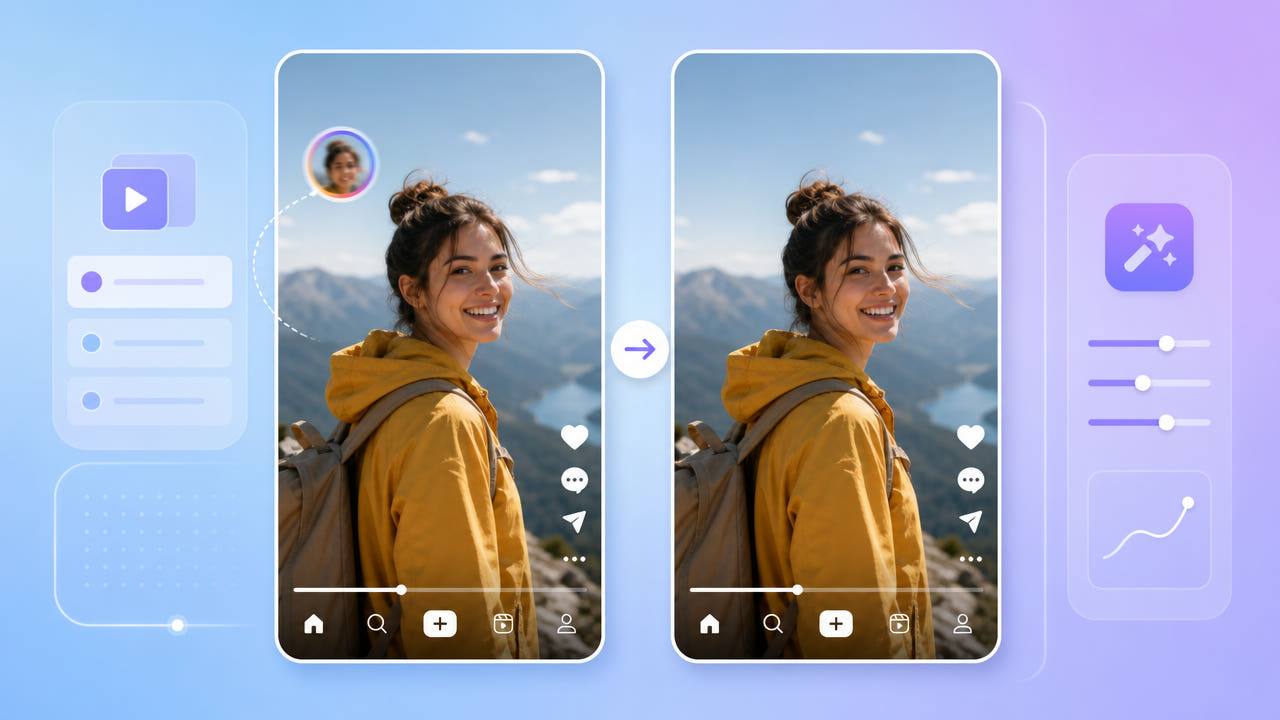
What to check in a Douyin video
A Douyin-branded clip may contain an on-screen logo, account name, caption, or another graphic, but its appearance depends on the file and export path. Inspect your own authorized copy instead of assuming every saved video has the same mark.
Inspect the file you actually have
A visible overlay is different from account attribution, metadata, or usage rights. Removing pixels does not change who created the work or grant permission to repost it.
Do not assume a fixed watermark layout
If you are preparing your own clip for another format, first check the receiving platform’s current rules and preserve any attribution or disclosures that still apply.
Inspect the specific authorized file; do not assume a mark’s position, movement, or removal eligibility.
Process only a visible region
550W Video Eraser processes a region selected by the user. It does not promise automatic detection or tracking of a moving Douyin mark; select supported regions or segments and review each one.
Select the affected area manually
Standard processes the inside of the selected area. Protect preserves the inside and processes outside it. Protect is a different selection behavior, not a higher-quality mode.
Understand Standard and Protect
The AI estimates replacement content from nearby picture information. It cannot restore hidden original pixels, and artifacts may remain. The video workflow supports up to 1080p and 30 minutes; check the current upload interface for file-size eligibility.
Use manual selections, choose the mode by the region you need to keep, and inspect the result.
Rights and destination checks
Edit only a video you own or are authorized to modify. A watermark cleanup does not grant rights to reuse a creator’s work or bypass Douyin or another platform’s current rules.
Before publishing, confirm the destination format, attribution, consent, and disclosure requirements for your specific use. Platform policies can change, so consult their current official terms.
Permission to edit and permission to publish are separate checks.
Review the complete export
Processing time depends on the source, selected area, and service status. Compare the full exported video with the source, including scenes where the background or mark changes.
Allow for variable processing time
Export encoding may affect resolution, bitrate, color, or other details. Look for remnants and reconstruction artifacts, and do not treat a successful job status as visual approval.
Check image and sound after export
Review every part of the exported file before using or publishing it.
Frequently asked questions
Can I remove a visible Douyin mark without cropping?
If the file contains a visible overlay and you have permission to edit it, a selected region can be processed without cropping. AI estimates replacement imagery, and the result needs review.
Will the tool follow a moving Douyin mark automatically?
Automatic tracking is not guaranteed. Inspect the timeline, make supported selections for the visible positions, and review the output.
Does processing restore the original video quality?
No. The selected area is estimated from nearby picture information and encoding may change the export. Hidden original pixels and unchanged quality are not guaranteed.
What video limits apply?
The video workflow supports up to 1080p and 30 minutes. File-size eligibility is shown in the current upload interface; processing time varies with the footage, selection, and service status.
May I publish the edited video elsewhere?
Only if you have the necessary rights and the destination platform’s current rules allow your use. Removing a mark does not grant permission or remove attribution obligations.