Remove Watermarks from Video: Compare Available Methods
Updated · Product workflow reviewed by 550W AI Labs
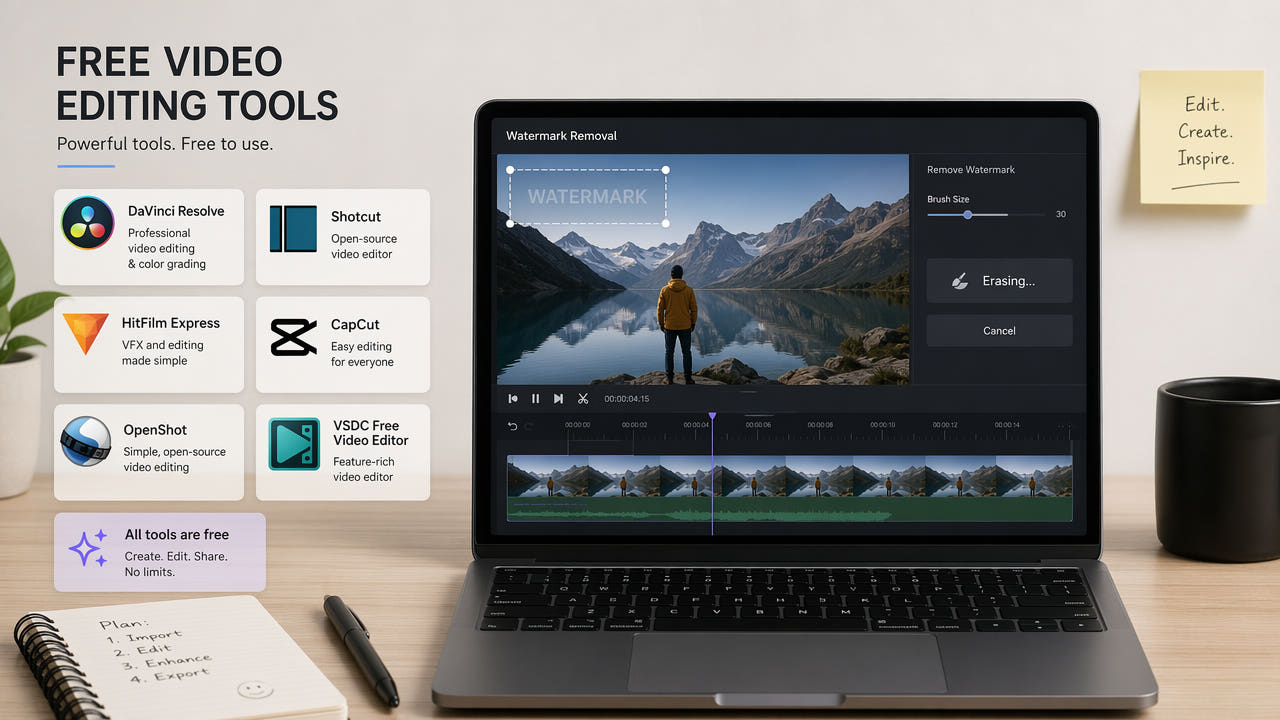
Before Editing a Watermarked Video
Watermarks can appear on video for many reasons, including licensed previews, platform attribution, editor exports, and generated content. Before editing, confirm you own the footage or have permission to alter that specific file. If the source platform offers an authorized clean export, check that option first.
Costs and features vary across tools and can change. Open-source filters, editor workflows, and browser services have different controls and quality trade-offs. Compare the current terms and an authorized sample rather than assuming any service is free or guarantees a clean result.
This guide compares AI reconstruction, FFmpeg delogo, cropping, overlays, and manual editing. Each method should be judged on your actual footage, current product limits, effort, and final export.
Compare current costs, rights, and actual output on authorized footage; no method guarantees a clean or free result.
Method 1: Browser AI Tools
AI tools estimate replacement imagery from the pixels surrounding a selected watermark. They do not recover the original hidden picture, and results vary with motion, background detail, and export encoding. Verify current pricing or trial terms on each provider’s own interface before relying on them.
550W Video Eraser
550W Video Eraser lets you upload an authorized MP4 or MOV video, mark an area or choose fullscreen mode, and submit a cloud task. The browser video workflow supports up to 1080p and 30 minutes. Processing time depends on the footage, selection, and service status. Check the current interface for credits and pricing, then review the full result. The upload interface shows the current file-size limit. In selection mode, Standard processes inside the selected area, while Protect preserves that area and processes outside it. Protect is not a higher-quality mode.
Other Video Editing Tools
Use a small authorized sample to see whether reconstruction meets your needs. The selected area may show artifacts, and the exported file can differ in encoding or picture quality. Current paid plans, trial availability, and usage limits must be checked in the product interface.
Other editing tools differ in their controls, access terms, export branding, and pricing; details may vary by product version. Consult current documentation and test an authorized file before choosing.
Method 2: FFmpeg Delogo
FFmpeg includes a delogo filter that can be scripted for local processing. It is open-source software, but the result depends on the watermark and background. It does not reconstruct the original pixels hidden by the mark.
How the Delogo Filter Works
The delogo filter estimates pixels inside a specified rectangle from the surrounding area. A small static mark on a simple background may be easier to conceal than a large mark across moving detail. Inspect the result for visible smearing or other artifacts.
Basic FFmpeg Command
The basic command structure specifies the input file, the watermark coordinates (x, y position and width, height), and the output file. You need to determine the pixel coordinates of your watermark manually, which requires some trial and error. The filter processes the entire video at the specified region, so it works best for static watermarks that do not move.
Limitations of FFmpeg Approach
FFmpeg delogo and AI reconstruction use different methods. Neither is best for every scene. Test both on authorized sample footage, then compare the marked region, motion, audio, and full export.
Delogo is an open-source filter that can be scripted. Compare its actual output with other methods on authorized footage; it does not restore hidden original pixels.
Method 3: Cropping and Overlays
Cropping removes the marked part of the frame rather than reconstructing it. Many editors can crop, but exact availability depends on the product and version. Consider the lost picture area and any change to framing or output resolution.
Cropping Approach
A corner mark may be removed by cropping away that part of the frame. The amount of image lost depends on the mark’s size and position; enlarging the remainder can introduce softness or artifacts. Check whether the resulting framing still works.
Overlay Masking
A color block, blur, or graphic overlay can hide a mark without restoring the covered background. This may suit some internal or creative uses. Review the result in motion and confirm that the output matches the intended use.
When Cropping Makes Sense
Cropping can be appropriate when the marked area is expendable and the new framing works. AI reconstruction may preserve the frame but can introduce artifacts. Compare methods on the authorized source instead of assuming one is always higher quality.
Method 4: Manual Editing
Some desktop editors offer paint, tracking, or compositing tools that may help with certain marks. Availability can differ by product version or license. Check current documentation before planning a workflow around a specific feature.
Manual paint and compositing
Manual paint or cloning can require substantial frame-by-frame work, especially when the background moves. Test an authorized clip and inspect the result at normal playback speed before committing to a longer video.
Moving marks and tracking
Moving marks can require adjustments across multiple frames. If your editor provides tracking, verify how it works with the current version and your footage; tracking alone does not guarantee a natural repair.
Effort and quality review
The time and quality trade-offs of manual editing depend on your experience and footage. Compare a short authorized sample with other methods, check current licensing, and choose the result that meets your project needs.
Comparing Watermark Editing Methods
Each method changes the image differently. Compare the marked area and the full exported video while considering cost, effort, current tool controls, and your right to edit the footage.
Compare Quality on Samples
No method has a universal quality ranking. AI reconstruction, manual paint, delogo, and cropping can each be appropriate for different scenes. Use authorized samples to judge background detail, motion, and export artifacts.
Usability Considerations
Ease of use depends on the tool and your experience. A browser flow may simplify uploading and marking; command-line filters and manual compositing require different skills. Verify the current interface and the quality of its output before choosing.
Planning for Larger Workloads
For larger workloads, plan around current service limits or your local processing capacity. Scripted FFmpeg edits and documented APIs can automate submissions, but each output still needs review. Do not assume a fixed processing time or free allowance.
A mixed workflow may be useful: test several authorized methods on representative clips, then choose per scene. Check current credits or subscription terms and compare the actual exported files rather than assuming a zero-cost or perfect result.
Checks Before Using the Output
These checks can help you evaluate the output of any method.
Start with the Best Source Quality
Choose a clear authorized source that fits the chosen tool’s limits. For 550W browser video, the current maximum is 1080p and 30 minutes. More detail can help evaluation, but does not guarantee natural reconstruction.
Identify the Watermark Type
Watermarks differ in size, transparency, position, and motion. A large or moving mark can be harder to conceal or reconstruct. Select the method based on the actual footage and inspect the result; do not assume tracking that requires review.
Test Before Committing
If the current tool allows it, test an authorized sample before processing a longer video. A short test does not guarantee the rest of the footage, especially across scene changes. Review the full exported file.
Combine Methods When Needed
When comparing no-cost watermark options, count setup, processing, and export conditions as part of the cost. Inspect the marked area throughout motion and review the full file; free access does not imply that hidden imagery can be restored or that the result will look clean.
Common Watermark Situations
Watermark position and background complexity help determine which methods are worth testing. Confirm editing rights and current product controls first.
Platform Watermarks (TikTok, Instagram, YouTube)
Platform marks vary in placement and style. Check the platform’s current authorized export options and rules. If editing is allowed, compare methods on the specific clip; do not assume a corner mark is always easy to remove.
Stock Footage Watermarks
Licensed preview watermarks signal restrictions on the source footage. Obtain the appropriate license or clean authorized file before reuse. Do not treat removal of a preview mark as a substitute for licensing.
Software Trial Watermarks
Editor or screen-recording marks depend on the product and export settings. Check whether an authorized export without the mark is available. If you edit an existing file, inspect moving areas and the full output.
AI Video Generator Watermarks
Generated-video watermark rules vary by provider and can change. Review current export rights and any required disclosure before editing a file. If alteration is authorized, test the chosen method and inspect the complete result.
Frequently asked questions
Can I edit a watermark without a service subscription?
Open-source tools such as FFmpeg can be used without a browser-service subscription. For any other tool, check current pricing and terms to confirm whether a trial or no-charge access is available and what conditions apply.
Which method should I use for my video?
There is no best method for every video. Compare authorized sample outputs from AI reconstruction, manual editing, delogo, and cropping; consider the current price and the full exported quality.
Will the output contain an added watermark?
Export branding depends on the product and plan. Check the current tool interface and inspect the downloaded file for any added mark before use.