Edit a Filmora Watermark in an Authorized Video
Updated · Product workflow reviewed by 550W AI Labs
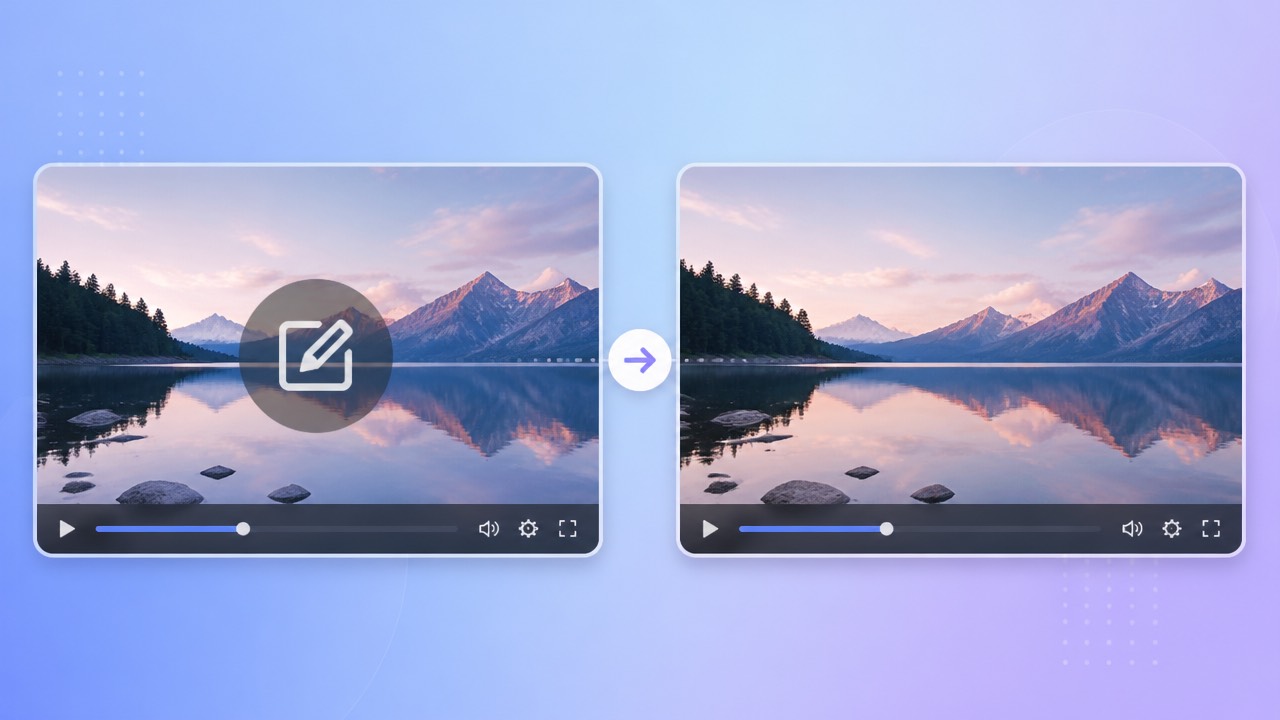
Check the Project, Export, and Rights
Filmora licensing, trial behavior, and export choices can change. If you have the original project, check current official options for a permitted export without a watermark before editing a finished file.
Current Export Options
If the source project is unavailable, you may test an edit on a finished file only when you own the footage or are authorized to change it. AI cannot recover original pixels hidden by the mark, and a visibly clean result is not guaranteed.
A Mark in the Finished File
Check rights to source media and any templates before republishing. Removing a mark does not grant ownership or override licensing conditions.
Check current Filmora export options and permission before processing a finished video.
Process a Selected Mark in 550W
550W Video Eraser estimates replacement imagery for a user-selected region. It can avoid deliberate cropping, but reconstruction and export encoding can change the image or audio. Review the full file.
Select the Visible Area
Upload an authorized eligible MP4 or MOV, mark the visible area, choose Standard mode for inside-the-box processing, and check the task estimate. If the mark moves, inspect its positions; do not assume tracking that requires review.
Review Motion and Output
Protect mode retains the boxed area and processes outside it; it is not a higher-quality option. The browser workflow supports up to 1080p and 30 minutes. Processing time depends on footage, selection, and service status.
Confirm the selection and mode, then inspect the complete export; reconstruction is not guaranteed to look natural.
Check Difficult Areas
Choose a clear authorized source within the current upload limits. Recompression can affect available detail, but a particular resolution does not promise a cleaner reconstruction.
Use a Clear Authorized Source
Include the visible glow or transparency in the selection without unnecessarily covering nearby details. Review all frames where the mark appears, including motion and scene changes.
Include the Visible Edges
For reuse across platforms, check the destination’s current rules and keep any required attribution or disclosure. Compare the final export with the authorized source before publishing.
Inspect the whole selected area and the full video; no selection size guarantees a clean result.
Clean Project Export or Finished-File Edit
If you control the Filmora project, verify its current licensed export options. A permitted clean export may preserve more source detail than reconstructing a finished file. If only a finished video exists, consider a manual or AI edit after confirming your rights.
When a permitted clean export from the original Filmora project is unavailable, 550W Video Eraser can process an authorized finished MP4 or MOV. Check current credit terms and the task estimate, then inspect the full result. Do not assume credits never expire or that any fixed free grant applies.
Prefer a permitted clean project export when available; otherwise test and review an authorized finished-file edit.
Frequently asked questions
What should I check before editing a Filmora watermark?
Check Filmora’s current official export and license options, then confirm you may edit the finished file. Check the task estimate and full result.
Will the original video quality be preserved?
No. The selected region is estimated and export encoding may change picture or sound. Compare the complete file with the source.
Can 550W automatically track a moving Filmora mark?
Automatic tracking is not confirmed. Review every position and use supported selections or segments where appropriate. A center mark is not guaranteed to disappear cleanly.
What video files does the browser accept?
The browser workflow accepts eligible MP4 and MOV up to 1080p and 30 minutes. Verify file-size and other conditions in the current upload interface.
Does removal grant permission to reuse the video?
No. Ownership or permission is needed for the footage and included assets. Removing a mark does not replace a license or current platform requirements.