Remove Subtitles and Review Video Quality
Updated · Product workflow reviewed by 550W AI Labs
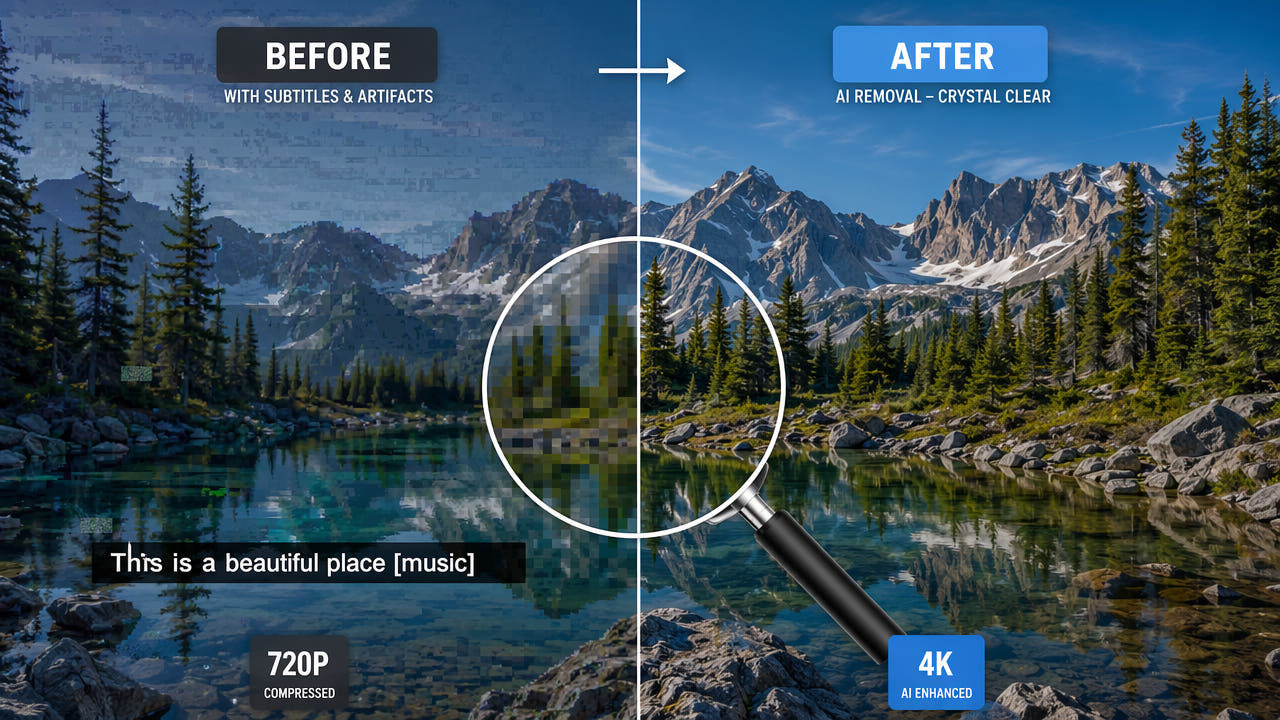
Compare Subtitle Removal Methods
When removing hardcoded subtitles, consider both the selected area and the exported video as a whole. Cropping, blurring, overlays, and AI reconstruction change the image in different ways. Compare them on your own authorized footage before choosing a method.
Cropping changes the composition and removes picture at an edge; scaling the remaining image can change sharpness. Blur softens the subtitle region, while a bar or overlay covers it with another visible element. None of these methods restores the pixels originally hidden beneath the text.
Choose a method according to the delivery requirement and authorized source. AI inpainting estimates replacement content from surrounding picture information; it does not recover the hidden original and may leave visible artifacts.
Compare the selected area and the complete export; reconstruction cannot restore hidden original pixels or guarantee unchanged quality.
How AI Reconstruction Changes the Subtitle Area
AI inpainting estimates replacement imagery for a selected subtitle area. Results depend on the source, scene motion, and background complexity, so inspect both the processed region and the full exported file.
Manual Selection
Select a region that covers the subtitle and its edges without unnecessarily including nearby detail. The AI estimates replacement pixels from surrounding picture information rather than recovering the hidden original. Export encoding can affect the result, so review the full video.
Replacement Content
After you mark the subtitle area, AI estimates replacement imagery from surrounding picture information and nearby frames. Color, texture, motion, and lighting affect the result; the generated pixels may not blend naturally in every scene.
Review Motion
To assess quality, compare the source and export at the same size and playback speed. Check text remnants, edges, color, fine detail, and motion; reconstruction estimates the covered area and cannot recover its original pixels, while export encoding may also change the image.
Check Export Encoding
Watch the reconstructed area during motion and transitions. Frame-to-frame consistency is a review requirement, not a guaranteed capability; generated details can flicker or change.
Do not assume subtitle removal preserves the original encoding. The selected area is reconstructed and the output may be encoded again, changing bitrate, frame details, or color. Compare the result with the source before publishing.
AI reconstructs the selected area using surrounding pixels and adjacent frames. Results vary with occlusion size, background motion and complexity, and source quality; difficult scenes may show artifacts.
Compare Reconstruction, Cropping and Covers
Compare methods on representative authorized footage. Consider framing, visible detail, motion and the exported file rather than assigning a fixed quality ranking.
Cropping and Reframing
Cropping removes part of the frame and can require reframing or scaling. It may be acceptable when the subject remains well composed, but it cannot restore the picture hidden beneath the subtitle.
Blur
Blur deliberately reduces visible detail in the subtitle area. The softened region may be noticeable, especially during motion. Review it in the actual delivery size rather than relying on a fixed quality score.
Bars and Overlays
A solid bar or semi-transparent overlay conceals subtitles without reconstructing the hidden background. It adds a visible graphic element that may suit some internal review copies. Check whether it is acceptable for your intended delivery; exporting can still change encoding and image quality.
AI Reconstruction
Quality impact varies with motion, texture, the size of the subtitle area, and encoding. AI estimates replacement pixels from the surrounding frames; it cannot recover the original image hidden behind the subtitle. Inspect the complete export for artifacts.
Technical Factors Affecting Removal Quality
Source detail, subtitle size, scene motion, and export encoding all affect the result. These factors help you decide what to inspect in the finished video.
Source Detail
A cleaner source usually gives the reconstruction more useful surrounding detail. Heavily compressed or low-resolution material can make artifacts more visible. The current video service supports files up to 1080p, so prepare a supported source and review the output.
Selection Size
A tighter selection limits how much picture needs to be reconstructed, but it must still cover the full subtitle and its edges. Large text or subtitles over important detail are harder to estimate from surrounding imagery. Compare several selections on an authorized sample if the area is difficult.
Motion and Background
Motion, detailed backgrounds and scene transitions can make reconstruction harder. Where the current editor supports it, test a representative segment or adjust the selection; neither shorter segments nor a static region guarantees temporal consistency.
Export Encoding
Use the export options actually available in the current tool. Do not assume that a particular codec, bitrate, or unchanged-quality mode is offered. After downloading, compare the video with the source for motion, fine detail, audio, and color.
Best Practices for Subtitle Removal With Quality Review
Use the following checks to choose a suitable source, mark the subtitle area, and assess the complete exported video.
Use an Authorized Source
When you have multiple authorized versions, choose a clear source that fits the current 1080p and 30-minute limits. More visible detail can help assess the surrounding area, but it does not guarantee a cleaner reconstruction. Check the export rather than relying on the source resolution alone.
Cover the Visible Text
Mark an area that covers all visible subtitle pixels and edges without unnecessarily including nearby detail. A smaller selection can reduce the area the AI must estimate, but an overly tight selection may leave text behind. Preview difficult frames and adjust the selection if needed.
Review Changing Scenes
When subtitles move or the background changes, review each affected position. Use only selections or segments currently supported by the tool, and check the complete output. Splitting a file does not by itself prevent flicker or other artifacts.
Check the Complete Export
Review the exported result across the full video, especially during motion, transitions, and complex backgrounds. If an area looks unnatural, try another selection or edit the source manually where appropriate. Segment-level reprocessing depends on the features available in the current tool; do not assume every workflow provides it.
When Quality Changes May Be Visible
AI estimates replacement content for the selected area. Difficult footage or export encoding may leave visible artifacts or other changes, so review both the processed area and the complete video.
Faces, important objects and rapidly changing backgrounds are difficult because the hidden source information is unavailable. AI estimates a replacement from surrounding imagery, which may not match the original. Check the result carefully before using it.
On difficult footage, compare AI reconstruction with cropping, blurring, or manual editing using an authorized sample. Each method has different trade-offs, and AI artifacts can be visible during playback. For critical work, review the complete result and make manual adjustments if needed. Our AI subtitle remover comparison explains how to assess tools for these scenes.
Frequently asked questions
Does AI subtitle removal degrade video quality?
Quality can change. The selected subtitle area is reconstructed, and exporting may re-encode the video. Compare the complete output with the authorized source before using it.
How should I choose a subtitle-removal method?
There is no universally best method. Compare reconstruction, cropping, blur or a clean project export on representative authorized footage. Each approach changes the picture differently and needs review.
Can 550W process a 4K video without preparing a 1080p version?
No. The 550W browser video workflow supports up to 1080p and 30 minutes. Prepare an authorized 1080p version and review the export; check the current upload interface for the file-size limit. The output may be encoded differently from the source.
Why does cropping subtitles reduce video quality?
Cropping removes part of the picture. If the remaining frame is enlarged, sharpness may change depending on the amount cropped and the export settings. Inspect the actual output.