AI Subtitle Removal Online: Evaluate Tools and Results
Updated · Product workflow reviewed by 550W AI Labs
Why Use an AI Subtitle Remover?
AI estimates a replacement for the selected area using surrounding pixels and nearby frames. It does not recover the original image hidden by text. Motion, covered area, background details, and export encoding can affect the result.
Use only footage you own or are authorized to edit. Distinguish player captions and editable subtitle tracks from text burned into the picture. Prefer an authorized clean export or disabling a separate track when available.
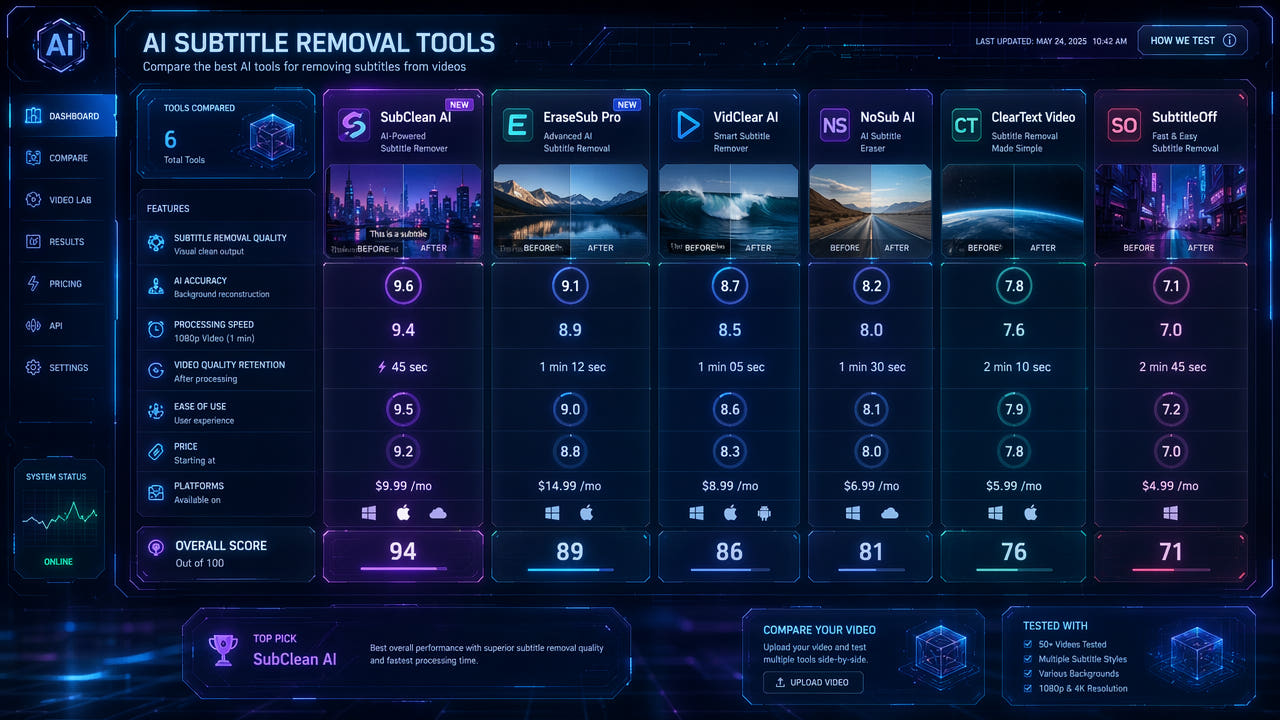
This guide describes checks for choosing a workflow. It does not report a controlled comparison of competing products. Test representative authorized footage and verify current documentation before relying on a feature or price.
AI estimates replacement imagery for embedded text; confirm rights and inspect the complete output.
What to Check in an Online Tool
550W Video Eraser offers browser-based processing with manual box selection or fullscreen removal. AI estimates the selected image area from its surroundings; success and unchanged quality are not guaranteed.
550W Video Eraser
The browser workflow accepts supported MP4 and MOV footage up to 1080p and 30 minutes. Check file-size conditions in the actual upload interface. Processing time varies with the material, selected area, and service status.
Current Upload and Task Controls
The interface allows multiple eligible videos to be selected. A marked region can be applied to other unmarked videos with matching resolution; verify it on every file. Each video remains an independent task.
Other Products and Versions
If considering Runway, HitPaw, Kapwing, Vmake, or another product, read its current official documentation. Do not infer subtitle removal support from a general editing or object-removal description.
Trials and Billing
Confirm whether the specific feature processes video rather than still images, which versions and platforms support it, and what controls are available. Test an authorized sample before planning a project.
Output Review
For an installed product, check operating-system requirements, processing location, and current license terms. For a web service, check upload handling, retention, and supported media.
Do not assume that a product uses local processing or has a particular speed advantage. Check the documented workflow and measure your own representative test without treating that time as a promise for other clips.
Inspect the selection controls, task states, errors, retry options, and downloads in the current version. A general editor may need a different workflow from a dedicated reconstruction tool.
Check whether a trial produces a preview or a usable export, and whether the exported file has additional branding. These conditions can vary by plan and change over time.
Review prices, credits, any renewal terms, and the estimate for your actual clip before submitting. A trial offer does not guarantee that a particular project can be completed free of charge.
Compare the full exported file with the source. Look for remnants, edge defects, flicker, altered faces or details, audio problems, and encoding changes. A clean still frame does not establish quality for the whole clip.
A Workflow Checklist
Use this checklist when evaluating a tool. It lists questions to verify rather than unconfirmed competitor prices or capabilities.
| Check | 550W Browser Workflow | Verify for Any Other Tool |
|---|---|---|
| Input | Supported MP4 or MOV; up to 1080p and 30 minutes | Current formats, duration, resolution, and size conditions |
| Selection | Manual box selection or fullscreen removal | Available region controls and any tracking limitations |
| Multiple files | Independent tasks; verify any reused same-resolution selection | Documented submission and review controls |
| Timing | Varies with footage, selection, and service status | Actual workflow; no fixed time assumption |
| Billing | Check current interface and task estimate | Current trial, credits, plan, and renewal terms |
| Quality | Reconstruction can create artifacts; inspect full export | Compare full output with an authorized source |
Choose according to your authorized footage, required controls, available export, review effort, and current total cost. There is no universal quality-to-cost ranking.
Processing time depends on footage, selection, and service status. Upload and download conditions also affect the workflow. Neither cloud processing nor local hardware establishes a fixed completion time.
Verify current controls and compare actual authorized outputs; specialization alone does not establish better quality or speed.
How to Choose the Right AI Subtitle Remover
Estimate your expected workload and compare current billing terms with the cost of testing and reviewing outputs. Do not assume unlimited processing, a generous free tier, or that a subscription is always cheaper.
Consider Your Volume
Test representative authorized footage before choosing a paid workflow. Background complexity, text style, motion, and source quality affect reconstruction. A satisfactory sample does not guarantee other scenes.
Evaluate Output Quality Requirements
Check the current upload interface for supported formats and any file-size conditions rather than relying on generic limits from other services. For longer videos, the current 550W video limit is 30 minutes and 1080p. If a source is unsupported, prepare a compatible version before uploading.
Check Format and Size Limits
Check the actual export controls and downstream editing needs. Do not assume unchanged quality output, source bitrate retention, or an export without re-encoding. For automation, verify the documented API limits and add individual result review.
Assess Workflow Integration
Quality Factors That Affect AI Subtitle Removal
Understanding what affects removal quality helps you set realistic expectations and optimize your results regardless of which tool you choose.
Background Complexity
Background details, motion, faces, and fine patterns can make reconstruction difficult. A simpler background may help but can still show defects. Compare actual samples rather than assuming dedicated tools always outperform general editors.
Subtitle Style and Opacity
Text size, outlines, shadows, transparency, and background movement can affect results. Include representative subtitle styles in your authorized test and check the complete video, not only one frame.
Video Resolution and Bitrate
For burned-in subtitles, test different lettering, outlines, and backgrounds while the footage moves. Inspect text edges and nearby texture across several moments; a still preview can miss smearing or flicker.
Checking Current Costs
Pricing, trial access, and export conditions can change. Consult the current product interface and official terms instead of relying on a fixed monthly price range.
Compare the estimate for your expected workload with any credit purchase, subscription, renewal, and export conditions. Do not assume unlimited use or a particular amount of free processing.
Include review time and possible additional authorized attempts in the project budget. A higher price does not guarantee a better result, and retrying does not guarantee success.
Frequently asked questions
How should I choose an online subtitle remover?
Test representative footage you own or may edit, check current limits and controls, and compare complete outputs. No tool is best for every scene.
Can I use an online subtitle remover for free?
Check the current trial or signup offer and the task estimate. Access, credits, and export conditions can change; do not assume your whole project will be free.
Which files can I upload to 550W in the browser?
The browser workflow accepts supported MP4 and MOV files up to 1080p and 30 minutes. Check the upload interface for file-size conditions and other validation requirements. Developer API limits are separate.