How to Remove Hardcoded Subtitles from Video Online
Updated · Product workflow reviewed by 550W AI Labs
What Are Hardcoded Subtitles and Why Are They Difficult to Remove?
Hardcoded subtitles, also called burned-in subtitles, are rendered into the video pixels. A selectable soft subtitle track may be embedded in the video file or loaded separately, such as from an SRT or ASS file, and can often be turned off in the player or editing project. Text rendered into the picture cannot be toggled off through subtitle-track settings.
Start by checking your player’s subtitle menu or the original editing project. If the text can be switched off, export without that subtitle track instead of altering the picture. Burned-in text requires changing the affected pixels: cropping, covering, manual repair and AI inpainting offer different tradeoffs.
For footage you own or are authorized to edit, removing an old caption can make room for a new translation or layout. Keep the source file: the pixels covered by burned-in text are not recoverable exactly, and an AI result must be checked before publication.
Check for a removable subtitle track first. AI reconstructs burned-in regions; it does not recover the exact hidden original.
How AI Subtitle Removal Works: The Technology Explained
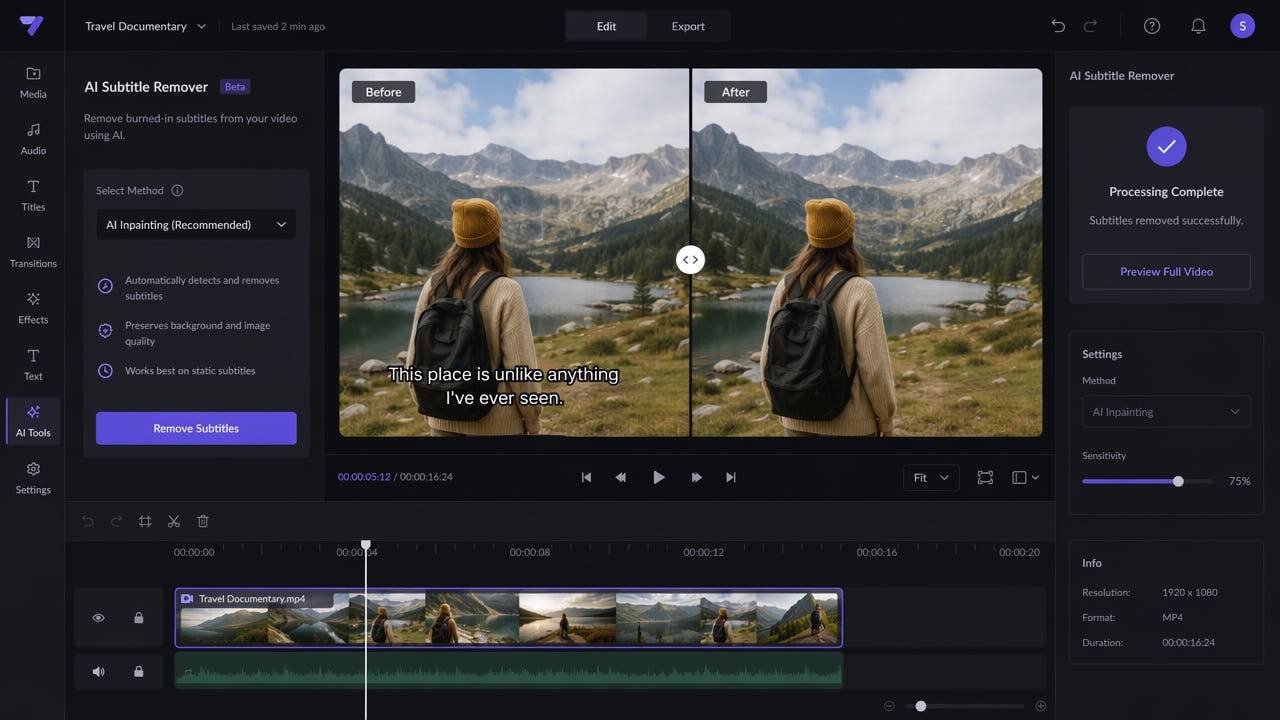
AI inpainting generates a plausible replacement for an area using available visual context. In video, a result also needs to look consistent as frames change.
Selecting the Processing Area
In 550W, choose the subtitle region or fullscreen mode in the video tool. Selection tells the service where to process; inspect the whole clip if captions change position.
Understanding Reconstruction Limits
Results depend on background motion, the size and opacity of the text, and detail behind it. A stationary caption over a simple wall is a different problem from a large caption covering a moving face.
Cropping removes part of the frame; blur or a solid box conceals the text. Manual repair gives an editor control but takes time. AI reconstruction is useful when preserving the framing matters and a plausible replacement is acceptable.
Play the processed clip at normal speed and inspect scene changes. Look for flicker, softened edges or invented detail. A clean-looking still frame alone does not establish video quality.
Choose a method based on the footage and the acceptable tradeoff, then review the result in motion.
Step-by-Step Guide: Remove Hardcoded Subtitles Using 550W Video Eraser
Use the video tool linked on this page. The web interface uploads your file for cloud processing; it is not an offline, on-device editor.
Upload an authorized video
Upload an MP4 or MOV that meets the limits shown in the tool. Use an authorized copy and keep the original. The current web workflow supports up to 1080p and 30 minutes, subject to the displayed file-size limit.
Select the subtitle area and mode
Check where captions appear across the clip, then select the region and removal mode. Standard processes inside the selection; Protect preserves the inside and processes outside, and is not a higher-quality setting. If a caption moves outside the selected region, adjust it or consider the available fullscreen mode.
Check the estimate and submit
Review the credit estimate and any preview option shown in the current tool before submitting. A preview of a longer clip may not include its hardest scene.
Review and download
Follow the task status, preview the completed video, and download it while the result remains available. Processing time varies; do not assume a fixed completion time from the video length alone.
Tips for Best Subtitle Removal Results
A useful test includes the actual difficult scene rather than only the opening title or an easy static shot.
Use a Clear Source and Suitable Selection
Use a clear source. Select an area that covers the changing caption without unnecessarily including unrelated content; check the selection at multiple moments in the clip.
Watch for Difficult Backgrounds and Important Detail
For opaque caption bars or text over faces, keep expectations conservative. If the reconstruction loses important detail, use the original project, an alternate source or a different editing approach.
Check Caption Positions
When captions appear in different locations, check that your selected mode covers them. A successful task status does not mean every unwanted mark was removed.
Before publishing, compare motion, edges, duration and audio against the original. Keep your original file and the reviewed export as separate assets.
Common Use Cases for Hardcoded Subtitle Removal
Caption removal is useful when you need an authorized clean version and cannot export one from the source project.
Content Repurposing Across Platforms
Repurpose your own social video for a new layout after checking whether the platform can provide a clean original. Removing an overlay does not transfer rights to third-party footage.
Video Translation and Localization
For localization, remove burned-in captions before adding a new translation. Review the cleaned result first so new captions do not conceal errors in the reconstruction.
Professional Video Editing
For client work, agree on what may be changed and what visual artifacts are acceptable. Compare a representative sample before committing to a large batch.
Comparing Subtitle Removal Methods
There is no universally best method. Choose according to whether the original project is available, how much detail is covered, and whether a generated replacement is acceptable.
AI inpainting
AI inpainting can preserve the composition without a blur patch, but may invent detail or flicker on difficult scenes. Test the actual footage rather than relying on a generic quality claim.
Manual repair
Manual repair in an editor offers detailed control and can combine tracking, masks and replacement material. The work required depends on the scene and the editor’s tools.
Cropping or covering
Cropping or covering is fast when losing or hiding that part of the frame is acceptable. It does not reconstruct the obscured image.
Interpolation filters
A delogo or interpolation filter can help with some static overlays. Evaluate edges and motion on your own clip; neither a filter nor an AI tool guarantees the original hidden image.
Frequently asked questions
Can hardcoded subtitles be completely removed from a video?
Burned-in text cannot be switched off. AI may produce a convincing reconstruction, but large opaque captions or complex moving backgrounds can leave artifacts.
Does removing hardcoded subtitles reduce video quality?
The output is processed video. Inspect motion, fine detail and audio, and do not assume bit-for-bit preservation or an unchanged bitrate.
How long does AI subtitle removal take?
Time varies with the input, selected mode and service conditions. Follow the task status; no fixed processing time is intended.
What is the difference between hardcoded and soft subtitles?
A soft subtitle is a separate text track that can usually be disabled. A hardcoded subtitle is part of the picture and requires pixel editing to change.