Remove the KineMaster Watermark — Clean Exports
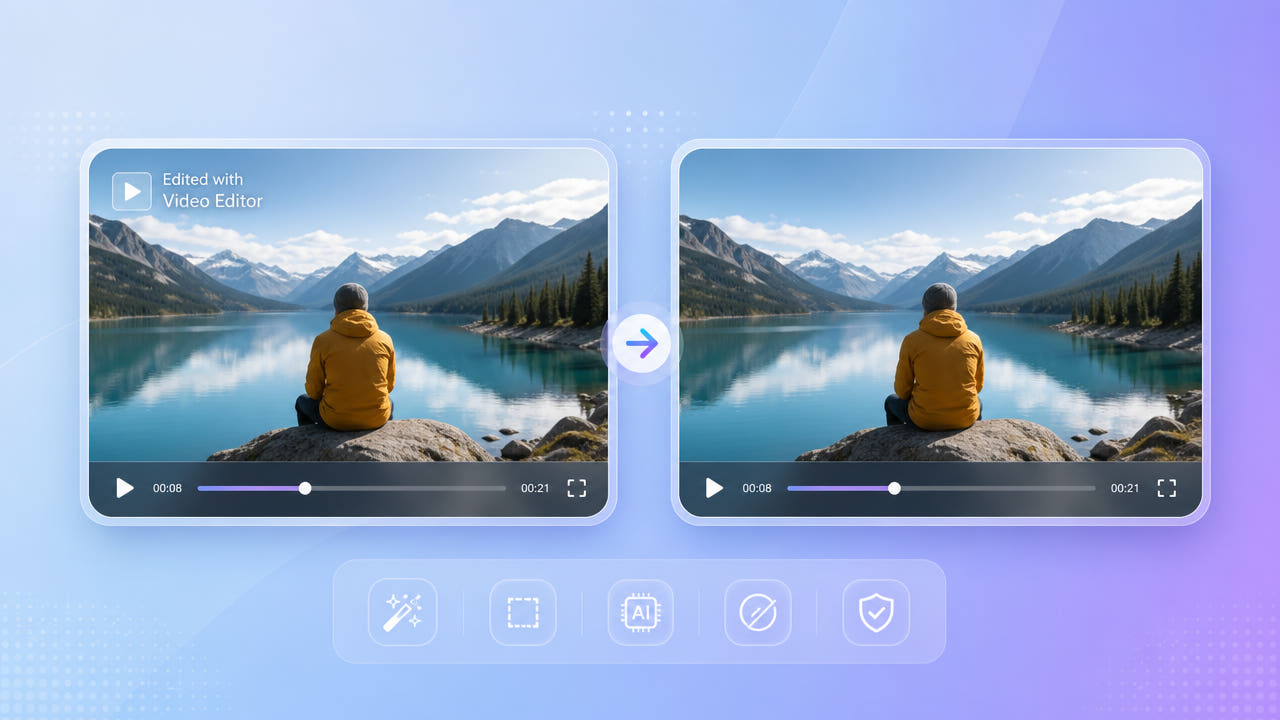
Why KineMaster Adds a Watermark
KineMaster is a popular mobile video editor, and its free tier adds a watermark to every export — typically the app logo in a corner of the finished video. The mark stays on the clip wherever you upload it.
The Free-Tier Export Logo
For creators sharing to YouTube, TikTok, or Instagram, that corner logo signals the editing app and clutters an otherwise polished clip. Many people only notice it after exporting, when re-editing the project is inconvenient.
What It Means for Creators
Rather than rebuilding the project or paying to re-export, you can clean the finished file directly. An AI eraser reconstructs the corner so the watermark is gone while the rest of the video is untouched.
KineMaster's free tier stamps a corner logo on every export; cleaning the finished file is faster than rebuilding the project.
Removing the KineMaster Logo with AI
550W Video Eraser reconstructs the area behind the KineMaster logo using deep-learning inpainting. Select your exported video, mark the watermark, and export a clean result — no editing skills required.
Three-Step Cleanup
For a logo over a simple or static background, Standard mode is quick and clean. When the watermark overlaps moving footage, Protect mode rebuilds the changing detail more faithfully.
Standard vs. Protect Mode
Because the export logo sits in a fixed corner, a tight selection box keeps the rest of the frame intact. There is no cropping, so your full landscape or vertical composition is preserved at up to 1080p.
Mark the fixed corner logo and pick Standard or Protect mode; no cropping means your full composition stays intact.
Watermark Remover vs. Upgrading KineMaster
KineMaster's paid plan removes the watermark at export, but it does not help with clips you already exported or projects you no longer have open. A standalone eraser cleans any finished file, which is the same advantage it offers for CapCut exports.
With a credit-based system and 200 free credits for new users, occasional cleanup does not require a subscription. You pay only for what you process, and credits are refunded automatically if a job fails.
Tips for a Clean KineMaster Result
Export from KineMaster at the highest quality available before erasing. A crisp 1080p file gives the AI cleaner pixels around the logo than a re-compressed or re-downloaded copy.
Export at Top Quality
When marking the watermark, include any soft glow or padding around the logo so no faint outline survives. A slightly larger box almost always produces a cleaner corner than one that is too tight.
Cover the Whole Logo
Export at top quality and include the logo's glow in your selection for a clean, outline-free corner.
Frequently Asked Questions
How do I remove the KineMaster watermark for free?
Export your video and use 550W Video Eraser to mark and remove the logo. New users get 200 free credits, so light cleanup costs nothing.
Does removing the watermark lower video quality?
No. AI inpainting rebuilds only the logo area and keeps the original resolution and bitrate elsewhere, up to 1080p.
Can I clean a clip I exported a while ago?
Yes. The eraser works on any finished MP4 or MOV file, even if you no longer have the original KineMaster project.
What if the logo sits over moving footage?
Use Protect mode so the AI reconstructs the changing background behind the logo more faithfully.
Is it legal to remove the KineMaster watermark?
Removing the watermark from your own footage is fine. Respect the rights of any source material you did not create before redistributing.