Remove Subtitles from TikTok Videos for Cross-Platform Use
Why TikTok Videos Have Burned-In Subtitles
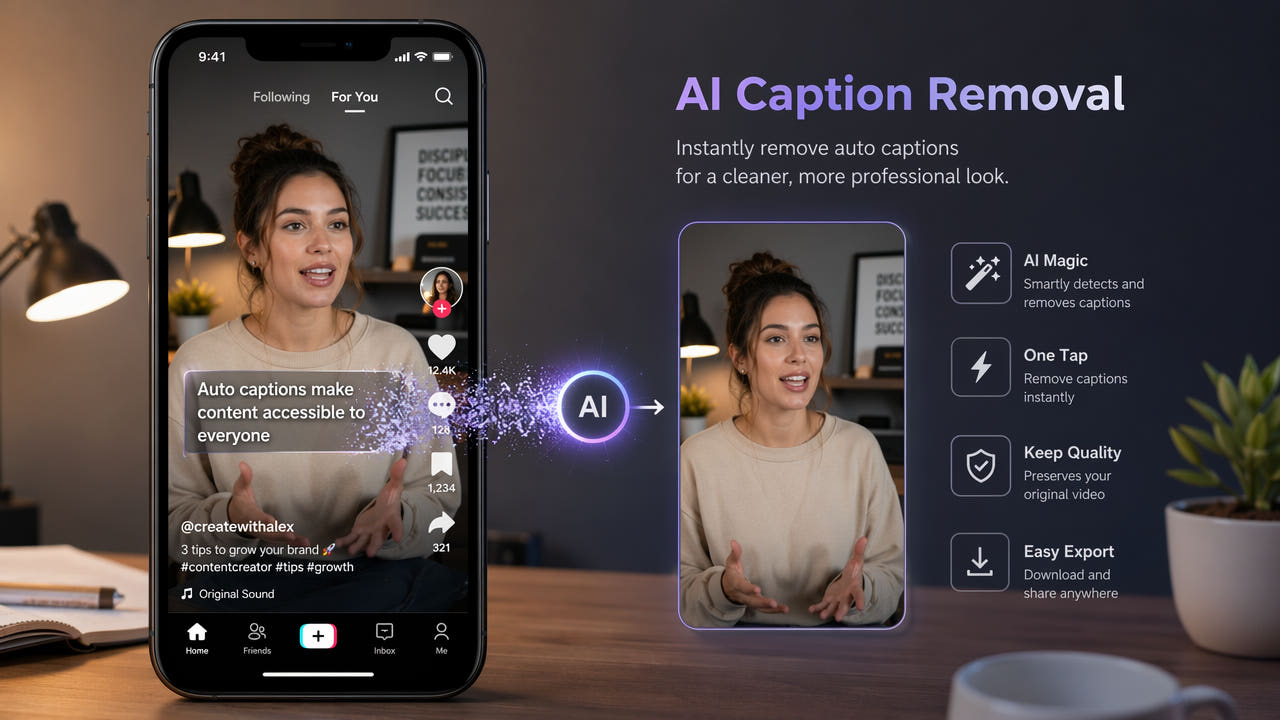
TikTok has become one of the most popular platforms for short-form video content, with creators producing millions of clips daily. One of TikTok's most-used features is auto-captions, which automatically generates text overlays from spoken audio. While these captions improve accessibility and engagement on TikTok itself, they create a significant problem when creators want to repurpose their content for other platforms like YouTube Shorts, Instagram Reels, or LinkedIn.
When you download a TikTok video that has auto-captions enabled, those captions are permanently burned into the video file. Unlike soft subtitles that exist as separate text tracks, TikTok renders the caption text directly onto each video frame during the download process. This means you cannot simply toggle them off in another video player or editing software. The text becomes part of the visual content itself, pixel by pixel embedded into every frame where captions appear.
TikTok auto-captions are burned into downloaded video frames and cannot be toggled off, requiring AI removal for clean repurposing.
This creates a workflow bottleneck for content creators who follow a multi-platform distribution strategy. Posting a TikTok video with TikTok-style captions on YouTube Shorts looks unprofessional and signals to viewers that the content was not created natively for that platform. Each platform has its own caption style and audience expectations, making subtitle removal an essential step in any cross-platform content workflow.
The Cross-Platform Content Challenge
Modern content creators rarely publish exclusively on a single platform. The most successful creators distribute their short-form videos across TikTok, YouTube Shorts, Instagram Reels, Facebook Reels, and even LinkedIn. This multi-platform approach maximizes audience reach and revenue potential. However, each platform has distinct visual standards and audience expectations that make simple cross-posting ineffective.
Platform-Specific Caption Styles
TikTok captions have a distinctive visual style with specific fonts, colors, and positioning that immediately identifies content as originating from TikTok. When this style appears on YouTube Shorts or Instagram Reels, it signals to viewers and algorithms that the content is recycled rather than original. This can negatively impact engagement rates and algorithmic distribution on the destination platform.
YouTube Shorts has its own caption system that creators can enable natively. Instagram Reels similarly offers built-in caption generation. By removing TikTok's burned-in captions first, creators can then add platform-native captions that match each destination's visual language and improve performance metrics.
Algorithm Considerations
Platform algorithms increasingly detect and deprioritize content that appears to be directly cross-posted from competitors. Visible TikTok-style captions are one of the strongest signals of cross-posted content. Removing these captions before uploading to other platforms helps your content appear native and receive fair algorithmic treatment in terms of reach and recommendations.
Removing TikTok captions before reposting helps content appear native on other platforms and avoids algorithmic deprioritization.
Step-by-Step: Remove Subtitles from TikTok Videos
Follow this workflow to remove auto-generated captions from your TikTok videos and prepare them for cross-platform distribution. The entire process takes just a few minutes per video using AI-powered tools.
Step 1: Save Your TikTok Video
First, download the TikTok video to your device. You can use TikTok's built-in save feature by tapping the share button and selecting "Save video." Note that this download will include the burned-in captions if they were enabled during creation. For best quality, save the video before adding any TikTok effects or filters that might complicate the subtitle removal process. If you are the original creator, you can also export from your drafts before publishing to get a version without the TikTok watermark.
Step 2: Upload to an AI Subtitle Remover
Open 550W Video Eraser in your web browser. No software installation is needed since the tool runs entirely in the cloud. Click the upload area or drag and drop your saved TikTok video file. The tool supports MP4 format files up to 300MB in size and up to 3 minutes in duration. For longer TikTok compilations, split them into individual clips before processing.
Step 3: Select the Caption Region
Once your video loads in the preview player, identify where TikTok's auto-captions appear on screen. TikTok typically places captions in the center or lower-center portion of the frame. Draw a selection rectangle around the caption area. Make the selection tight around the text boundaries without cutting off any characters. If your captions change position during the video, select a region that covers all possible positions.
Step 4: Process with AI
Click the process button to begin AI-powered subtitle removal. The system analyzes each frame, identifies caption text pixels, and uses inpainting to reconstruct the background behind the text. Processing typically takes 30 to 90 seconds for a standard TikTok video of 15 to 60 seconds. The AI maintains temporal consistency across frames so the reconstructed areas look natural in motion.
Step 5: Download and Repost
Preview the processed video to verify clean subtitle removal. Once satisfied, download the clean version to your device. You now have a caption-free video ready for uploading to YouTube Shorts, Instagram Reels, or any other platform. Add platform-native captions if desired using each platform's built-in tools for maximum engagement.
Best Practices for TikTok Content Repurposing
Removing subtitles is just one step in an effective cross-platform content strategy. Follow these additional best practices to maximize the impact of your repurposed TikTok content.
Remove the TikTok Watermark Too
In addition to captions, downloaded TikTok videos include a watermark with your username and the TikTok logo. This watermark is another strong signal of cross-posted content. For a comprehensive guide on watermark removal, see our article on how to remove TikTok watermark for repurposing. Removing both captions and watermarks gives you a completely clean video that appears native on any platform.
Adjust Aspect Ratio If Needed
TikTok videos are typically filmed in 9:16 vertical format, which is also the standard for YouTube Shorts and Instagram Reels. However, if you plan to repurpose content for horizontal platforms like YouTube long-form or LinkedIn, you may need to adjust the framing. Remove subtitles first, then handle any aspect ratio changes to avoid complications with the removal process.
Re-Add Platform-Native Captions
After removing TikTok's burned-in captions, consider adding new captions using each destination platform's native tools. YouTube Shorts auto-generates captions that match YouTube's visual style. Instagram offers its own caption sticker. These native captions perform better with each platform's algorithm and provide a more polished viewer experience than cross-posted TikTok-style text.
Maintain a Content Calendar
Stagger your cross-platform posts rather than publishing simultaneously everywhere. Post on TikTok first, then remove captions and watermarks, and distribute to other platforms over the following days. This approach gives each platform's algorithm time to evaluate your content independently and avoids duplicate content detection issues.
Types of TikTok Subtitles You May Encounter
Not all text overlays on TikTok videos are the same. Understanding the different types helps you choose the right removal approach.
Auto-Generated Captions
These are created by TikTok's speech-to-text system and appear as styled text overlays synchronized with spoken audio. They are the most common type of burned-in subtitles on downloaded TikTok videos. AI removal tools handle these effectively because they typically appear against varied backgrounds with consistent positioning.
Manual Text Overlays
Creators often add custom text using TikTok's text editor for emphasis, context, or storytelling. These can appear anywhere on screen with various fonts, colors, and animations. Removing animated text overlays is more challenging than static captions and may require frame-by-frame processing for best results.
Duet and Stitch Text
Videos created using TikTok's Duet or Stitch features may include text labels identifying the original creator. These are typically smaller and positioned at the top of the frame. They can be removed using the same AI inpainting approach by adjusting your selection region to cover the label area.
For all these subtitle types, the fundamental removal process remains the same: identify the text region, select it, and let AI inpainting reconstruct the background. The key difference is in how precisely you need to define your selection area and whether multiple passes are required for text in different positions.
Comparing TikTok Subtitle Removal Methods
Several approaches exist for removing subtitles from TikTok videos. Here is how they compare for the specific challenges of TikTok content.
AI Inpainting (Recommended)
Cloud-based AI tools like 550W Video Eraser provide the best results for TikTok subtitle removal. They handle the varied backgrounds common in TikTok content, maintain video quality, and process clips quickly. This is the recommended method for creators who regularly repurpose TikTok content across platforms.
Video Editing Software
Professional editors can use After Effects or Premiere Pro with content-aware fill to remove captions manually. This offers maximum control but requires expensive software licenses and significant time per video. Not practical for creators processing multiple TikTok clips daily.
Cropping the Frame
Some creators crop the bottom portion of the frame to remove captions. This is fast but reduces video resolution and may cut off important visual content. It also changes the aspect ratio, which can cause issues on platforms that expect specific dimensions.
Re-Recording Without Captions
If you are the original creator, the simplest solution is to re-export the video from TikTok drafts without enabling auto-captions. However, this only works for your own content and is not an option for videos already published with captions enabled. For a broader comparison of subtitle removal approaches, check our guide on removing hardcoded subtitles from any video.
Frequently Asked Questions
Can I remove TikTok auto-captions after posting?
You cannot edit captions on a posted TikTok. Download the video and use an AI subtitle remover to create a clean version for reposting on other platforms.
Will removing subtitles affect TikTok video quality?
AI inpainting preserves original resolution. The subtitle area is reconstructed while the rest of the frame remains unchanged and at full quality.
Why do TikTok videos have burned-in subtitles?
TikTok renders auto-captions into the video file when downloaded. They cannot be toggled off in the saved file, requiring AI removal tools to eliminate.
Can I remove subtitles from TikTok videos in batch?
Yes. Tools like 550W Video Eraser support batch processing, letting you remove subtitles from multiple TikTok clips efficiently in one session.