Review a Visible Overlay on an Authorized Veo Video
Updated · Product workflow reviewed by 550W AI Labs
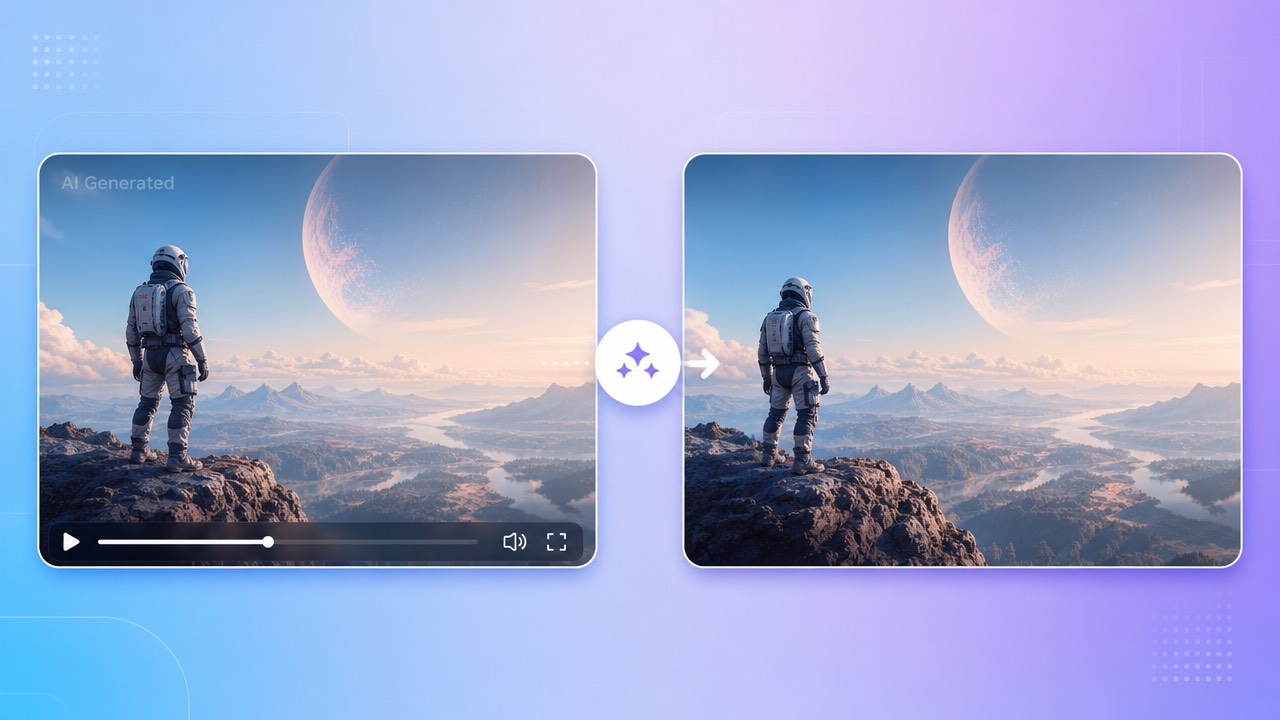
Visible overlays and Veo provenance
A Veo-related video may include different visual elements depending on the product and export. Do not assume every file has an on-screen Veo logo or that any mark appears in a fixed position.
Check the actual exported file
Google DeepMind describes SynthID for video as an imperceptible watermark embedded in video frames. 550W Video Eraser edits a user-selected visible region; it does not check the SynthID signal, and the edit cannot verify whether that signal remains. Visible-pixel editing and provenance verification are separate.
SynthID is not a visible overlay
Before editing or publishing, check the current terms and export options for the Google product and account involved. Preserve source records and any required AI disclosures.
This page covers only a visible overlay in the file you have, not SynthID or other invisible provenance.
Process a visible region with care
If a visible overlay is present and you have permission to edit it, select the affected region in 550W Video Eraser. Automatic detection or tracking is not guaranteed.
Select the overlay manually
Standard processes inside the selected area. Protect preserves the selected area and processes outside it. Protect is not a higher-quality mode; choose based on which pixels should remain.
Standard and Protect handle opposite regions
AI estimates replacement content from nearby picture information and cannot recover hidden original pixels. The video workflow supports up to 1080p and 30 minutes; check the current upload interface for file-size eligibility.
Use manual selections and understand which side of the selection each mode processes.
Keep authorization and disclosures
Edit only files you own or have permission to modify. Removing an overlay does not change the source or grant rights to reuse or publish it.
Check current Google product terms and the rules of the destination where you plan to share the clip. Retain attribution, consent, and AI-origin disclosures when they apply.
Rights and disclosure checks remain necessary after a visual edit.
Review the complete output
Processing time depends on the footage, selected region, and service status. Scrub the entire result, including scenes with changing backgrounds or motion.
Expect processing time to vary
Export encoding may change resolution, bitrate, color, or other details. Look for remnants and artifacts, and compare the export with the original before use.
Check scenes and encoding
A finished task does not guarantee a natural-looking or unchanged export.
Frequently asked questions
Does every Veo video have a visible watermark?
Do not assume so. Check the actual file and the current export information for the specific Google product; visible branding and invisible provenance are not the same thing.
Does removing a visible overlay remove SynthID?
No. A visual edit does not demonstrate that SynthID or other provenance signals were removed. Preserve origin records and do not misrepresent the file.
How should I select a visible Veo-related mark?
Select only the visible region you are authorized to edit. Standard processes inside the selection; Protect preserves the selection and processes outside. Review the complete export.
What video limits apply?
The video workflow supports up to 1080p and 30 minutes. File-size eligibility appears in the current upload interface; processing time varies with the file, selection, and service status.
May I publish an edited Veo-related video?
Only if you have the necessary rights and follow current Google product terms and destination-platform rules, including attribution or AI-disclosure requirements where applicable.