Edit Visible Bilibili Marks on Video You May Use
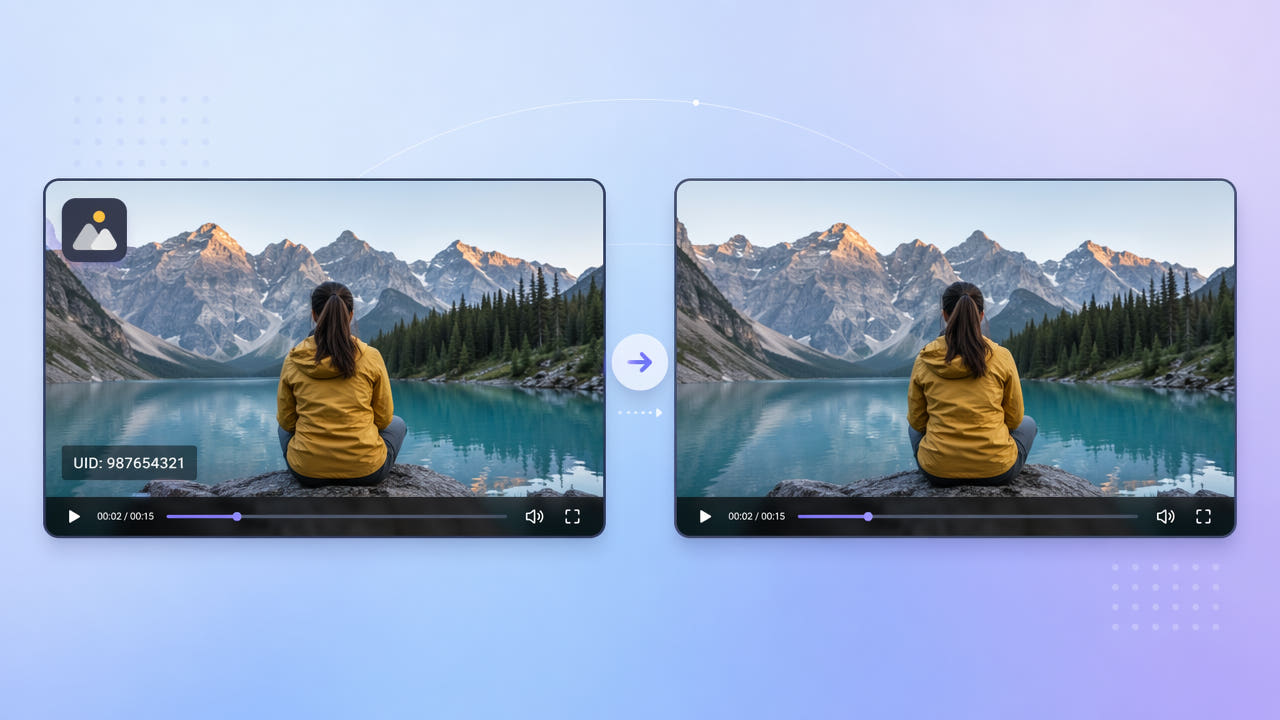
Inspect the Actual Clip
A Bilibili clip may show a logo, account identifier, creator-added label, or no persistent mark at all. Inspect the actual file and note whether the text is part of the picture, a player overlay, or an editable layer.
Identify Visible Marks
A clean picture does not grant reuse rights. Confirm ownership or permission and check any attribution or platform obligations before changing a visible identifier or publishing the video elsewhere.
Check Rights Before Reuse
When a mark is burned into the video, its position may change across scenes or edits. Watch the full timeline before deciding whether a selection, source-project export, crop, or coverage is appropriate.
The visible file and your permission determine whether and how to edit; do not assume every download has the same marks.
Select the Mark in 550W Video Eraser
For a video you may edit, identify the frames containing a visible mark. Use current editor controls to select the affected area. AI estimates replacement imagery from nearby picture information and cannot reveal hidden original pixels.
Choose a Narrow Region
Standard processes inside a selected box. Protect preserves what is inside the box and processes outside it; it is not a higher quality setting for a boxed logo. Confirm the mode and selection before submitting.
Understand Standard and Protect
A tight box can avoid unnecessary changes to surrounding detail. If the mark moves, inspect its path and use supported selections or segments as needed; automatic tracking and a clean result are not guaranteed.
Select only the affected area, check mode behavior, and review difficult frames after processing.
Prepare an Authorized Reuse Edit
If you are assembling a compilation or reaction edit, start from footage you own or have permission to reuse. Compare the edited result with the source and retain required attribution or disclosures.
For a broader walkthrough of selected logo edits, see the related video logo removal guide. Removing a visible identifier alone does not transfer rights or establish compliance with a platform’s current rules.
Review the Export
Zoom in when selecting small characters, including any shadow or outline. Avoid a box larger than necessary, and check whether the identifier appears elsewhere in the timeline.
Include the Full Visible Text
Use the best authorized source available and compare the complete export for remnants, motion artifacts, color and detail changes, audio, and encoding. Processing time depends on footage, selection, and service status.
Inspect Source and Output
A careful selection helps, but visual quality must be judged from the complete exported file.
Frequently asked questions
Can I edit visible UID text?
You may select visible UID text in a video you are authorized to edit. AI estimates replacement pixels, and the result may need further review.
Is cropping required for a logo?
A crop is one option, but a selected reconstruction may preserve framing. Neither approach guarantees a clean or unchanged result.
Can I select more than one mark?
Use the controls currently available to select affected regions, then verify every mark and frame in the output. Do not assume one box will follow moving content.
Will quality stay unchanged?
No unchanged-quality guarantee applies. Check detail, color, motion, audio, and export encoding against the source.
Which video files are eligible?
The browser video workflow accepts eligible MP4 and MOV files up to 1080p and 30 minutes. Check the current upload interface for file-size and other conditions.