Review News Tickers and Lower Thirds in Authorized Video
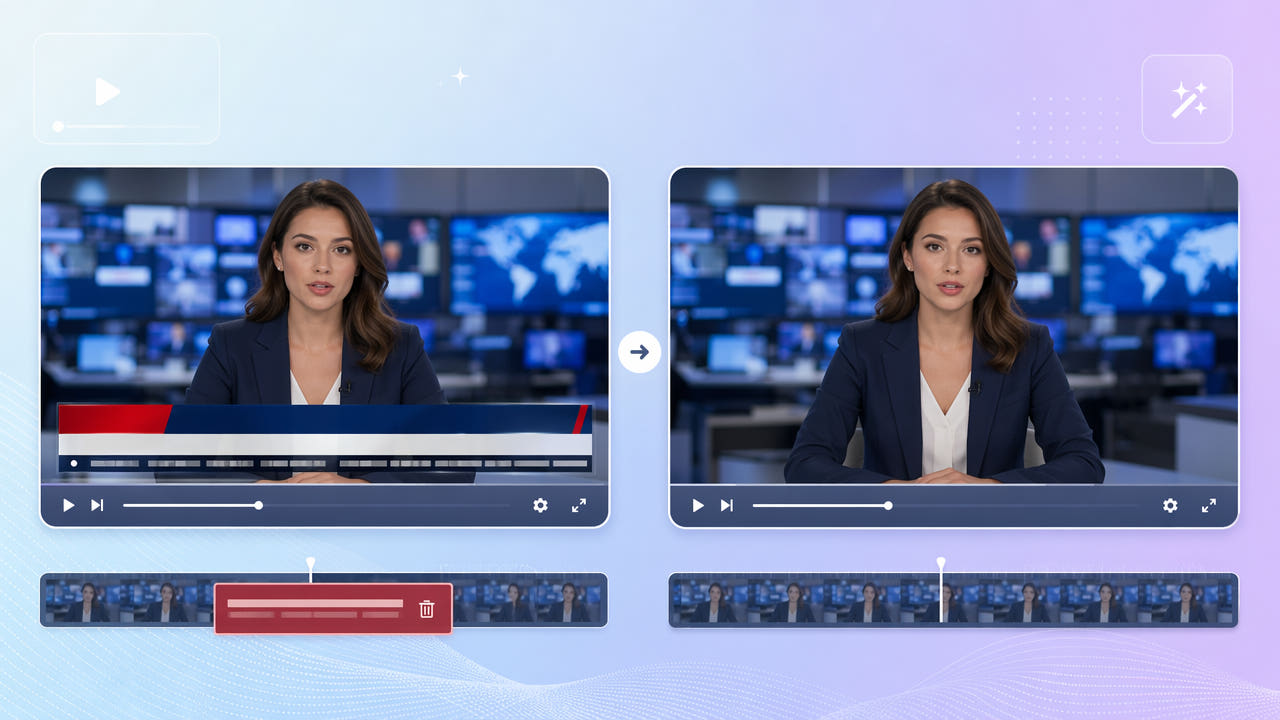
Identify the Broadcast Overlay and Rights
Broadcast recordings may contain a scrolling ticker, speaker label, headline bar, and channel logo. These graphics can cover a wide, changing region of the picture.
Tickers, Lower Thirds, and Chyrons
A ticker may scroll while a lower third appears only in some segments. Inspect the whole timeline before choosing a region; a single fixed selection may miss graphics or cover unrelated picture details.
Why They Are Hard to Remove
Use only footage you own or are authorized to edit and reuse. Cropping, covering, or reconstructing an overlay does not change rights to the program or the information displayed in it.
Identify every visible overlay and check reuse rights before editing a broadcast recording.
Select and Reconstruct the Lower Band
550W estimates replacement content for the selected region from nearby picture information. It cannot recover the original pixels hidden by a ticker, and a wide band may show visible artifacts.
Mark the Lower Band
Mark the full visible graphic, including stacked bars and moving text. Standard processes inside the selection; Protect retains the selected area and processes outside it. Neither mode guarantees a natural result.
Select the Full Moving Ticker Region
Inspect the exported clip across scene changes, motion, faces, and detailed backgrounds. The browser workflow supports up to 1080p and 30 minutes; export encoding can change detail or resolution.
Use Standard for the selected ticker band and inspect the complete output.
Cleaning Up Broadcast Clips
A broadcast clip may also contain a station logo or time stamp. Inspect each region and use selections supported by the current interface; do not assume one task will remove every graphic. See the guides to channel logos and date stamps for related checks.
Keep an untouched authorized source. Removing on-screen graphics does not grant permission to republish the recording or erase the need to preserve context for editorial or evidence use.
Review Large Reconstructed Areas
Check the full height of stacked graphics in every segment. A box that is too narrow may leave text, while an overly broad selection may alter faces, hands, or other important content.
Include the Full Band Height
Compare the export with the best authorized source available. Cleaner footage can help inspection, but it cannot guarantee that a large hidden area will be reconstructed accurately.
Start From a Clean Capture
Check graphic boundaries, motion, and the whole export; large-area reconstruction can remain visible.
Frequently asked questions
Can I test a scrolling ticker?
You may test an authorized clip by selecting the visible ticker band and using Standard mode. Review the export for motion artifacts and missing text fragments.
Can I process a lower third?
Select the lower-third graphic where it appears, and inspect the output across entrance, exit, and scene changes. The result may need a different selection or manual editing.
Will the video keep its original quality?
No unchanged-quality guarantee applies. Reconstruction and export encoding can affect detail, color, sound, or resolution; compare the entire file with the source.
Will the upper frame remain untouched?
Do not assume so. Even if only a lower band is selected for reconstruction, export encoding can affect the full file. Inspect the upper frame and sound as well.
Can a logo and ticker be processed together?
Check both areas and use only selections supported by the current interface. One submission is not guaranteed to remove both cleanly.