Remove Twitch Stream Overlays from Authorized Clips
Updated · Product workflow reviewed by 550W AI Labs
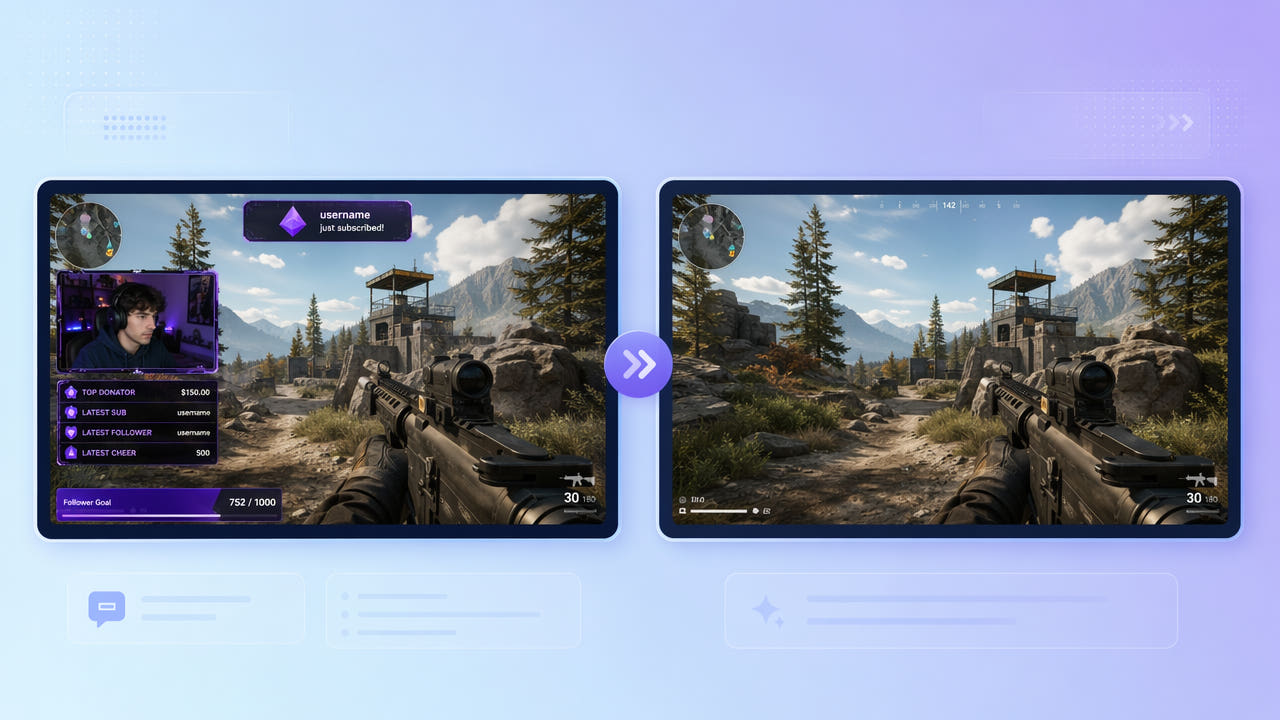
What Lives on a Twitch Overlay
A recorded stream may include a webcam frame, chat panel, alerts, and other graphics baked into the exported picture. Check whether the original recording has separate gameplay and overlay layers before editing the flattened video.
Webcam Frames and Panels
If you own the stream or have permission to edit it, an overlay may distract from a highlight. Removing a graphic does not grant rights to another creator’s broadcast or game footage.
Alerts and Chat Boxes
Static panels and alerts occupy different areas and times. Mark the visible regions you intend to process and review the full timeline rather than assuming the tool detects every popup.
Use an unlayered gameplay source when available; otherwise inspect each selected overlay and its timing.
Cleaning Gameplay with 550W Video Eraser
Upload an eligible clip and select the webcam frame or persistent panel. Standard mode processes inside the selection; AI estimates hidden gameplay from surrounding imagery rather than recovering original pixels.
Mark Static Panels
For an alert that appears briefly, check its location and time in the source. A fixed selection may miss a moving alert or cover gameplay after it disappears. Protect mode preserves the selected area and processes outside it.
Cover Animated Alerts
Before processing, check the current interface for task limits, available controls, and upload conditions. The video workflow supports up to 1080p and 30 minutes; check file-size acceptance in the upload interface. Processing time varies with footage, selection, and service status.
Select overlay regions deliberately and inspect detailed gameplay across the whole export.
Repurposing Streams into Highlights
A clean authorized source can help prepare highlights or recaps. If a separate gameplay capture exists, prefer it to reconstructing footage hidden behind a webcam panel.
Only edit streams you own or are licensed to reuse. Review the platform and game rights that apply to your intended publication.
Tips for Clean Gameplay Reconstruction
Busy gameplay under a large panel can be difficult to estimate. Inspect rapid movement, interface elements, and scene changes after processing; a convincing result is not guaranteed.
Pick Calm Background Moments
Include the visible border, shadow, or glow in the selection without hiding unnecessary gameplay. If a mark changes position, verify each affected segment and the final export.
Include the Whole Frame Border
Review moving details and the complete overlay boundary before using a cleaned highlight.
Frequently asked questions
Can I remove a webcam frame from a Twitch VOD?
Mark the webcam graphic in footage you may edit and use Standard mode. The tool estimates the covered gameplay; check the full result for artifacts.
Can I remove alert popups that come and go?
Inspect where and when each alert appears. Select the affected region using currently available controls; do not rely on automatic detection or tracking.
Will the gameplay look natural after removal?
A natural result is not guaranteed, particularly over fast gameplay. Review detailed motion and the downloaded output.
Can I clean a whole VOD at once?
A clip can be up to 30 minutes and 1080p if otherwise eligible. For a longer VOD, prepare authorized shorter clips; check current task and multi-file limits in the interface.
Do I need editing skills to do this?
The browser workflow lets you upload, select, and review. Accurate selection and final visual checks still require your attention.