Remove a Screen Recorder Mark from an Authorized Capture
Updated · Product workflow reviewed by 550W AI Labs
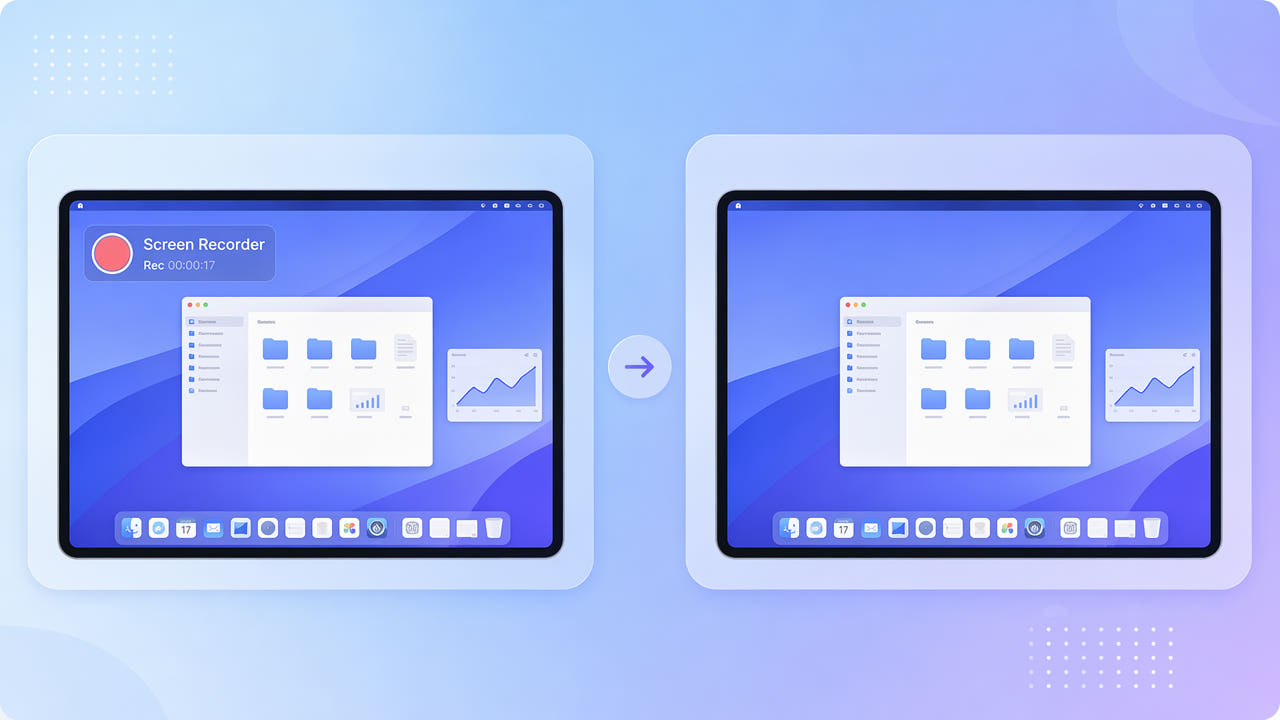
Why Screen Recorders Add Watermarks
Some recorder plans or exports may place a visible brand mark in the captured file. Check the current terms and export settings for your recorder before editing a mark.
Mark Appearance and Placement
A mark can be translucent, central, or repeated. Once flattened into the video, covered interface details may be unavailable; AI can only estimate a replacement from surrounding imagery.
When a Clean Export May Help
If you still have the source project, a licensed clean export or a new recording can be more accurate. Only edit recordings and captured content you have rights to use.
Check recorder terms and available clean exports before reconstructing a mark.
Removing the Recorder Watermark with AI
For a localized mark, select its visible area in an eligible capture. Standard mode processes inside the selection and estimates replacement UI content.
Choosing a Processing Mode
Flat backgrounds may be easier to review than small text or moving playback. Protect mode keeps the selected region and processes outside it; it is not a quality setting.
Evaluate Repeated Marks
A repeated mark across much of the frame can hide substantial content. Check whether supported selections are practical, and prefer a clean export when the missing UI must be exact.
Mark a limited region where practical; a tiled mark may be unsuitable for convincing reconstruction.
Clean Captures for Tutorials and Demos
An authorized clean recording may be useful in tutorials or demos. Check reconstructed buttons, labels, and cursor movement before relying on it for instructions.
Removing a recorder brand does not change the recorder license or the rights to captured software, video, or other material.
Tips for the Best Screen-Capture Results
Use the clearest source available within the current 1080p and 30-minute limits. Fine UI text may be incorrectly estimated even from a sharp recording, so compare the export against the original interface.
Use a Clear Source
Include a translucent edge in the selection without covering more interface detail than necessary. Review the entire result, including audio and encoding, before publishing.
Include Soft Edges
Inspect small text and faded edges carefully; reconstruction does not recover exact hidden UI.
Frequently asked questions
Can I remove a Bandicam or trial watermark from a recording?
If your rights and recorder terms allow it, mark the visible area and use Standard. Inspect the result; a licensed clean export may be more accurate.
How do I remove a watermark tiled across the whole screen?
A repeated mark may cover too much of the interface for reliable reconstruction. Check supported selections and consider a clean licensed export or new capture.
Will removing the watermark blur my UI text?
The selected UI text may change or show artifacts. The tool does not guarantee sharp or accurate reconstruction.
Does it work on translucent watermarks?
A translucent mark can be selected with its soft edge. Review the complete output because remnants or artifacts may remain.
What formats are supported?
Eligible MP4 and MOV videos may be up to 1080p and 30 minutes. Check the actual upload interface for file-size conditions.