How to Remove Video Watermark Without Blur or Quality Loss
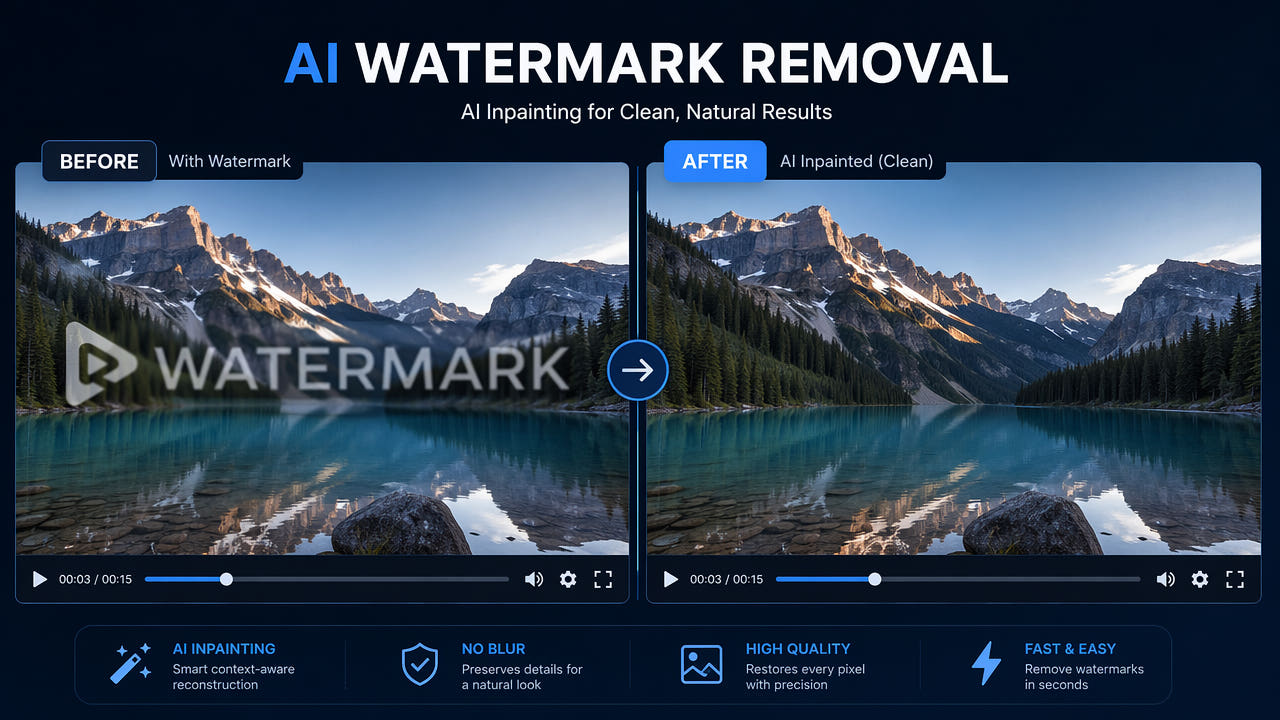
Why Traditional Watermark Removal Methods Leave Visible Artifacts
When most people search for ways to remove a watermark from video, the solutions they find typically involve one of two approaches: applying a blur filter over the watermark area, or covering it with a mosaic or solid color block. Both methods technically hide the watermark, but they create an obvious visual distortion that immediately tells viewers something was removed from that spot.
Blur-based removal works by averaging the pixel values in the watermark region, creating a soft smudged patch that stands out against the sharp surrounding video. Mosaic methods pixelate the area into large blocks, which is even more visually distracting. Both approaches sacrifice the visual integrity of your video to conceal the watermark, trading one problem for another.
Blur and mosaic methods hide watermarks but create obvious visual artifacts that degrade your video's professional appearance.
The fundamental limitation of these traditional methods is that they destroy information rather than reconstruct it. When you blur a region, you permanently lose the detail in that area. The result is a video that looks edited and unprofessional, which defeats the purpose of removing the watermark in the first place. For content creators, marketers, and editors who need clean output, these methods simply are not acceptable.
Common tools that rely on blur or mosaic include basic video editors like iMovie's clone stamp workaround, FFmpeg's delogo filter, and numerous free online watermark removers that advertise quick results. While these tools are accessible, their output quality consistently falls short of what modern AI-powered alternatives can achieve.
How AI Inpainting Removes Watermarks Cleanly
AI inpainting represents a fundamentally different approach to watermark removal. Instead of hiding or destroying the watermark region, AI inpainting reconstructs what the background would look like if the watermark had never been there. The technology uses deep learning models trained on millions of video frames to predict and generate the missing visual information.
The AI Reconstruction Process
When you select a watermark region for AI removal, the system performs several sophisticated operations. First, it creates a precise mask identifying exactly which pixels belong to the watermark versus the background. Then the inpainting model analyzes the surrounding context including colors, textures, lighting, edges, and motion patterns from adjacent frames.
Using this contextual information, the AI generates new pixels that seamlessly blend with the surrounding area. The model understands visual concepts like perspective, lighting direction, texture continuity, and object boundaries. This allows it to reconstruct complex backgrounds including moving objects, gradients, and fine details that would be impossible to recover with simple interpolation.
Temporal Consistency Across Frames
Video watermark removal is significantly more challenging than static image inpainting because the reconstructed area must look consistent across hundreds or thousands of consecutive frames. Advanced AI models maintain temporal coherence by analyzing motion vectors and ensuring the generated content follows natural movement patterns. This prevents flickering or inconsistent patches that would be immediately noticeable during playback.
AI inpainting generates new pixels that match surrounding context, producing results indistinguishable from the original background.
The result is a clean video where the watermark area looks natural and undisturbed. Viewers cannot tell that anything was removed because the AI has effectively recreated what was originally behind the watermark. This is the key difference between AI inpainting and traditional blur methods: reconstruction versus destruction.
AI Inpainting vs Blur: A Direct Comparison
Understanding the practical differences between AI inpainting and blur-based removal helps you choose the right approach for your specific needs. Here is a detailed comparison across the factors that matter most.
Visual Quality
Blur methods produce a soft, smudged patch that is immediately visible to viewers. The blurred area lacks texture, detail, and sharpness compared to the surrounding video. AI inpainting produces a reconstructed area with matching texture, color, and detail that blends seamlessly with the rest of the frame. In side-by-side comparisons, AI results are often indistinguishable from unwatermarked originals.
Resolution and Bitrate Preservation
Both methods can technically preserve the video's resolution and bitrate since they only modify a portion of each frame. However, blur effectively reduces the perceived resolution in the affected area by eliminating high-frequency detail. AI inpainting maintains full visual detail throughout the frame, including the reconstructed region, so the output truly matches the original quality specifications.
Handling Complex Backgrounds
Blur methods perform identically regardless of background complexity since they simply average pixels. AI inpainting excels with simple backgrounds like solid colors and gradients, and performs remarkably well even with complex scenes containing faces, text, moving objects, and fine textures. The only scenarios where AI may struggle are extremely complex backgrounds with unique unrepeatable patterns directly behind the watermark.
Processing Speed
Blur-based removal is computationally simple and processes almost instantly. AI inpainting requires more processing time because it runs a neural network on each frame. A typical one-minute 1080p video takes 30 to 60 seconds with cloud-based AI tools. For most workflows, this processing time is negligible compared to the quality improvement gained.
Cost and Accessibility
Blur tools are widely available for free in most video editors. AI inpainting tools typically offer free trials with paid plans for regular use. The cost difference is justified by the dramatically superior output quality. For professional work where clean results matter, AI inpainting provides clear return on investment.
Step-by-Step: Remove Watermark Without Blur Using 550W Video Eraser
Follow this guide to remove watermarks from your videos using AI inpainting for clean, blur-free results. The entire process runs in your browser with no software installation required.
Step 1: Upload Your Video
Open 550W Video Eraser and upload the video containing the watermark. The tool accepts MP4 and MOV formats up to 300MB and 3 minutes in length. For longer videos, split them into segments before uploading. The upload process is straightforward with drag-and-drop support.
Step 2: Select the Watermark Area
Once your video loads in the preview player, draw a rectangular selection box around the watermark. Precision matters here. Keep the selection as tight as possible around the watermark boundaries without cutting off any part of it. A smaller selection means less area for the AI to reconstruct, which typically produces better results. If the watermark is semi-transparent, include the full extent of its visible area.
Step 3: Run AI Inpainting
Click the process button to start AI-powered removal. The system processes each frame individually, detecting watermark pixels and reconstructing the background using contextual information from surrounding areas and adjacent frames. Unlike blur tools that finish instantly, AI processing takes time proportional to video length. A one-minute clip typically completes in under 60 seconds.
Step 4: Preview and Download
When processing completes, preview the result using the built-in comparison player. Check that the watermark area looks natural with no blur patches, color mismatches, or flickering artifacts. If satisfied, download the clean video at original quality. Results are stored for 24 hours, so download promptly after verification.
Tips for Best Blur-Free Watermark Removal Results
While AI inpainting handles most watermark removal scenarios well, following these optimization tips will help you achieve the cleanest possible output.
Tight Selection Boundaries
The single most impactful factor is selection precision. Draw your selection box as close to the watermark edges as possible. Every extra pixel of background included in the selection is an additional pixel the AI must reconstruct. Smaller reconstruction areas produce more accurate results because the AI has more surrounding context to reference relative to the area it needs to fill.
Consider Watermark Transparency
Semi-transparent watermarks are actually easier for AI to remove than fully opaque ones because the original background information partially shows through. The AI can use this partial information as additional context for reconstruction. For semi-transparent watermarks, ensure your selection covers the full extent of the transparency, including any subtle outer glow or shadow effects.
Static vs Moving Watermarks
Static watermarks that remain in a fixed position throughout the video are ideal for AI removal because the model can leverage temporal information from multiple frames to improve reconstruction accuracy. Moving or animated watermarks present more challenge since the affected region changes each frame. For animated watermarks, AI tools with per-frame detection capabilities produce the best results.
Background Complexity Assessment
Before processing a full video, test the AI on a short segment containing the most complex background behind the watermark. If the result looks clean on the hardest section, the rest of the video will process well. Common challenging backgrounds include human faces partially behind watermarks, small text, and rapidly changing scenes. For these cases, verify quality before committing to full-length processing.
Common Watermark Types and Removal Difficulty
Different watermark styles present varying levels of difficulty for AI removal. Understanding these differences helps set realistic expectations for your results.
Text-Based Watermarks
Simple text watermarks like channel names, URLs, or copyright notices are among the easiest to remove cleanly. They typically occupy a small area with clear boundaries, giving the AI plenty of surrounding context for reconstruction. Both opaque and semi-transparent text watermarks produce excellent results with AI inpainting.
Logo Watermarks
Brand logos and graphic watermarks vary in difficulty based on their size and opacity. Small corner logos are straightforward. Large centered logos that cover significant portions of the frame are more challenging because the AI has less surrounding context to work with. For large logos, results depend heavily on the background complexity behind them.
Platform Watermarks
Social media platform watermarks from TikTok, Instagram, YouTube, and others are typically small and positioned in corners or edges. These are ideal candidates for AI removal and consistently produce clean results. The AI handles both the text username components and any animated effects these watermarks may include. For detailed guidance on platform-specific removal, see our guide on removing TikTok watermarks.
Full-Frame Overlay Watermarks
Some stock footage services use large semi-transparent watermarks that span the entire frame. These are the most challenging to remove because the watermark affects every pixel. AI tools can still improve the result significantly compared to blur methods, but some subtle artifacts may remain in areas where the watermark overlaps complex background details. For stock footage specifically, check our stock footage watermark removal guide.
Frequently Asked Questions
Can you remove a video watermark without blurring the area?
Yes. AI inpainting reconstructs the original background behind the watermark pixel by pixel, producing clean results without any blur or mosaic artifacts.
Does AI watermark removal reduce video quality?
No. AI inpainting only modifies pixels in the watermark region. The rest of the frame stays untouched, preserving original resolution and bitrate.
Why is AI inpainting better than blur for watermark removal?
Blur hides the watermark with distortion. AI inpainting intelligently reconstructs the background, producing natural seamless results viewers cannot detect.
How long does AI watermark removal take?
A one-minute 1080p video typically processes in 30 to 60 seconds with cloud-based AI tools. Longer videos take proportionally more time.