Media.io Alternative for Video Cleanup: What to Verify
Updated · Product workflow reviewed by 550W AI Labs
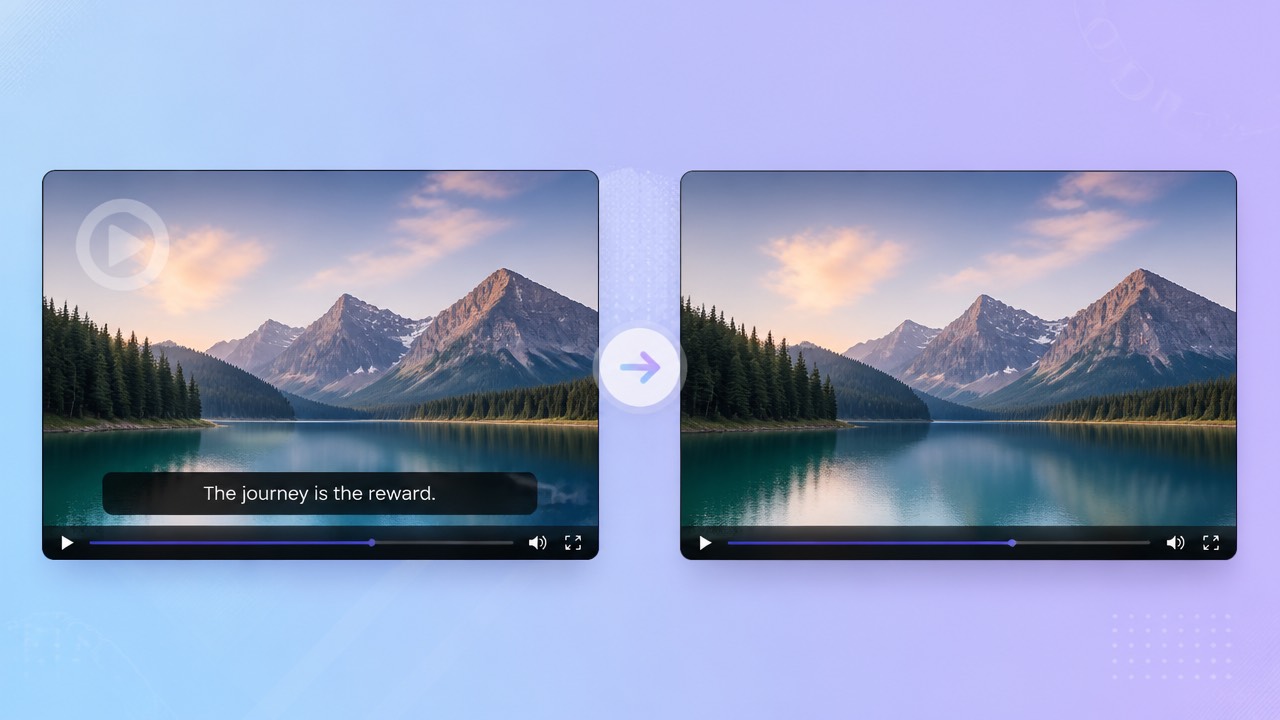
Considering a Media.io Alternative
First determine whether the text or logo in your Media.io comparison is a removable project layer or part of the rendered picture. Confirm permission to edit the clip; if the project still has its original layers, a clean re-export avoids guessing at hidden content.
Start with the Source and Permission
Media.io’s available workflows and terms can change. Check its current official pages for the feature and version you plan to use, then compare both tools with the same authorized source rather than relying on a generalized comparison chart.
Compare Current Workflows
550W Video Eraser uses a selection and nearby image context to estimate replacement pixels. It can work on an embedded mark, but it cannot recover the original image beneath it, and the reconstructed area may need further editing.
For a Media.io comparison, verify the actual current workflow and upload terms, then test on footage you are allowed to edit.
What to Check in 550W Video Eraser
The eligible 550W video input is MP4 or MOV, up to 1080p and 30 minutes. You can select a region or request fullscreen removal. File-size conditions are shown in the current upload interface.
Supported Video and Selection
Processing time is affected by the clip, the affected area, and service conditions. Inspect the exported video from start to finish, including motion, fine edges, audio, and the encoding your next editor expects.
Review Every Export
For both services, read current upload, retention, privacy, and payment information in their own interfaces. Confirm the task estimate and purchase terms at the point of use.
Use the current file-size guidance and inspect the whole result, including its audio and encoding.
Media.io and 550W: A Verification Checklist
For Media.io, pay particular attention to whether the current workflow handles the kind of source file you have and how it treats an upload. Verify those details in official product materials; do not infer them from a product name.
| Check | Media.io: verify now | 550W browser workflow |
|---|---|---|
| Video input | Current supported formats, duration, resolution, and size | Eligible MP4 or MOV; up to 1080p and 30 minutes |
| Selection | Current controls and tracking limitations | Manual box selection or fullscreen removal |
| Reconstruction | Actual output and visible artifacts | AI estimates selected imagery; hidden pixels are not restored |
| Multiple files | Documented task and review controls | Eligible videos are submitted as independent tasks |
| Pricing | Current trial, credits, subscriptions, and renewal terms | Check current interface and task estimate |
| Privacy | Current upload, retention, and training terms | Check current published policies |
| Output | Compare the complete authorized export | Review full video, audio, and encoding |
Compare import conditions, selection controls, the final downloaded file, review time, and the handling terms that matter to your project. Those checks are more useful than claiming one service is always best.
Judge both services by verified input, output, and handling details instead of broad product claims.
Test an Authorized Clip
Use a non-sensitive sample that you are authorized to edit. Keep the original available, run comparable settings in each current workflow, and inspect the downloaded results before picking a method.
Upload, Select, Review
Select the mark with enough margin for its outline or glow, but avoid covering nearby objects. For moving marks, confirm how each interface handles changes over time. Standard processes inside the selection; Protect keeps the selection interior and processes its exterior, without acting as a quality upgrade.
What to Do with Difficult Scenes
If the replacement area looks inconsistent, retain the original and consider another authorized method or a clean re-export. A repeated task is not a guaranteed repair, so check cost and terms before resubmitting.
Retain the source, compare matching samples, and choose Standard or Protect by the area that should be processed.
Frequently asked questions
How do I evaluate 550W as an alternative to Media.io?
Check that the current Media.io workflow supports your intended input, then test it and 550W with the same authorized clip. Compare downloaded files and the terms that apply today.
Does 550W work in a browser?
Media.io and 550W may have different browser, account, or device requirements. Read their current setup information and test the intended browser before uploading project footage.
Can it process burned-in subtitles?
Text rendered into the video can be included in a selected area. The AI estimates what to place there from nearby picture information, so inspect the clip for visible mismatches rather than expecting pixel recovery.
What do credits and trials cost?
Use each service’s current interface to see its prices, task estimate, trial eligibility, and renewal conditions. These details can change and should be checked before submission or payment.
How are uploaded files handled?
Because workflows may involve uploads, compare Media.io and 550W privacy notices for processing, retention, deletion, and model-training information. Choose a sample that is safe to submit.