Review Hardcoded Subtitles in Authorized Anime Clips
Updated · Product workflow reviewed by 550W AI Labs
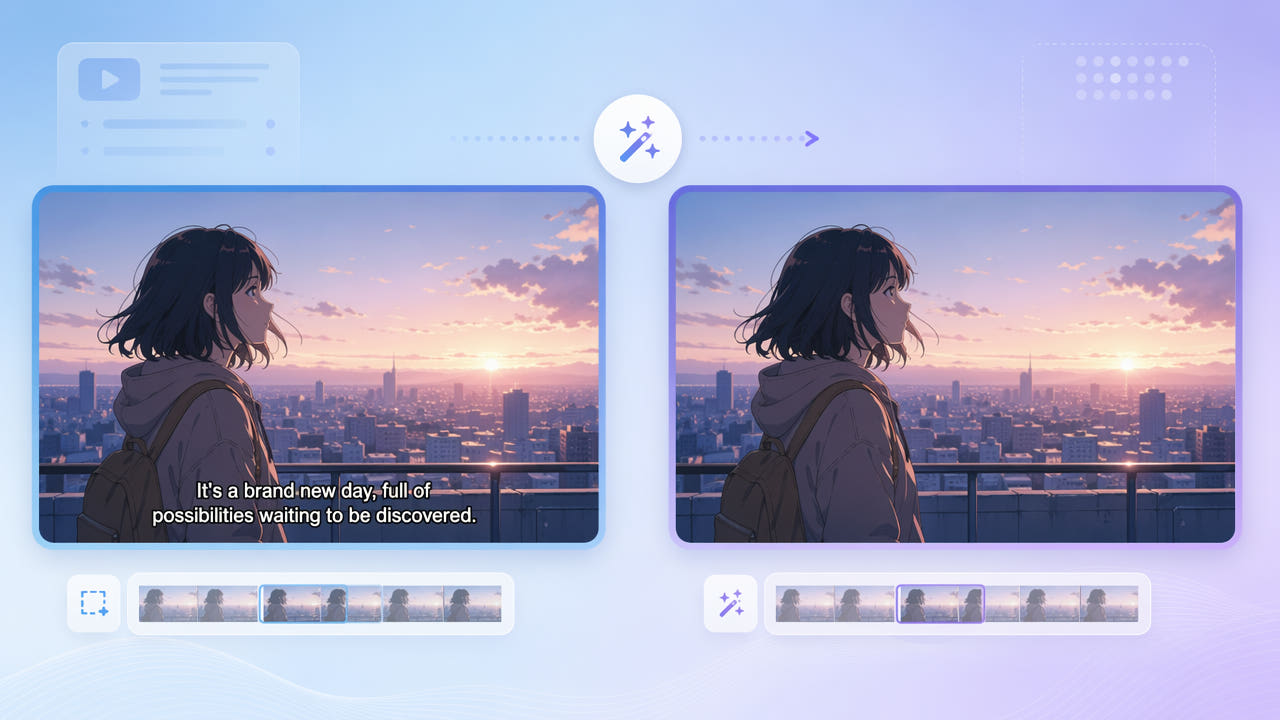
Why Anime Clips Are Hard to Clean
Some anime files contain subtitles burned into the image, while others carry a separate selectable subtitle track. Check the actual file first: a separate track may be disabled or replaced without reconstructing the picture.
Hardsubs vs. Softsubs
For material you own or are authorized to localize, a cleaned presentation copy may support a new language version. Removing subtitles does not grant rights to the artwork, dialogue, translation, or distribution.
Why Editors Want Clean Frames
Line art, gradients, movement, outlines, and shadows make baked-in text difficult to reconstruct. AI estimates replacement artwork from nearby pixels; it cannot retrieve the original artwork hidden beneath the letters.
Identify baked-in text and confirm localization rights before reconstructing anime artwork.
Removing Anime Subtitles with 550W Video Eraser
550W Video Eraser reconstructs a user-selected subtitle region from surrounding picture information. If the subtitle band changes position or overlaps moving artwork, adjust the selection or process separate segments and inspect the full clip.
Mark the Subtitle Band
Anime line work, gradients, and texture can make subtitle removal difficult. Mark the subtitle band and use Standard mode to process inside the selection. Protect mode preserves the boxed area and processes outside it, so it will not remove boxed subtitles. Inspect the result closely where text crosses detailed artwork.
Choose the Right Mode
Select authorized footage, mark the visible subtitle area and inspect the exported result. The current browser workflow supports up to 1080p and 30 minutes. Reconstruction and export encoding can change fine line work, resolution or detail.
Use Standard mode on the subtitle band, then check detailed artwork for artifacts instead of assuming every line can be restored perfectly.
Preparing Clips for Re-Translation
If you have rights to prepare a new language version, removing baked-in text may provide space for replacement subtitles. A separate subtitle track or original clean master is preferable when available; otherwise, inspect the reconstructed image before adding translated text.
Use a clear source that you are authorized to edit and that fits current upload limits. Compression artifacts can complicate reconstruction, but a clearer source does not guarantee a natural result.
Inspecting Detailed Anime Scenes
Include visible outlines and shadows in the selection while avoiding unrelated artwork. Reconstruction may still leave edges or alter details, so review the full output.
Cover Outlines and Shadows
Choose selections and any segments supported by the current tool. Review motion and scene transitions across the whole output; neither whole-scene processing nor separate segments guarantees temporal consistency.
Process the Full Clip
Cover subtitle outlines and shadows, then inspect motion and scene changes in the exported file; processing a whole scene does not guarantee a clean result.
Frequently asked questions
Can I remove burned-in subtitles from anime?
You can test reconstruction on authorized footage, but the model estimates artwork behind the subtitles and may leave visible errors. A separate subtitle track can be disabled without changing the image.
Will removing hardsubs blur the anime art?
Standard applies AI reconstruction to the selected subtitle area instead of using a blur effect. Fine line art and texture can still change, so review the full export.
Can I then add my own translated subtitles?
If the cleanup is usable and you have translation rights, add a new subtitle track or rendered text in your editor. Review timing, readability, and the full output before distribution.
Does it work on fast-moving anime scenes?
Fast motion and detailed artwork can be difficult to reconstruct. Test representative authorized scenes and examine the full output for flicker and changed details; a whole-scene task does not guarantee consistency.
What if the subtitles move position between scenes?
Adjust the selected region or use supported segments to cover each subtitle position, then review the full clip for missed text and artifacts.