Edit a Visible Mark on an Authorized Seedance Video
Updated · Product workflow reviewed by 550W AI Labs
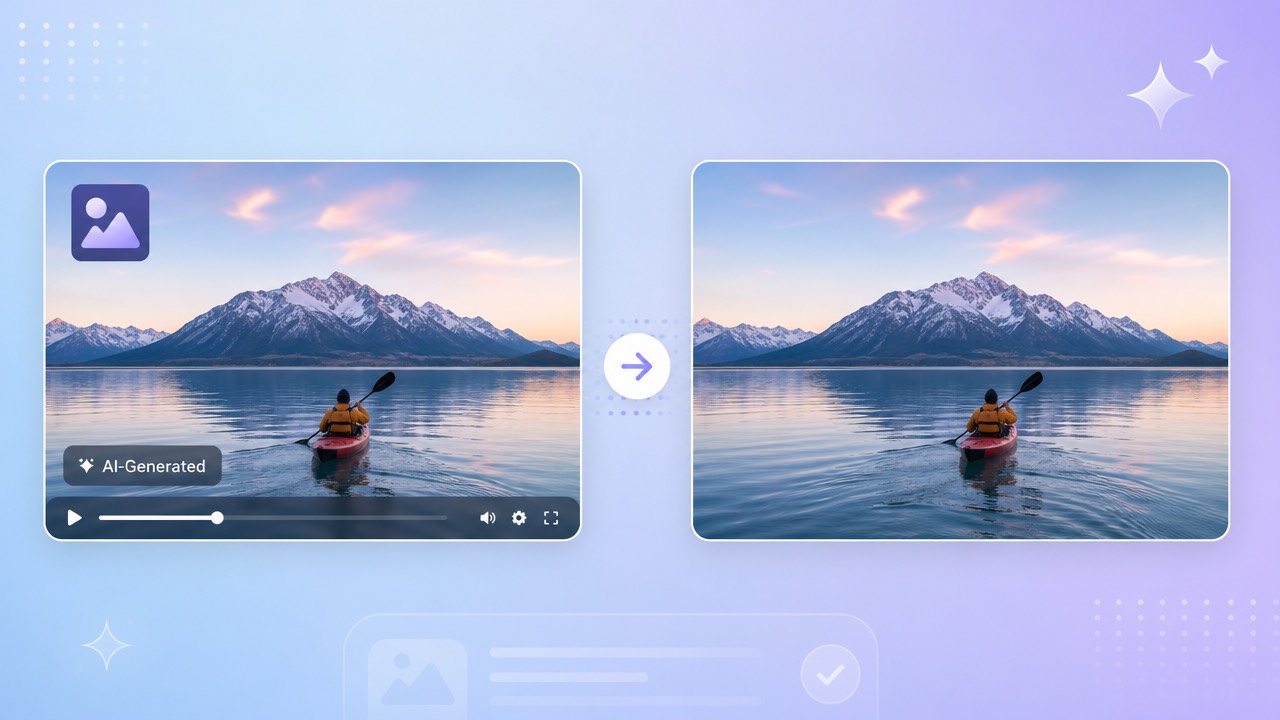
Check the Actual Export
Inspect the actual export for visible branding, text, or other overlays. Their appearance and position can vary by file and settings, so do not assume every clip contains the same mark.
Visible Branding and Other Labels
Branding and AI disclosures can carry different meanings. Check the current rights and disclosure rules that apply to your account and publication channel before changing a visible label.
Why It Matters for Creators
A mark may remain in one area or move between scenes. Map its positions across the full video before drawing selections; a single box is suitable only when it covers the visible area without masking important content.
Inspect the actual file and current disclosure rules before editing a visible label.
Select and Review a Visible Seedance Mark
For an authorized clip, select the visible logo or text region in 550W Video Eraser. AI estimates a replacement from surrounding picture information; it cannot restore the original pixels hidden by the mark.
Select the Visible Area
Upload a supported file, mark the visible area, and process it in Standard mode. The browser video workflow supports up to 30 minutes and 1080p. Inspect the export for artifacts; unchanged source quality is not guaranteed. Check the current upload interface for file-size eligibility.
Choose Standard or Protect
Mark the watermark and use Standard mode to process inside the selected area. Protect mode preserves the box and processes outside it; it does not add detail to the reconstruction. Check clips with complex textures or rapid motion frame by frame.
Select only the visible area on authorized footage and review the whole exported clip.
Review Visible Labels and Disclosures
If an export shows a visible disclosure or another platform label, review what it communicates and check the applicable disclosure and platform requirements before editing it.
If multiple distinct overlays appear, use separate supported selections or segments where available. Inspect each output instead of assuming they can all be processed together.
Check what a visible disclosure communicates and review applicable rules before editing it.
Compare Current Export and Editing Options
Pricing, mark behavior, and export options may vary by product surface, region, and plan. Check the current interface and terms for the exact account used to create the clip before comparing an upgrade with cleanup.
If the current interface offers credit-based processing for an authorized export, check its estimate and terms before proceeding. Do not assume that a free offer is available or covers a fixed amount of footage.
Check current account-specific terms and the job estimate; do not assume a free offer or fixed amount of footage.
Quality Tips for Seedance Cleanup
Use a clear export that you are permitted to download and edit. Confirm current source-platform terms and the 550W upload conditions. More surrounding detail can help assess the area, but it does not promise a natural reconstruction.
Export the Original File
After processing, preview the full clip and check the selected region across different scenes. Motion, detailed backgrounds, and transitions can expose artifacts that are not apparent in a single frame.
Verify After Processing
A clean-looking frame does not promise unchanged quality or rights to publish.
Frequently asked questions
How do I edit a visible mark on an authorized Seedance video?
Use an authorized Seedance export, select a visible mark that is present, and inspect the reconstructed area across the full clip.
How should I handle a visible disclosure label?
If you find a visible disclosure, review the relevant obligations before changing it. AI estimates replacement content for the selected region; inspect the full result.
Can editing a visible mark affect the video?
It may. AI reconstruction can create artifacts, and export encoding may affect the file. Compare the entire result with the source.
Can multiple visible areas be processed in one task?
Use one selection only when the current editor supports it and the selection avoids unrelated detail. Otherwise, use supported separate selections or segments and inspect each result.
Where can I verify current Seedance cleanup pricing and any offers?
Check the current interface and account terms for any available offer, price, credit amount, job estimate, and conditions. Do not assume that a free offer is available or covers a fixed amount of footage.