Video Watermark Removal Methods: Compare AI Reconstruction and Blur
Updated · Product workflow reviewed by 550W AI Labs
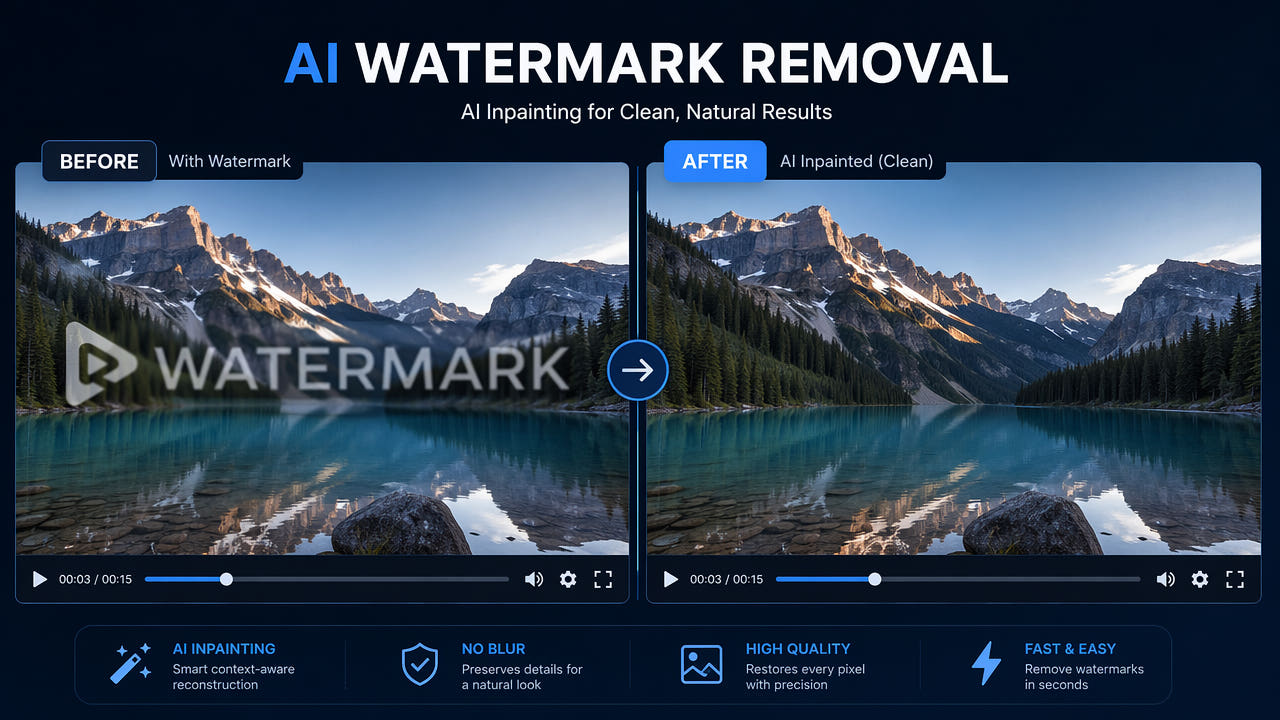
Compare Watermark Editing Methods
Before editing a watermark, confirm that you own the footage or are authorized to modify it. Removing a mark does not create usage rights or replace a provider’s license. Prefer a permitted clean source export when available.
Blur softens a selected area, while mosaic and solid overlays cover it with a visible effect. These approaches may suit some delivery requirements, but none recovers the original image hidden by the mark.
AI reconstruction estimates replacement content from surrounding picture information. It changes the image and can leave visible artifacts; it does not recreate the hidden original pixels.
Compare methods on representative authorized footage. Check the current capabilities of any editor you use rather than assuming a named tool includes a particular repair feature or produces better results.
Use authorized footage and compare complete exports; every method changes the image.
Understand AI Reconstruction
AI reconstruction generates an estimate for the selected region. Its appearance depends on the source, size of the covered area, background detail and motion.
The AI Reconstruction Process
Manually select the full visible mark, including shadows or glow. Do not assume the service automatically detects every watermark pixel or chooses the region for you.
Temporal Consistency Across Frames
The replacement may not match nearby texture, lighting or edges. Inspect faces, clothing, lettering and other important details that intersect the selected area.
During playback, reconstructed details may flicker or change between frames. Review transitions and moving objects across the complete exported video.
An export can contain residual marks or altered detail. Compare it with the authorized source and decide whether to adjust the selection, use another permitted method or return to the original project.
AI estimates replacement content, not hidden original pixels; the complete result needs review.
Compare Reconstruction and Blur
Compare AI reconstruction and blur using the actual footage and intended delivery. Assess visible changes, export settings, task behavior and current charges separately.
Visible Changes
Blur deliberately softens the selected area. AI estimates replacement content; either approach changes the image and may leave visible artifacts.
Export Encoding
Neither approach guarantees unchanged resolution, bitrate or quality after export. Check the resulting file and compare the picture and sound with the source.
Background Complexity
Complex textures, faces, motion and scene changes require careful review; do not assume they can be repaired without visible artifacts.
Task Duration
Processing time depends on footage, selected area and service status. Task completion is separate from visual approval.
Current Charges
Check current pricing, credit conditions and job estimates in the actual interface. Do not assume a fixed free allowance, unlimited processing or a price advantage over another tool.
Use the Current 550W Browser Workflow
Use the browser workflow on footage that you own or are authorized to modify. Confirm the intended change and the current upload conditions before submission.
Step 1: Upload Your Video
Upload an eligible MP4 or MOV. The current browser workflow supports up to 1080p and 30 minutes; check file-size conditions in the actual upload interface.
Step 2: Select the Watermark Area
Select every visible position of the mark using the controls currently available. Standard processes inside the selection; Protect preserves the inside and processes the outside. Protect is not a higher-quality mode.
Step 3: Run AI Inpainting
Review the selection, mode and job estimate before submitting. Report the task state rather than promising a fixed completion time or a successful result.
Step 4: Preview and Download
Download the available result and examine the entire timeline for residual text, flicker, edges, color, sound and encoding changes. Check the current retrieval conditions; do not assume a permanent download link or a fixed retention period.
Plan Selections and Review
Use a representative authorized sample to assess the affected region. A successful test does not guarantee the same result in another scene.
Tight Selection Boundaries
Cover the complete visible mark and its edges without including unnecessary picture detail. An overly tight selection can leave part of the mark behind.
Consider Watermark Transparency
Transparency, shadows and glow affect selection. A partly visible background can provide context, but a transparent mark is not guaranteed to be easier to repair.
Static vs Moving Watermarks
Review each position of a moving mark. Adjust supported selections or prepare separate authorized segments when necessary; do not assume automatic detection or tracking.
Background Complexity Assessment
Include difficult backgrounds and transitions in your checks. Even if one difficult segment looks acceptable, review the full export before using it.
Assess Different Visible Marks
Size, position, transparency, motion and surrounding detail all affect reconstruction. Watermark categories alone do not predict a successful result.
Text-Based Watermarks
Text marks can have outlines, shadows or animation. Inspect the full text area and its movement; small text is not automatically removed cleanly.
Logo Watermarks
Corner logos and large central marks require different selections. A logo overlapping faces or important detail may be unsuitable for reconstruction.
Platform Watermarks
For platform marks, verify permission and current platform terms. Check each visible position and any end card; a platform name does not imply a fixed watermark style or editing permission.
Full-Frame Overlay Watermarks
For stock-footage previews, check the provider’s current license before modifying any watermark. Use an appropriately licensed clean source for delivery; removal does not grant commercial rights.
Frequently asked questions
Can you remove a video watermark without blurring the area?
A selected watermark area can be replaced with AI reconstruction rather than blurred. The model estimates content from surrounding picture information; it does not recover hidden original pixels and results need review.
Does AI watermark removal reduce video quality?
Quality can change. AI reconstructs the selected region, and export encoding may alter the file. Compare the complete video with the source, including movement, fine detail, color and sound.
How do AI reconstruction and blur differ?
Blur deliberately softens a selected area. AI estimates replacement content; either approach can leave visible changes, so compare both on authorized footage.
How long does AI watermark removal take?
Processing time varies with video duration, resolution, selected area, scene complexity, and service load. Check the task status in the current interface rather than relying on a fixed completion time.