Review Captions in Your TikTok Video Before Reusing It
Updated · Product workflow reviewed by 550W AI Labs
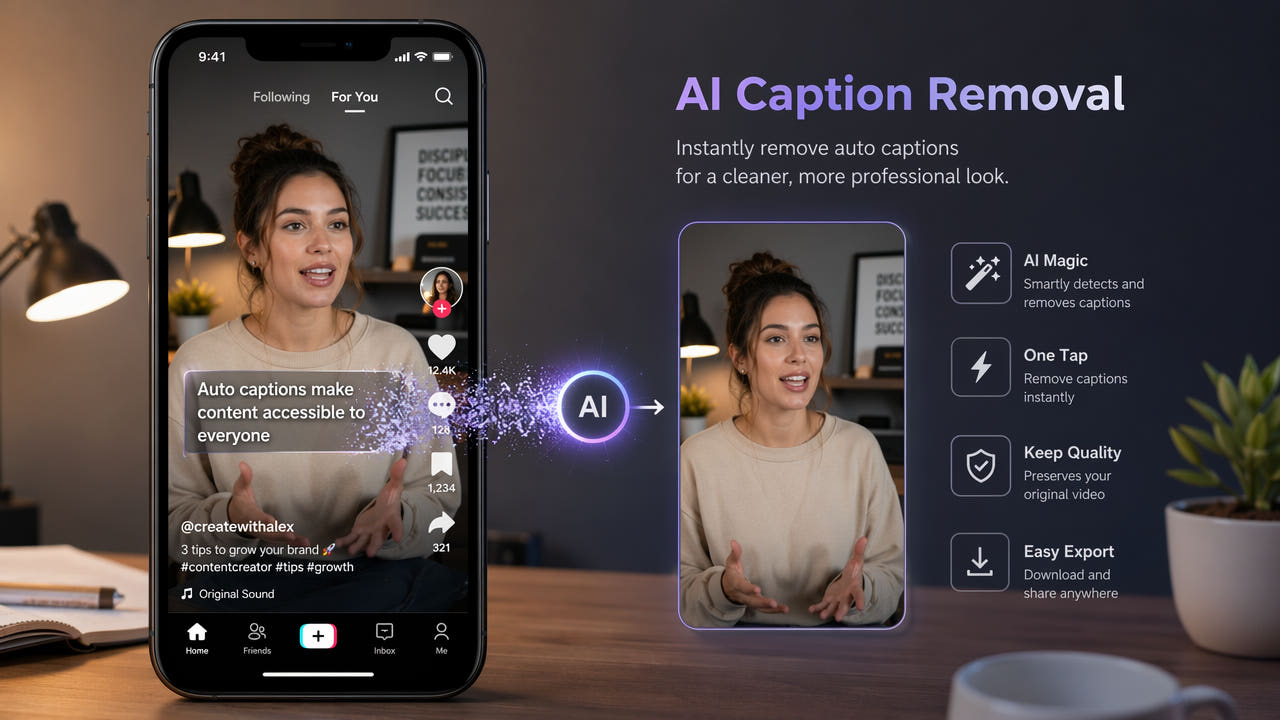
Check How Captions Exist in the Saved File
A TikTok project or saved video may show spoken-word captions, creator-added text or other graphics. Their behavior can vary with the file and export path, so inspect the actual video before deciding what to edit.
If captions are a separate track that can be disabled, use that track control and verify the exported file. If the text is burned into picture pixels and no clean authorized source is available, changing it requires a picture edit.
Only work on video you own or are authorized to modify and distribute. Keep a clean source or project export where possible. AI can estimate replacement imagery for a selected region but cannot reveal the original pixels hidden by text.
Inspect the saved file and rights first; use a clean source or removable track when available.
Plan Reuse for Each Destination
For each destination, check the current upload rules, ownership requirements, aspect ratio and caption options. These can change, and a valid edit on one platform does not automatically satisfy another.
Caption Layout and Legibility
Caption position and styling can affect readability after reframing. Check the actual image and planned crop rather than assuming a TikTok caption style or fixed location.
Current Platform Requirements
A destination may support optional captions, captions rendered in the picture or both. Choose according to accessibility and delivery needs, then inspect the result in its playback environment.
Do not claim that removing source captions or watermarks improves ranking or avoids duplicate-content checks. Review current platform guidance if those factors matter to the project.
Prepare the file for the destination’s current requirements and verify playback; no distribution outcome is guaranteed.
Step by Step: Handle Captions in an Authorized Saved Video
Use an authorized source and determine whether captions are a separate track or part of the picture. Keep the original for comparison.
Step 1: Get an Authorized Source
If you are the creator, check whether your project or source export offers a clean version. Otherwise obtain the file through a permitted route; do not assume a particular save action removes or embeds captions.
Step 2: Check the File and Upload
For eligible MP4 or MOV, the 550W browser workflow supports up to 1080p and 30 minutes. Check the current upload interface for file-size conditions and use a supported segment when needed.
Step 3: Select Burned-In Text
Select the actual text, including visible shadows and backing. Check every position if it moves. Standard processes inside the selection; Protect keeps the inside and processes outside, so it will not erase text inside the box.
Step 4: Process and Review
AI estimates substitute pixels from the surroundings. Time depends on footage, selection and service status. Inspect the full processed video for remaining text, artifacts, motion, sound and encoding changes; another pass is not guaranteed to fix them.
Step 5: Export for the Destination
Export according to the destination’s current requirements, then add or check captions as needed. Review the whole final playback and confirm that you have distribution rights.
Review Other Visible Elements Before Reuse
Captions are only one part of a reused clip. Review rights, attribution and any visible overlays separately before preparing another version.
Check Watermarks and Attribution
A saved file may have a logo or username mark. Check whether it may be altered and whether attribution or platform terms apply; removing a visible mark does not create permission.
Check the Frame
Check the actual dimensions and framing for the destination. Cropping can discard content, and resizing or re-encoding can change quality.
Add Captions for the Destination
Consider an optional subtitle track or new rendered captions where supported. A fluent reviewer should check text and timing; do not assume any caption method improves algorithmic reach.
Record Each Version
For each exported version, record source, permissions, changes and reviewer. Check the whole render, including captions and audio, before posting.
Types of Text You May See
A saved clip can contain different visible text types. Inspect the file and decide which elements you have permission and a reason to change.
Speech Captions
Speech captions may be separate in one workflow or rendered into the saved picture in another. Check the actual file; if burned in, test a selected area on an authorized sample.
Creator-Added Text
Creator-added text may move or appear in several positions. Review each occurrence and preserve meaningful content that should remain. Do not assume automatic text tracking.
Duet or Stitch Labels
Duet or Stitch content may contain identifying labels or creator information. Check ownership, attribution and current platform terms before altering them.
For any burned-in text you may change, select all visible pixels and inspect the complete output. A larger selection may obscure more background detail, so a clean result is not guaranteed.
Compare Practical Editing Options
Choose from the actual file, rights and desired destination. Each option can affect the picture or availability of captions.
Selected-Area Reconstruction
For authorized burned-in captions, 550W can test reconstruction of a selected region. Standard works inside the selection, and AI estimates replacement content. Check current limits, task estimate and full output.
Manual Picture Editing
A video editor may permit manual masking or compositing for difficult shots. Available features and costs vary; manual work also cannot recover hidden original pixels.
Cropping
Cropping may move text out of frame, but it can cut useful content and change dimensions. Preview it in the destination format.
Clean Source Export
If an authorized clean source or editable project is available, export without the unwanted text where possible. Confirm the resulting file rather than assuming a draft or saved version has no captions or watermark.
Frequently asked questions
Can I change captions after a TikTok video is posted?
A published post and a saved file are separate. Check TikTok’s current controls for changes to a live post; this workflow edits only a local file you own or are authorized to use. Captions in a saved copy may be a separate track or burned into the picture.
Can picture editing change video quality?
Yes. Selected-area reconstruction and export encoding may alter detail, dimensions or sound. Compare the full result with the source.
Are captions always burned into a saved file?
No universal rule applies. Caption behavior depends on how the project or file was created and exported. Check for a removable track before editing picture pixels.
Can I process several authorized clips?
Yes, as separate reviewed jobs. Check the current interface for available multi-file controls, and confirm each clip’s rights, selection, output and destination requirements.