Remove Captions from Instagram Reels | Guide
Updated · Product workflow reviewed by 550W AI Labs
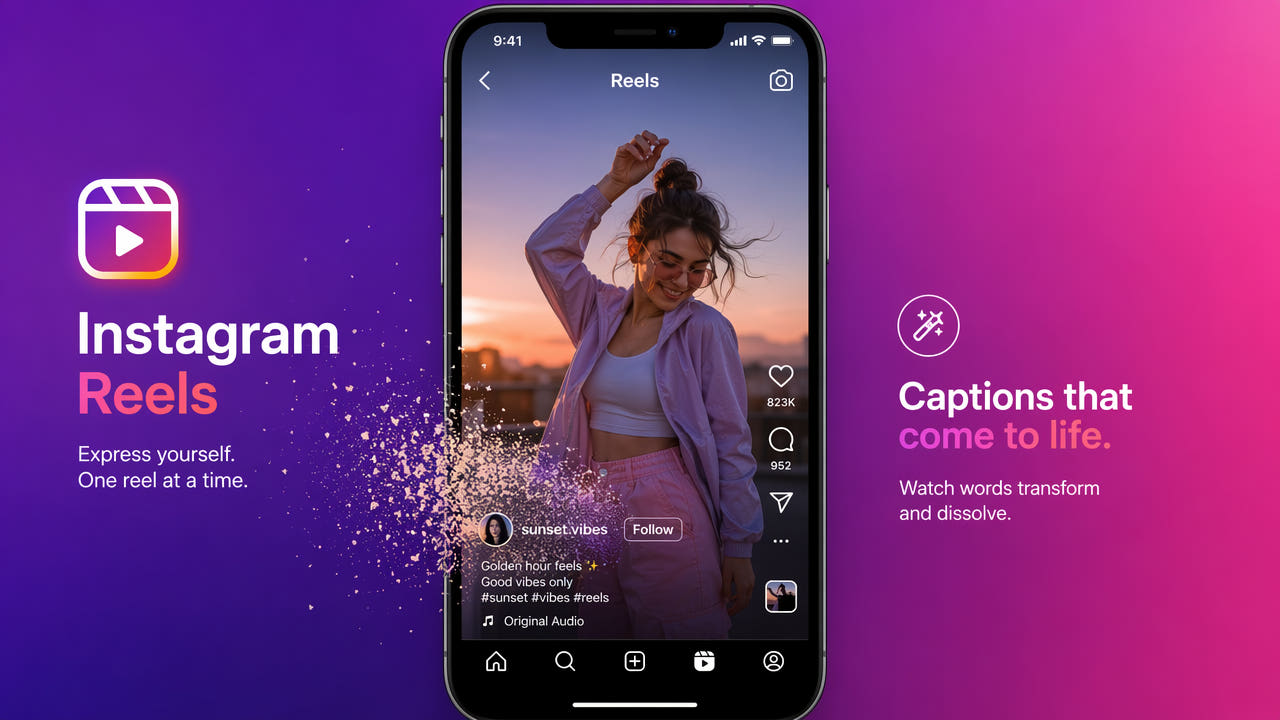
Identify the Caption Type in a Reel
First check whether the words are a playback caption layer, an editable text element in your original project, or pixels embedded in the saved file. Each requires a different approach.
Open the source file and check its subtitle controls. If disabling a track removes the words, no AI reconstruction is needed. If text remains in the picture, a caption toggle cannot remove it.
Prefer the original caption-free export. AI removal is an option for a flattened video you own or have permission to edit, but generates replacement background detail rather than recovering the exact original scene.
Inspect the actual file: disable editable captions first; use pixel editing only for burned-in text.
Why You Might Need to Remove Instagram Captions
Caption-free versions may help with a new edit, portfolio, archive, or translation. Start from a file you own or are authorized to change, and keep an untouched source copy.
Cross-Platform Content Distribution
Create versions of your own footage with captions suited to each audience. Removing an old overlay avoids overlapping text but does not guarantee improved algorithmic reach.
Professional Portfolio Use
For a portfolio or client presentation, check the delivery brief and any permission to alter the footage. A caption-free project export is preferable when available; a reconstructed version needs its own visual and audio review.
Content Archiving
Keep the original source and project files as archival masters. Store an AI-cleaned copy separately for comparison.
Translation and Localization
For translation, use an editable project or caption track when possible. If only flattened footage is available, remove the existing text on authorized material, inspect the reconstructed area, then add translated captions with a language review.
Keep the source and add accessible captions appropriate to each audience.
Step-by-Step: Remove Captions from Instagram Reels
For burned-in captions in footage you own or are authorized to edit, follow this workflow and inspect the result before publishing.
Step 1: Obtain Your Source Video
Start with your original recording or an authorized copy. If the project is available, remove the editable caption layer and re-export first.
Step 2: Upload to 550W Video Eraser
Upload an MP4 or MOV file. The browser video workflow supports videos up to 1080p and 30 minutes. Check the current upload interface for the file-size limit, and review estimated credits and account eligibility before submitting. Processing happens in the cloud; using a browser does not mean the file is processed only on your device.
Step 3: Select the Caption Area
Scrub through the entire clip. Select the text, its background box and the full motion range of its animation, while avoiding faces and important product details wherever possible. Standard processes the inside of the selection. Protect preserves the inside and processes the outside; it is not a higher-quality mode.
Step 4: Process and Verify
Submit the task and follow its status. Processing time varies with the file, mode and service conditions. Check moving scenes and transitions for blur, flicker or invented details.
Step 5: Download and Review the Result
Download and compare the result with the source, including audio and the start and end of the clip. Keep the original separately. If credits are insufficient, review the current package and final checkout amount; use the account that should receive the credits.
Check Selection and Scene Details
Check the actual saved file for background boxes, multiple lines, motion, and scene changes. These details determine what to select and where the export needs close review.
Account for Caption Background Styling
If a saved clip includes a background box, include its full visible area in the selection. A leftover edge can remain visible after processing, so inspect the result at normal playback speed.
Handle Multi-Line Captions
If captions span more than one line, scrub the timeline to find their maximum height. Cover all visible text while avoiding unrelated detail where possible; a larger selected area may be harder to reconstruct.
Consider Caption Animations
Animated captions may move outside a static selection. Check their full motion range and review transitions afterward; complex motion can leave artifacts.
Process Before Adding New Effects
If you will add new captions or effects, work from the clearest authorized source supported by the tool and keep intermediate exports separate. Compare the finished video with the source before publishing.
Details That Affect Caption Editing
Caption controls depend on the actual file and project, not just the platform name. Identify whether text is a separate track, editable layer, or part of the picture before choosing a method.
Instagram vs. TikTok Captions
Inspect the actual file from any platform rather than assuming how it stores captions. Embedded text removal depends on position, movement and the detail it covers.
Instagram vs. YouTube Captions
Separate subtitle tracks can be disabled without changing video pixels. Text captured in a screen recording or flattened export cannot be removed by a subtitle switch.
Editable Text Stickers vs. Captions in the Saved File
Text stickers can be editable in the original project but flattened in an export. Moving or translucent stickers are harder to reconstruct. Repeated processing can reduce quality, so retain the source.
Workflow: From Instagram Reel to Multi-Platform Content
Prepare each authorized destination version from a clean source or reviewed edit. Check the destination's current requirements and preserve accessible captions where needed.
Phase 1: Clean the Source Video
Prefer your original caption-free export. If reconstruction is necessary, process only the needed region and keep the result as a separate edited copy.
Phase 2: Optimize for Each Platform
Create a separate version for each destination. Add captions and context suitable for its audience and verify current format, attribution, disclosure, and accessibility requirements before publishing.
Phase 3: Schedule and Distribute
Choose publishing times and accessible captions for your audience. There is no universal posting interval that guarantees reach or avoids duplicate-content classification.
Check each exported version in full, including the reconstructed region, new captions, audio, credits, and end frames. Keep the original and project files for later corrections.
Frequently asked questions
Are Instagram Reels captions burned into the video?
Not necessarily. Check the actual file: separate caption tracks can be disabled, while words embedded in the picture require editing or a new export from the original project.
Can I turn off captions on someone else's Instagram Reel?
Playback controls cannot remove text already embedded in a saved video. Only edit footage you own or have permission to modify.
How should I choose a way to edit Reel captions?
Use the original project or subtitle controls first. For flattened files, 550W Video Eraser offers cloud AI reconstruction; suitability depends on motion and the background hidden by captions.
Does removing captions from Reels reduce video resolution?
Do not assume the output is identical to the source. Upload normalization and encoding can affect quality or resolution, and reconstructed areas can contain artifacts. Compare the result with the source.