Edit a Visible Logo in Video You May Use
Updated · Product workflow reviewed by 550W AI Labs
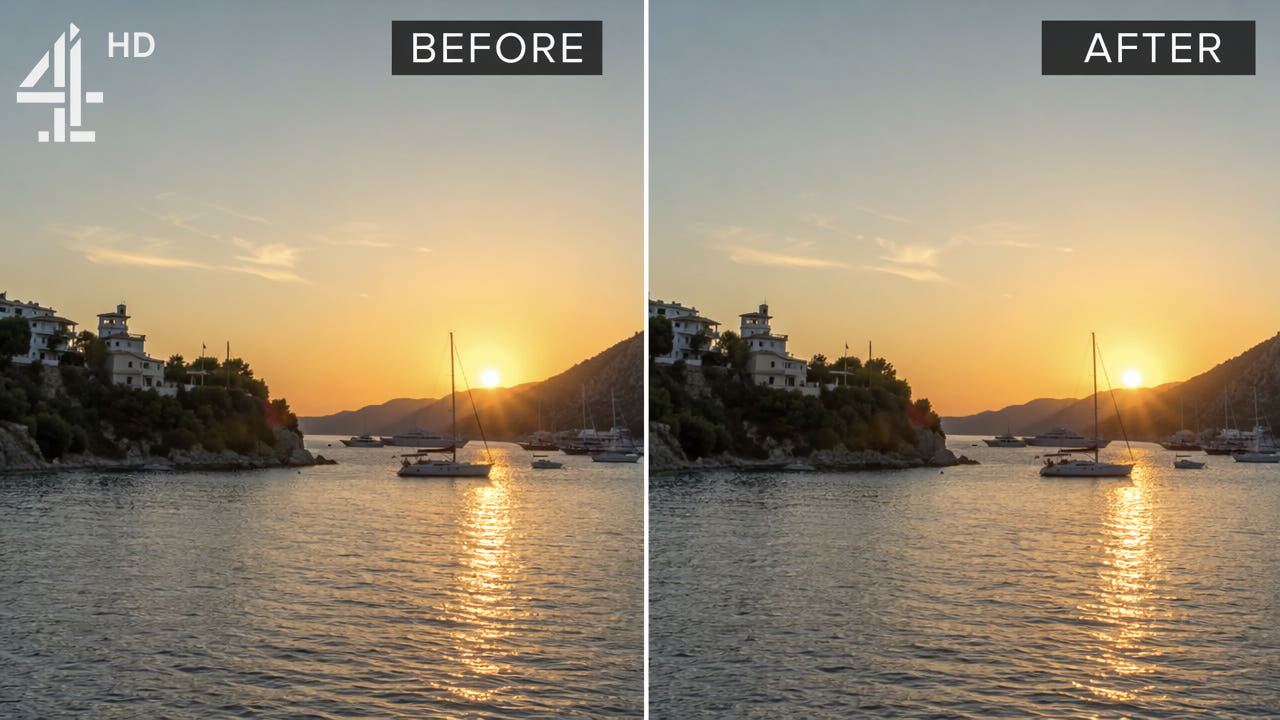
Check the Logo, Source, and Rights
Visible logos can identify a creator, platform, broadcaster, or licensed preview. Their size, opacity, and position vary with the source. Before editing, inspect the actual video and confirm that you own it or have permission to change the specific file.
If the original project offers an authorized export without the mark, compare that option first. Some logos remain fixed; others move, appear briefly, or cover important detail. No fixed selection or AI result should be assumed to work for every clip.
Inspect the actual mark and rights, and check for an authorized source export before editing pixels.
How Logo Placement Affects an Edit
Difficulty depends on the area a logo covers, what lies behind it, and how both change over time. AI estimates substitute imagery; it does not reveal the exact hidden picture.
Small Corner Marks
A small corner mark may leave more surrounding context than a large central mark, but the model still estimates missing content. Review edges and movement; no placement guarantees clean removal.
Semi-Transparent Marks
Semi-transparent overlays can cover unique source detail. AI may estimate a replacement, but it does not reliably separate the original layer or recover hidden pixels. Test a sample rather than assuming consistent opacity ensures success.
Moving Logos
Animated or moving logos affect changing areas of the picture. Inspect each position and use supported selections or segments where available. Do not assume the tool detects or tracks the logo automatically; review the full export.
Large Central Watermarks
Large central overlays cover more of the underlying scene and may leave artifacts, especially over faces or motion. For stock footage, check the provider’s license and use a permitted clean source when available.
Review every affected scene; logo position alone does not predict the result.
Edit a Selected Logo Area with AI
Use only an authorized MP4 or MOV and inspect every position where the logo appears. The 550W browser video workflow supports up to 1080p and 30 minutes; check the current upload interface for file-size conditions. Compare the complete output with the source afterward.
Step 1: Check the File
Check the controls available in the current interface. Treat each video and selection as its own review; do not assume a selection carries over or that the same choice fits another clip.
Step 2: Select the Visible Region
Mark the full visible logo, including any shadow or glow, without unnecessarily covering other detail. Review a representative frame and the logo’s movement. Standard processes inside the selection; Protect keeps the inside and processes outside. Protect is not a higher-quality repair mode.
Step 3: Submit the Task
Check the task estimate and processing status. AI uses surrounding image information to estimate a substitute for the selected region; it cannot recover covered original pixels. Time depends on footage, selection, and service conditions.
Step 4: Review the Export
Download and inspect the entire result, including motion, faces, fine detail, color, audio, and encoding. If artifacts remain, compare an authorized source export, different selection, crop, or mask before deciding whether to use the file.
Compare Other Authorized Options
An authorized clean source, cropping, masking, FFmpeg, and manual editing may all be options. Compare representative results on footage you may change rather than treating one method as universally better.
Cropping
Cropping cuts away part of the picture. It may work when the new framing is acceptable, but can change the aspect ratio and available detail. Check the intended destination before using a cropped version.
Covering the Mark
A visible mask, color panel, or replacement graphic can cover a mark without reconstructing the background. Use it only when it fits the rights and presentation requirements, and inspect how it behaves through motion.
FFmpeg Delogo
FFmpeg delogo estimates pixels in a specified rectangle from its surroundings. It can leave smearing, especially over detail or motion, and it does not restore hidden original pixels. Compare the actual output with other methods.
Manual Compositing
Manual compositing may provide more control for a difficult area but needs skill, time, and full-output inspection. It also cannot recreate source detail that was never captured in the exported file.
Review Common Logo Situations
The appropriate method starts with the source, license, and intended use. A visible mark can also carry required identification or attribution.
A Mark on Your Own Work
For your own video, look for the editable project or an authorized clean export. If you must edit a flattened copy, test the actual marked area; ownership of the video does not by itself clear music, likeness, or other embedded rights.
Broadcast or Third-Party Footage
A recording can contain broadcaster branding or other protected material. Do not assume personal possession authorizes altering or redistributing it. Review applicable rights and current terms before editing or sharing.
Client Assets
For client footage, confirm what you are permitted to change and which logos or credits must remain. Record the source and approval status, then inspect the full edited file before handoff.
Stock Preview Files
A stock preview watermark is tied to licensing. Obtain the appropriate licensed, clean file for use; removing the preview mark is not a substitute for a license. Check provider rules even for a temporary client preview.
Make a Careful Selection and Review
No selection size guarantees a good result. Use a representative authorized sample and inspect the whole export.
Cover the Visible Edge
Include the visible mark and its edge without covering more source detail than needed. A box that is too small may leave fragments; a larger one asks AI to estimate more missing image. Check movement and scene changes before submission.
Watch the Background
Complex textures, faces, moving subjects, and cuts can expose reconstruction artifacts. A plain area may be easier, but still requires review. Never infer quality from one paused frame.
Inspect Transparency and Glow
Semi-transparent edges, shadows, and glow can be easy to miss. Examine the full visible extent and compare processed frames with the source before accepting the result.
Check Every Mark
If several marks appear, check the selections supported by the current interface. Separate passes or exports can change encoding; process only what is necessary and inspect each affected moment.
Respect Rights and Publication Rules
Rights depend on the exact footage, license, jurisdiction, and intended use. An edited image alone does not establish permission to publish it.
Check Permission for This File
For your own or licensed footage, verify that the relevant agreement allows the proposed change and publication. Do not assume a broadcast recording qualifies for a legal exception or that a client’s possession includes modification rights.
Avoid Misleading Reuse
Removing a logo does not transfer copyright, music, likeness, attribution, or commercial-use rights. Check the current source and destination terms, and preserve any required disclosures or credits.
Frequently asked questions
Can I remove a TV channel logo from recorded video?
For a recording you own or are authorized to edit, you may test a selected visible logo area. Results depend on background and motion; review the full export and current rights before reuse.
Does logo removal work on transparent or semi-transparent watermarks?
A semi-transparent mark may still hide source detail. AI estimates a replacement from surrounding picture information; it cannot recover the original hidden pixels or guarantee a clean result.
Can I remove multiple logos from the same video?
Inspect each visible mark and position. Use only selections or segments supported by the current tool; multiple passes can change encoding and do not guarantee a cleaner result.
Is it legal to remove logos from videos?
Edit only material you own or are authorized to change. A logo edit does not grant rights to footage, music or branding; check applicable licenses and current platform terms.