Batch Remove Subtitles from Multiple Videos
Updated · Product workflow reviewed by 550W AI Labs
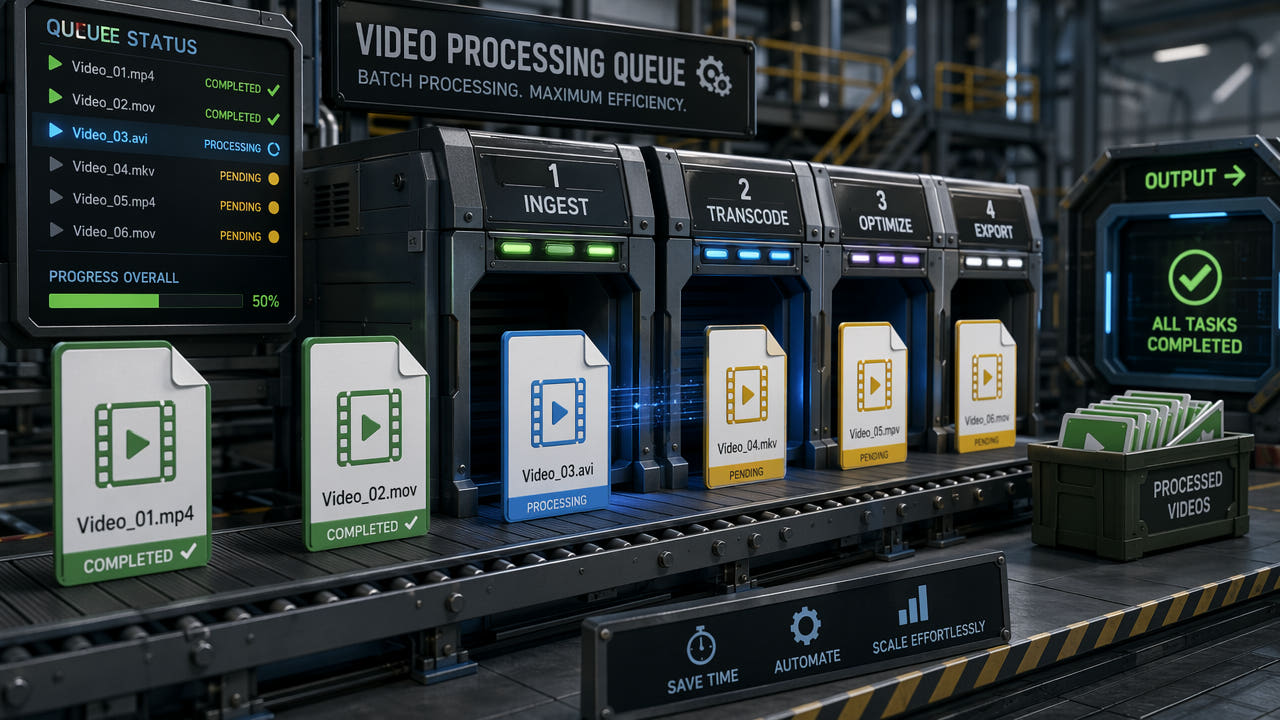
Why Batch Subtitle Removal Matters for Content Creators
When several authorized videos contain burned-in subtitles, prepare the files together and organize the review work. Submitting multiple tasks can reduce repeated setup, but each video still needs an appropriate selection and an individual output check.
For your own content library, client work with permission, or a localization project, distinguish editable caption tracks from text embedded in the picture. Turn off a caption track or export from the source project where possible. If text is burned into an authorized video and no clean source is available, AI estimates replacement content from the surrounding image; it does not recover the hidden original pixels. Review the result before adding new captions.
Multiple submissions help organize repetitive work; they do not remove the need to verify selections and review every result.
When You Need Batch Subtitle Removal
These situations may benefit from organizing multiple files. Check the rights, caption type, and current tool controls before deciding how to process them.
Cross-Platform Content Repurposing
For authorized cross-platform reuse, check whether captions belong to a player, a separate track, an editable project layer, or the exported picture. Platform style differences do not automatically require removal. Prefer the permitted source export and follow the destination’s current requirements.
Video Translation and Localization
For localization, use editable subtitle tracks or source projects when available. If old text is embedded in the picture and you have permission to alter it, test a representative clip before processing the series. Review reconstruction before adding translated captions.
Content Agency Operations
For client projects, document permission, source files, selections, and review responsibilities. The browser tool submits videos as independent tasks. Do not assume built-in folder watching or unattended visual approval.
Archive Cleanup
For an authorized archive, group files by format, resolution, and caption position where useful. Confirm that each file meets the current limits and keep a record of the source, task, output, and review outcome.
Step by Step: Remove Subtitles from Multiple Videos in the 550W Browser Tool
When subtitle placement and frame dimensions match, the interface may let you apply a checked selection to other unmarked videos of that resolution. Open each clip to confirm the region before submitting; equal resolution alone does not ensure the subtitles line up.
Step 1: Select Supported Files
Open Video Eraser in the browser and select MP4 or MOV files that meet the current upload limits. Review each file, choose box selection or fullscreen removal, and submit eligible videos as separate cloud tasks. Check the interface for the current number of files it accepts.
Step 2: Mark and Verify the Region
If subtitles appear in the same place in videos with the same resolution, mark one video and use the interface option to apply that selection to other unmarked videos of the same resolution. Verify every applied region before submitting. Different resolutions or subtitle positions need their own selection.
Step 3: Check Current Controls
Before processing multiple files, check the current interface for its upload, task, and export controls. Do not assume it offers an unchanged-quality mode, source-bitrate retention, custom filename patterns, or a batch download. Download and review each completed result before using it.
Step 4: Monitor Independent Tasks
Submit the selected videos through the current interface and monitor each independent task in the task list. Processing time varies with footage, selection, and service status. Review the output of each completed task before downloading or using it.
Each video is an independent cloud task. Verify any reused selection and inspect every output; task submission does not guarantee visual quality.
Preparing Multiple Tasks
Cloud processing time varies with the footage, selected region, and service status. Prepare supported files, mark areas carefully, and allow time to review every result.
Upload and Cloud Processing
Processing runs in the cloud, so no local GPU is required. Speed varies with video duration, resolution, and service load.
Supported Resolution and Duration
The browser workflow supports up to 1080p and 30 minutes. Prepare an authorized supported version if a source exceeds those limits. Processing time depends on the footage, selected area, and service status; do not assume a fixed relationship between resolution and completion time.
Manual Region Selection
There is no verified automatic subtitle-position detection or guaranteed speed advantage from a fixed region in this workflow. Select the area that covers the visible subtitles, then inspect the output; a different position or difficult background may require a different selection.
Grouping Similar Files
Group files by resolution and subtitle position when this helps you reuse a marked region. Apply a selection only to unmarked videos of the same resolution, then inspect each video before submission. Different sources may need separate selections and result checks.
Batch Processing Tools Compared
550W supports manual box selection and fullscreen removal. The web queue tracks each video independently.
550W Video Eraser in the Browser
The browser interface supports selecting multiple eligible videos and reusing a marked region for unmarked videos of the same resolution. Each video becomes an independent cloud task. Check the current interface for the available queue, retry, and download controls rather than assuming a dedicated batch mode.
FFmpeg Scripts
FFmpeg can automate certain video edits through scripts, but its filters work differently from AI reconstruction. Compare the output on authorized sample footage before choosing an approach for a larger project.
Video Editing Software
Video editing software may offer render queues and manual cleanup tools. Capabilities and performance depend on the product version and settings; verify them in the current documentation and test an authorized sample.
Documented API Requests
For larger authorized workloads, the documented 550W API lets you submit individual video tasks and track their IDs. Check current endpoint limits, service capacity, billing, and result expiry before scheduling a run. The developer API guide describes the available requests and responses.
Workflow Automation for Recurring Batches
For recurring work, document your selections, review checks, and authorized source handling. Use available task controls or the documented API where appropriate; automated visual quality is not guaranteed.
Task Records
Use the web task list to monitor submitted videos. Check each task's current result-expiry information and download completed files while they remain available.
API Integration
A team can use the documented 550W API to submit individual authorized videos and monitor their task IDs. Implement retries and human review around failed tasks or visible artifacts; check the current API limits before scheduling a larger workload.
Returning to Submitted Tasks
Submit a batch and let cloud processing continue. Signed-in users can return to the task list later.
Quality Control for Batch Outputs
Review each result before use. Checks can identify defects, but cannot guarantee consistent visual quality across different videos.
Review Every Output
Review every completed video when quality matters, especially scenes with motion, transitions, faces, or complex backgrounds. A random sample can miss a visible artifact in another file.
Manual Visual Checks
Do not assume an automatic quality score or flagging system is available. Compare each processed video with its source and check the selected region, full frame, motion, color, and audio manually.
Failed Tasks and Unsuitable Results
Separate failed tasks from completed files that have visible defects. Check the error message and current controls before retrying a failed task. For visual defects, revise the selection only if appropriate, use another authorized method, or keep the source; another attempt is not guaranteed to succeed.
Frequently asked questions
How many videos can I batch process at once?
There is no fixed number that applies to every setup. Select only the eligible files the current interface accepts under its displayed upload and task limits. Each video is submitted as a separate task; the practical amount also depends on your device, browser, and service conditions.
Do all videos need the same subtitle position for batch removal?
No automatic subtitle-position detection is confirmed in the current browser workflow. Mark the subtitle region manually for each video, or apply a confirmed selection to unmarked videos of the same resolution and verify it.
Can I batch remove subtitles from videos with different resolutions?
Videos with different resolutions can be selected if they meet the current limits, but a marked region is shared only among eligible unmarked videos of the same resolution. Check the selection on each video before submitting.
Is batch subtitle removal available in the web version?
The current browser interface allows multiple eligible MP4 or MOV videos to be selected. Check its current limits rather than assuming a fixed batch size; each file is submitted and reviewed as an independent task.