Edit Visible Marks on Authorized AI Video Exports
Updated · Product workflow reviewed by 550W AI Labs
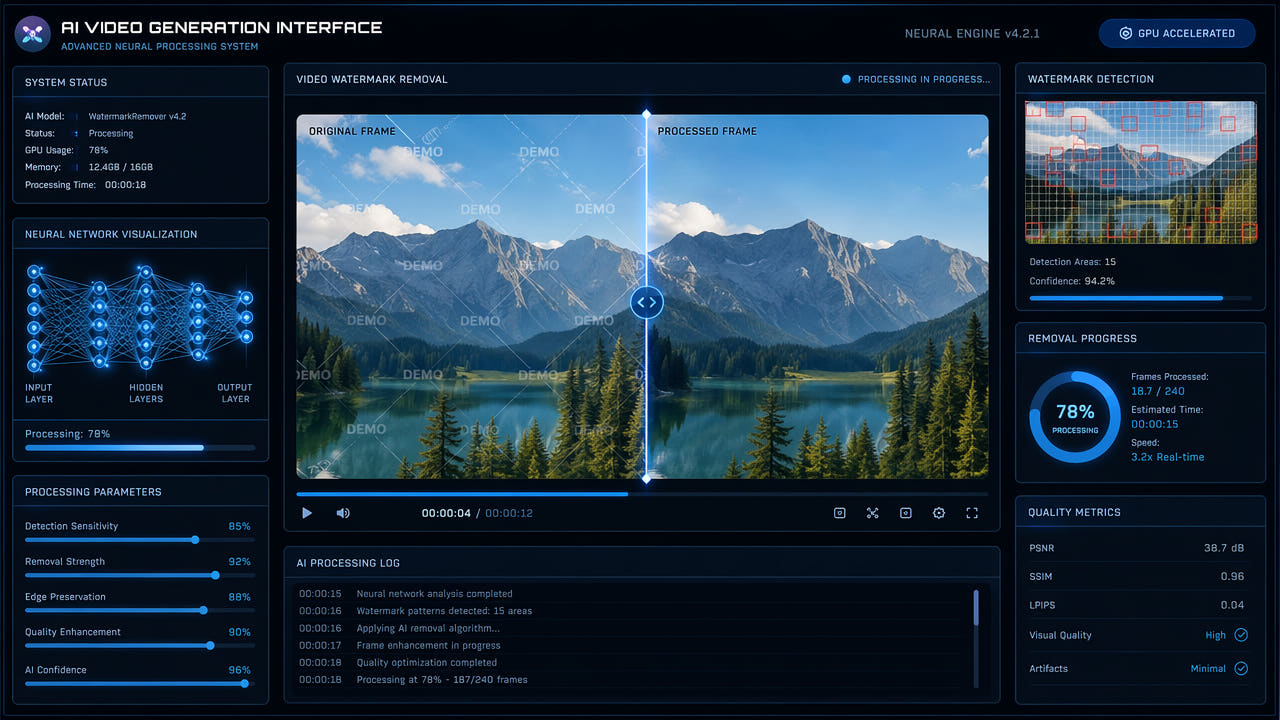
Check the Export and Its Visible Marks
An AI video export may contain a visible logo, label, or provenance indicator. Its appearance and permitted use depend on the specific provider, product surface, account, region, and export settings. Inspect the actual file and current provider terms before editing.
A visible mark may affect a presentation or a licensed production workflow, but an alternate authorized export from the original project is often preferable. Confirm your rights to change this particular file and preserve any disclosure required for its use.
Visible marks and editing rights vary by export; check the actual file and current terms.
Identify the Mark Before Choosing a Method
Inspect the full timeline to identify where the mark appears, whether it moves, and what image details it covers. The shape and placement in a provider export can change between versions or settings.
Mark in One Area
A mark confined to one small area may be suitable for a manual selection, but assess the underlying motion and texture. Do not assume that a particular provider always puts its label in a fixed corner or that a small mark will be easy to reconstruct.
Changing or Moving Mark
If a mark changes opacity or position, a single static selection may not cover every frame. Check the available segment and selection controls and review each relevant part of the exported video; automatic tracking is not guaranteed.
Large or Full-Frame Overlay
A broad or full-frame overlay covers much more source detail. Fullscreen processing may affect the whole picture, while an authorized clean export or an alternate source can avoid extensive reconstruction. No method is guaranteed to separate an overlay from hidden content.
Choose the method from the actual mark and scene; review the full timeline rather than assuming a provider pattern.
Edit an Authorized Video in 550W Video Eraser
Start with a file you own or have permission to edit. Check whether the provider offers a permitted export without the visible mark and whether attribution or AI-content disclosure is required after editing.
Confirm Rights and Source
Upload an eligible MP4 or MOV to the browser workflow. Video support is up to 1080p and 30 minutes; check the current upload interface for the file-size limit. Upload and processing times depend on the file, connection, selection, and service status.
Upload Eligible Video
Inspect the mark across the timeline, then make a manual selection that covers the visible mark, shadow, or glow without including unnecessary detail. A mark in changing locations may need separate supported selections or segments; do not assume automatic tracking.
Select the Affected Area
Standard processes inside the selection. Protect preserves the inside and processes the outside; it is not a higher-quality mode. Select the behavior that matches the area you intend to retain.
Review the Complete Export
Download and inspect the entire export, including motion, fine detail, color, audio, resolution, frame rate, and encoding. AI estimates replacement imagery from the surroundings; it does not restore hidden original pixels or guarantee a natural result.
Check Each Provider Export Individually
A provider name alone does not establish where a mark appears or what edits are permitted. Open the actual export and check the current provider terms, account permissions, and publication requirements.
Sora
Do not use a provider name as a fixed removal preset. Product surfaces and export settings can change the size, opacity, timing, and placement of a visible mark; check every segment of the file you intend to edit.
Runway
OpenAI ended Sora web and app on April 26, 2026, and the API on September 24, 2026. This section concerns only an existing export you are authorized to edit. Check the file for visible labels, preserve provenance records, and consult OpenAI’s current official information before using or sharing it.
Pika
For a Runway or Pika export, confirm the specific mark location, motion, and export rights from the file and current official materials. Evaluate authorized clean-export options before attempting reconstruction.
Kling and Other Providers
For a Kling or other AI video export, inspect every section for visible marks and any associated text or animated elements. Select only a supported area, then check motion and disclosure requirements in the full result.
Consider Authorized Alternatives
If a visible mark must be changed, first check whether an authorized export without it is available from the source project or provider. Current plan features and pricing must be verified from the provider; a paid plan is not a universal solution.
Clean Provider Export
A permitted clean export can avoid reconstructing covered imagery. It does not automatically settle attribution, AI-content disclosure, metadata, or commercial-use requirements; check the applicable current terms.
Crop or Cover
Cropping or covering a mark may work for some compositions, but changes the frame or conceals content. Verify aspect ratio, subject visibility, and publication requirements on the full video.
FFmpeg Delogo
FFmpeg delogo can process a specified region. Its appearance depends on the scene and settings, so test an authorized sample and compare the complete result rather than assuming it outperforms another method.
Manual Editing
Manual work in an editor may help on difficult scenes but can require frame-by-frame attention. Test a representative segment and review the final export before committing to the whole clip.
Rights, Disclosure, and Provenance
Before changing a visible mark, identify the exact file, account, product surface, and intended use. Provider terms and platform rules can vary and change, so review their current official sources.
Provider Terms
Only edit footage you own or are authorized to modify. A visible mark may carry attribution or provenance meaning; removing it does not grant commercial rights or remove publication and disclosure duties.
Attribution and Disclosure
If the video is AI-generated, check the relevant rules for labeling or disclosure in its intended context. Do not infer that an unmarked image needs no disclosure, or that a visible label is the only applicable signal.
Visible Versus Hidden Signals
Editing visible pixels does not necessarily change metadata or other provenance signals. Preserve the source and records of rights, and avoid claiming that visual cleanup erases all indicators of AI origin.
Batch Processing Multiple AI Videos
For multiple authorized AI-video exports, record the provider, source rights, visible mark, selection and reviewer for each clip. Reuse of a previous selection is only appropriate when the actual position and dimensions have been checked.
You can select multiple videos and reuse the same marked area for files with matching resolution. Each video remains an independent task; the practical file count depends on the device, browser, and service limits.
For each queued clip, inspect every mark position and confirm that the current interface supports the chosen multi-file workflow. Do not assume different generators use identical marks, that one selection fits all files, or that completed tasks pass visual review.
Frequently asked questions
Is it legal to remove AI video generator watermarks?
Rules differ by platform, product, region, and account. Edit only content you own or are authorized to use, and check current export and publication terms before changing a visible mark.
Which AI video generators add watermarks?
Visible marks vary by product surface and export setting. Inspect the actual file and current terms instead of assuming every Sora, Runway, Pika, or Kling export has one.
What quality changes should I check after editing a visible AI-video mark?
The selected area is estimated from surrounding imagery, and export encoding can alter resolution, bitrate, color, motion detail, or other characteristics. Compare the full export with the source; unchanged quality is not guaranteed.
Do AI-generated videos have invisible watermarks too?
Visual editing tools only change pixels in the frame; they do not inspect or manage metadata or other provenance information. If those signals matter for your use, check the provider’s current documentation.