Edit Emoji and Stickers in an Authorized Video
Updated · Product workflow reviewed by 550W AI Labs
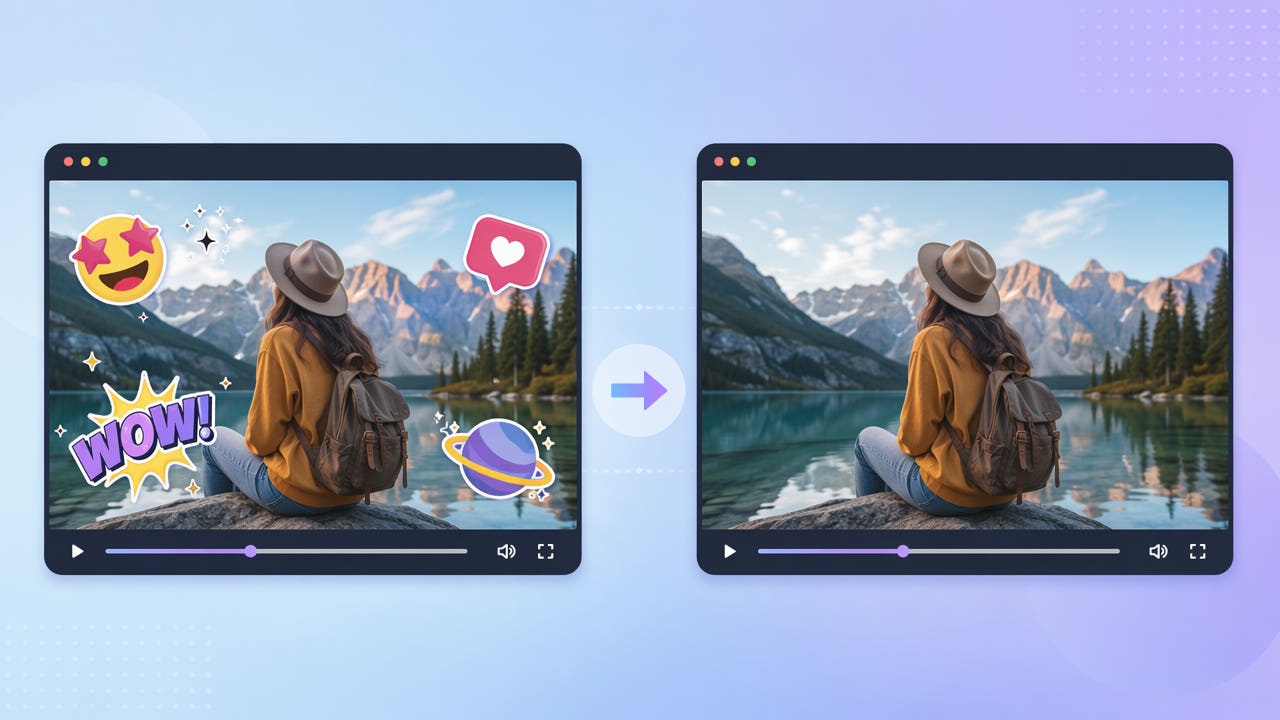
Check How the Sticker Was Added
Emoji, reaction graphics, location labels, and stickers may be separate layers in an original editing project or part of the pixels in an exported file. Inspect the actual project and saved video before choosing a removal method; app behavior can vary.
Editable Project Layer or Flattened Video
If you control the original project, hide or delete the sticker layer and export a clean copy. For a flattened video, work only when you own the footage or have permission to alter it. Removing a visible sticker does not grant rights to someone else’s recording.
Confirm Editing Rights
A large sticker may conceal a face, product, or moving detail. No tool can recover the exact pixels hidden beneath it. Cropping or masking changes the presentation; AI estimates a replacement from visible surroundings and may leave artifacts.
Prefer an authorized clean project export; a flattened sticker requires an edit that estimates or hides what was covered.
Use 550W Video Eraser on Flattened Stickers
For an authorized MP4 or MOV, check the current upload conditions in 550W Video Eraser. The browser workflow supports up to 1080p and 30 minutes. Manually mark the visible sticker and its edge; AI estimates replacement imagery rather than detecting every overlay or restoring the original background.
Select the Visible Area
If a sticker moves or animates, inspect all positions and adjust the supported selection or prepare authorized segments where appropriate. Fullscreen processing is a separate available option, but it does not guarantee automatic detection or tracking. Review the complete output for leftover graphics and new artifacts.
Review Motion and Scene Changes
Standard processes inside the selected box. Protect keeps the inside and processes outside, so it is not a higher-quality mode for repairing the boxed sticker. Check the task estimate, processing status, and resulting image and audio before using the file.
Manually mark the sticker, use Standard for the selected area, and verify every affected moment in the export.
Prepare a Reviewed Version for Reuse
If a clip also includes captions or other overlays, identify each element separately. Disable editable tracks or export from the source project when possible, then use pixel editing only for remaining flattened marks in footage you may edit.
Keep the original and the processed copy separate. Before sharing, inspect the full timeline for motion, color, audio, edges, and any identifiers or attribution that must remain. Check the destination’s current requirements; a sticker-free result does not guarantee suitability for every use.
Frequently asked questions
Can I remove an emoji over a face?
You can mark an authorized area for AI reconstruction, but a hidden face cannot be recovered exactly. For privacy or identity work, consider a dedicated redaction method and inspect every frame before sharing.
What if the sticker moves?
Check each position across the clip. Adjust the selections or supported segments as needed and inspect the entire export; automatic tracking is not guaranteed.
What can affect the edited area?
AI estimates replacement pixels instead of applying a blur. Motion, complex backgrounds, and export encoding can introduce visible artifacts or quality changes, so inspect the complete export.
Can I handle several stickers in one video?
Check the current interface for available selection controls. Mark each relevant region as supported, then inspect each affected moment; do not assume a one-pass guarantee for every sticker.
How should I handle overlapping stickers?
Treat the combined visible area only if that selection is appropriate for the scene. Large overlaps hide more source detail and may produce artifacts; compare an authorized sample and review the complete result.