Prepare a Clean Video Without Text Overlays
Updated · Product workflow reviewed by 550W AI Labs
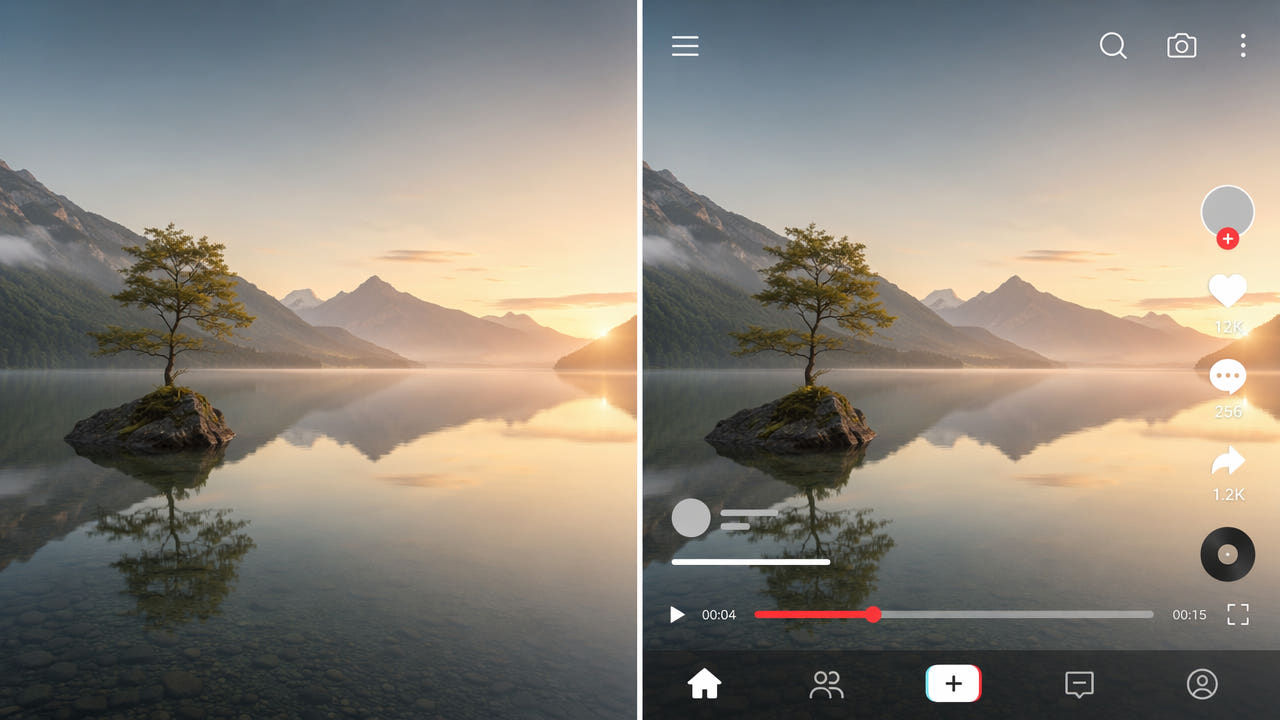
Start With the Available Source
A version without text can help when you need to add new captions, change a layout, or prepare footage for another language. First check whether the text exists as an editable track in the original project, as a separate subtitle file, or as pixels in the exported video.
If the original project is available and you have permission to use it, disable the relevant text layers and export a clean copy. Keep the project and original footage. A flattened export needs a different edit because the picture beneath its text is no longer directly available.
Decide which labels and credits need to remain. Captions may support accessibility, while attribution or identification may be required for the intended use. Review the current requirements of each destination before producing a new version.
Identify editable tracks and required labels before changing any pixels.
Identify Each Kind of Visible Text
Text can be added by an editing project, a player track, or a previous export. Examine the actual file and identify when each element appears; the appropriate workflow depends on how it was added.
Burned-In Subtitles and Captions
If subtitles are in a separate track, turn that track off or export without it. If letters are part of the frames, mark the visible region in material you may edit and compare the processed sample with the source.
Watermarks and Logos
Logos and watermarks can identify an owner or service. Confirm your rights and any attribution conditions before changing them. For a flattened mark, AI estimates replacement image content rather than recovering the exact pixels beneath it.
Lower Thirds and Name Tags
Names, locations, and lower thirds may carry important context. Preserve needed identification in the new version. If the graphic is baked into the frames, note its start and end points and inspect scene changes carefully.
On-Screen Graphics and Tickers
A ticker or timer may cross changing backgrounds. Record its positions across the timeline; do not assume an automatic tracker will follow it. A static box may miss motion or alter frames where the text is absent.
Call-to-Action Overlays
Calls to action can refer to a destination that differs from the new version. Decide whether to keep, replace, or remove each message in the editable project first; for flattened footage, check rights and review any selected-area edit.
Plan and Review a Selected-Area Edit
The following workflow applies to flattened text in footage you own or are authorized to edit. A clean source export or separate subtitle track is usually the simpler starting point.
Step 1: Map the Text
Watch the full clip and note each text element, its position, and when it appears. Distinguish text that must stay from text you may change. Check moving text, scene transitions, and overlaps separately.
Step 2: Mark the Relevant Area
In 550W Video Eraser, inspect the current upload requirements, including file-size conditions in the interface; the browser workflow supports up to 1080p and 30 minutes. Mark the visible area manually. Standard processes inside the selection; Protect preserves the inside and processes outside, so Protect is not a higher-quality repair mode.
Step 3: Check the Task and Process
Check the task estimate and status. AI uses visible surroundings to estimate replacement imagery; it cannot restore pixels hidden by the original overlay. Processing time varies with footage, selected area, and service conditions. Multiple elements may require separate selections or authorized segments.
Step 4: Inspect the Full Export
Play the complete export, including sound. Look for remaining letters, changed faces or objects, edge artifacts, and issues at transitions. Adjust the selection or use an authorized source segment if the sample does not meet your needs.
Choose the Right Version for the Audience
Keeping a clean authorized source can make later language and format changes easier. It does not mean every published version should be text-free.
When a Clean Copy Helps
A clean copy can support new subtitles, layouts, or licensed reuse where different text is required. Check the permissions and requirements for each specific use.
When Text Still Matters
Captions can improve accessibility, and names or sources may be necessary for context. Add these as separate, reviewable layers where the workflow allows, and verify that the final export includes what its audience needs.
Keep Both Versions
Save the source and each approved version separately with clear names. New versions should be checked against their own destination requirements and the source, especially after cropping, masking, or reconstruction.
Preserve an authorized source and review each output for the audience it will serve.
Compare Available Editing Methods
The method that fits depends on the source you have, your rights to edit it, and how much of the image the text covers.
Keep Text in Editable Layers
In your own editing project, keep text on separate tracks when possible. Export a copy with those tracks disabled, then create versions with the appropriate text. Verify the export rather than assuming every app handles layers the same way.
Selected-Area AI Reconstruction
For authorized flattened footage, 550W Video Eraser can estimate replacement content in a selected area. Complex motion, large occlusions, and compression can produce artifacts; it does not guarantee natural results or unchanged encoding.
Manual Compositing
Manual masking, compositing, or a different authorized shot may offer more control in difficult scenes. These methods also need full output review, especially near faces, moving objects, and cuts.
Separate Subtitle Tracks
When captions are delivered as separate subtitle files or tracks, disable or replace that track rather than changing image pixels. Confirm that the intended player and destination support the format you plan to deliver.
Organize Clean and Captioned Assets
A simple version plan can prevent confusion between the original, an uncaptioned copy, and destination-specific exports.
Plan the Export
If the project permits, create a source export and separate outputs for needed languages or formats. Check each file after export; presets and application behavior should be verified on the actual project.
Name Each Version
Use names that show the language, destination, date, and review state. Keep the authorized original separate so a processed copy cannot silently replace it.
Hand Off the Source
When handing files to another editor, specify which material may be altered, which credits or identifiers must remain, and which source files are available. Verify that the recipient can open the files and that the transfer includes the needed tracks.
Keep Review Notes
Record any regions reconstructed or masked and the result of a full playback check. A later editor can then inspect the areas most likely to contain artifacts.
Handle Difficult Text Placement
Some placements hide more source detail or move across a wide area. Test a short authorized sample before committing to a longer edit.
Moving Text
Watch the full motion path and update supported selections or prepare segments as needed. Do not assume the service automatically detects or tracks moving text.
Text Over Faces or Products
If text covers a face or an important object, the exact hidden appearance cannot be recovered from the export. Compare the result with an authorized alternative shot or use masking if a faithful replacement matters.
Overlapping Text Elements
Overlapping layers conceal more of the image. Select only the region that should be processed, inspect each affected moment, and be prepared to use a different source when reconstruction leaves artifacts.
Frequently asked questions
Can I remove every text element in one task?
Check the selection tools in the current interface and mark the relevant areas it supports. Review each affected moment; one task is not guaranteed to handle every overlay.
Why keep a version without text?
An authorized clean copy can make it easier to add a different language, layout, or caption track later. Keep any text or attribution required for the new use.
Can the edit change video quality?
Yes. AI estimates substitute pixels, and encoding or export settings may also change the image. Compare the complete output with the source; unchanged quality or original bitrate is not guaranteed.
What about animated text?
Check the text position throughout the clip. Adjust supported selections or segments and review the full export; automatic detection and tracking are not guaranteed.