Prepare Authorized Video for New Subtitles | Review Guide
Updated · Product workflow reviewed by 550W AI Labs
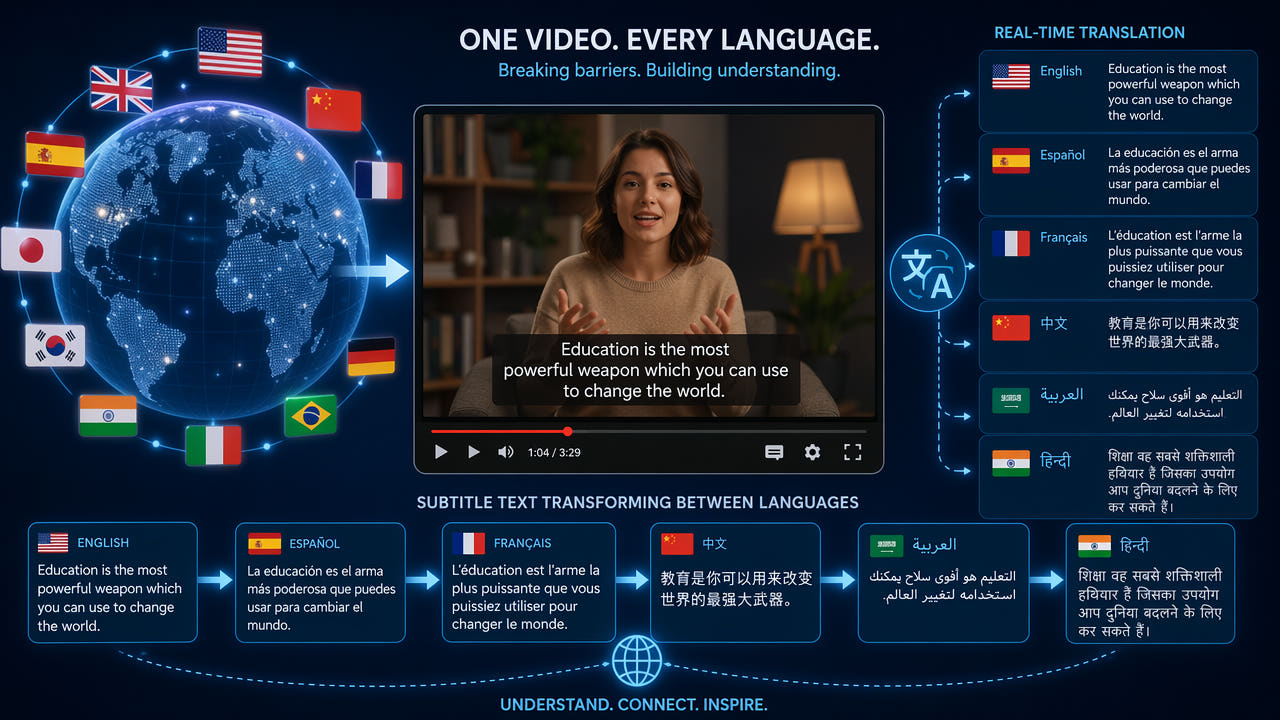
Check the Original Captions and Permission
Before editing, determine whether the original subtitles are a separate track that you can disable or text burned into the picture. A separate track can usually be replaced without changing image pixels.
Confirm that you own the footage or have permission to modify and distribute the intended language versions. A publicly available clip or subtitle file does not by itself establish those rights.
If you have an authorized clean master, use it. Otherwise, a selected-area AI test may estimate replacement imagery around burned-in text. It cannot recover the exact original pixels hidden by the letters, so review the full result.
Check the subtitle type and rights first; prefer a clean authorized source when available.
Localization Scenarios to Review Separately
Different projects have different rights, text positions and delivery needs. Inspect each source rather than assuming that every genre or market uses burned-in subtitles.
Anime and Asian Drama Localization
In an animated series, text may cross outlines and rapid motion. Check the license, then test representative scenes and review each episode before adding a translated track.
Corporate Training Video Translation
Training videos may contain both dialogue captions and labels. Identify what may be changed and ask a fluent reviewer to check technical terms in the translated version.
Social Media Content Localization
Social clips may contain platform captions or creator-added text. Verify ownership and current platform rules, then inspect every caption position; do not assume a tool automatically detects them.
Documentary and Film Subtitling
Documentary and film releases may offer clean masters or optional tracks. Use those when available, and check distribution rights for each target market and final file.
Rights, text layout and review requirements differ by source; handle each file individually.
Step by Step: Prepare Video for Translation
Use this workflow only on footage you may edit and distribute. Keep a copy of the source and any license or written approval.
Step 1: Assess the Subtitle Type
Check subtitle controls in the player or editor. If the captions are a separate track, disable or replace that track and verify the export. Burned-in text requires picture editing if no clean master is available.
Step 2: Upload to AI Subtitle Remover
For authorized MP4 or MOV, the browser workflow supports video up to 1080p and 30 minutes. Check the current upload interface for size conditions. Split longer permitted sources into supported segments, preserving their sequence.
Step 3: Select the Subtitle Region
Select the actual visible caption, including outlines, shadows and background boxes. Check each position as text moves. Standard processes inside the selection; Protect preserves the inside and processes outside, so it is not the mode for erasing text boxed inside.
Step 4: Process and Verify Each Segment
AI estimates replacement pixels from surrounding content. Processing time depends on footage, selected area and service status. Review each complete segment, especially transitions and moving backgrounds; another pass is not guaranteed to correct artifacts.
Step 5: Reassemble and Add Translated Subtitles
If you divided the source, reassemble the reviewed segments and check timing, sound, dimensions and encoding. Add the translated track, then have a fluent reviewer inspect meaning, names and timing in the final playback environment.
Prepare a New Subtitle Track Carefully
Plan captions and picture repair together, but do not assume old burned-in text is a reliable timing or translation source.
Verify Source Timing
If an optional track exists, its timing can be a starting point. Otherwise, align the new text to authorized audio and scene cuts, then have a reviewer check each cue. OCR may produce errors.
Keep a Suitable Authorized Master
Work from the clearest authorized source available. Reconstruction and export encoding can change detail, color or dimensions; compare the final file with the source rather than promising original quality.
Decide Which Text to Change
A video may include dialogue, names, signs and other on-screen graphics. Decide which elements need translation, which must remain and which you have permission to change.
Check Target-Language Layout
Target languages need different line lengths and reading directions. Place the new text according to the delivery format, check legibility on the intended screen and review the full render.
Review Every File in a Series
A series may share a layout, but each episode can differ in caption position, motion, rights and source quality. Keep per-file records and use only controls available in the current interface.
Document Each Source
For each episode, record permission, source version, text positions, selected regions and reviewer. A prior selection is a starting point, not automatic approval for another file.
Use Reusable Notes Carefully
Reusable notes can describe common caption styles and review points. Inspect actual frames before applying them; do not assume templates or automatic tracking cover every scene.
Review and Record Approval
Before adding translated text, watch the full processed output for remaining letters, halos, color shifts and sound changes. Do not rely on a fast playback pass as the only review.
After translation, check every final render against the source and language brief. Record who approved picture, audio, subtitle timing and distribution rights.
Tools in the Translation Workflow
Use tools according to the actual source: a separate track can often be replaced directly, while burned-in text may require a picture edit on an authorized file.
Picture Editing for Burned-In Text
550W can test selected-area reconstruction on authorized video. Standard processes inside a selection; Protect keeps the inside and processes outside. AI estimates replacement content, and no clean result or fixed duration is guaranteed.
Translation and Human Review
A translator can draft from the authorized audio and context. Machine translation may help with a first pass, but a fluent reviewer should verify meaning, names and local usage.
Subtitle Track Editing
A subtitle editor can adjust timing, line breaks and export format where supported. Check the actual delivery platform rather than assuming every editor or format is available in a given workflow.
Final Playback Review
Review the entire final playback with picture, audio and translated text together. Check transitions, reading time, dimensions and any encoding changes before release.
Frequently asked questions
Must I remove existing subtitles before translation?
No. When the project or playback tool lets you disable or replace a separate caption track, use that option. For burned-in text, prefer a clean authorized master; otherwise test a permitted picture edit and inspect the result.
Can I place new subtitles somewhere else?
Sometimes, if the format and screen space allow it. Check legibility and the delivery requirements. Keeping old visible text may confuse viewers, so review the actual final layout.
Can selected-area AI handle different scripts?
It works on selected image regions rather than understanding the language. Include visible letters, marks, shadows and boxes, then inspect the result. Different backgrounds and motion can produce different quality.
How should a team handle many episodes?
Record rights and selections for each file, review each processed output, then add and check translated tracks. Do not assume batch controls, automatic tracking or approval without verification.